Component
Afterimage
Leaves fading ghosts of an object behind it as it moves, for dashes, speed, teleports and fire trails.
What it does
An Afterimage leaves fading copies of an object behind it as it moves: speed ghosts behind a dashing hero, shadow clones of a ninja, a rainbow trail, a burning smear behind a fireball, echoes of a ghost. It works on 3D meshes, skinned characters and sprites, 2D Animation skinning included.
Space decides where the ghosts live. World, the default, records each ghost where the object stood and draws it there, so a camera following a running character leaves the ghosts behind in the world, and turning the camera moves around them. Screen keeps the ghosts on the picture, which is what a continuous smear needs; a moving camera carries them along.
Ten looks ship with it: Speed Ghosts, Shadow Clones, Energy Smear, Motion Echo, Rainbow Dash, Fire Trail, Ninja Vanish, Phantom, Frozen Echo and Speed Smear. Energy Smear, Fire Trail and Speed Smear are continuous smears set to Screen; the rest stand in the world.
The component leaves ghosts while it is switched on. For a dash, keep it switched off and let a Moment's Afterimage Burst step switch it on for a moment, then let the last ghosts fade.
Add it
- Select the moving object, such as the player character or a projectile.
- Choose Add Component > Pass Forge > Afterimage.
- Pick a look in Preset, such as Speed Ghosts. It copies the look into the settings below, which you can then change.
- Move the object in Play Mode, or with Preview In Edit Mode on, to see the ghosts.
- For ghosts only during a dash, switch the component off and play a Moment with an Afterimage Burst step.
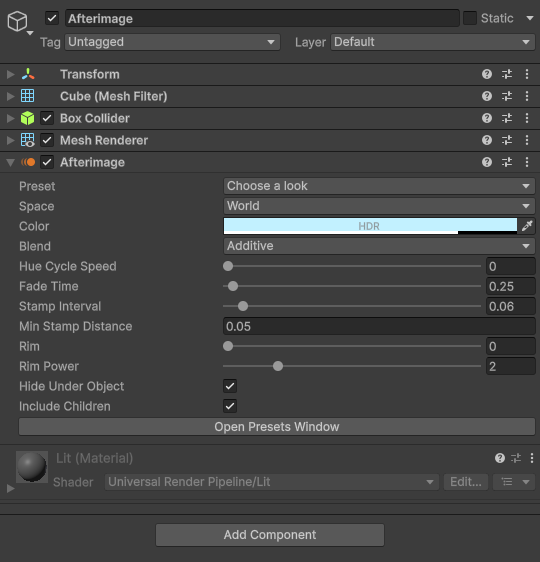
Settings
| Setting | What it does |
|---|---|
| Preset | Copies a shipped look into the settings below: Speed Ghosts, Shadow Clones, Energy Smear, Motion Echo, Rainbow Dash, Fire Trail, Ninja Vanish, Phantom, Frozen Echo or Speed Smear. It always shows "Choose a look"; nothing is linked, so change any setting afterwards. |
| Space | World (default) leaves every ghost standing where the object was, so the camera can move and turn without dragging them along. Screen keeps them on the picture, which is what a continuous smear needs. Sprite Renderers follow it too. Spine skeletons, sliced or tiled sprites, and skinned meshes imported without Read/Write always leave their ghosts on the picture. |
| Color | Color of the ghosts. Alpha sets how strongly they show, HDR values feed bloom. Default light blue at 0.8 alpha. |
| Blend | Additive (default) glows on top of the picture, for an energy trail. Tint paints the ghosts in a solid color. |
| Hue Cycle Speed | Turns around the color wheel per second, for rainbow ghosts, from 0 to 4. Needs a colored, not white or gray, Color. Zero (default) keeps the color as set. |
| Fade Time | Seconds until a ghost has faded to half its strength, from 0.05 to 10. Default 0.25. |
| Stamp Interval | Seconds between ghosts, from 0 to 1. Zero leaves a continuous smear. Default 0.06. |
| Min Stamp Distance | How far the object must move before it leaves another ghost, so an object standing still does not keep stamping in place. Default 0.05. |
| Rim | Fade the middle of each ghost so its edges stand out, for a hollow look, from 0 to 1. Default 0. |
| Rim Power | How tightly the rim hugs the edges, from 0.5 to 8. Default 2. |
| Hide Under Object | Hide ghosts where the object currently is, so they trail behind it instead of covering it. On by default. |
| Include Children | Also leave ghosts of the renderers on child objects. On by default. |
What the inspector also shows:
- Set Up Effects button, with a warning that no renderer on the active pipeline runs an Afterimage node, so the component has no visible effect yet.
- For World space, when a skinned mesh's model imports with Read/Write off: "The model ... imports with Read/Write off, so in a build its skinned meshes cannot leave ghosts in the world and they stay on the picture instead." and a Turn On Read/Write button that changes the import setting and reimports the model. Models inside packages are not offered.
- Open Presets Window button, which opens Window > Pass Forge > Effect Presets. Its Objects tab applies afterimage looks to the selected objects, adding the component when it is missing.
Common jobs
Ghosts behind a dash, from a Moment
- Add an Afterimage to the player, pick Speed Ghosts, and switch the component off.
- Add a Pass Forge Moment to the player, press Add Step and choose Afterimage Burst. Leave Afterimage empty to use the one on the player.
- Set Duration to the length of the dash, such as 0.3.
- Play the moment from the dash code or event.
The player leaves ghosts for 0.3 seconds, then the last ones fade on their own. Another burst during that time makes the trail longer. If the Afterimage is switched on, the step leaves it alone and its inspector offers Switch It Off.
The ready made moments Dash (afterimages and a speed blur) and Blink (afterimages, a zoom rush and a small ring) already hold an Afterimage Burst step. If the object has no Afterimage, the Moment inspector offers a button that adds one, switched off.
A rainbow trail
Pick Rainbow Dash, or set Hue Cycle Speed to 1.5 with a colored Color. White or gray colors have no hue to turn.
A continuous fire smear behind a fireball
Pick Fire Trail. It sets Space to Screen and Stamp Interval to 0, which leaves an unbroken smear.
A ghost trail in a third person game
Keep Space at World. The ghosts stay where the character ran, so the camera following it leaves them behind, and turning the camera moves around them.
End a trail gently from a script
Switching the component off removes its ghosts at once. To stop new ghosts and let the ones already left fade, with Space at World, set the color's alpha to 0, then switch the component off once they have faded. Or use the Moment's Afterimage Burst step, which does this by itself.
No ghosts across a teleport
Call PassForgeAfterimage.ClearAll() right after the teleport or a camera cut. It drops every ghost, in the world and on screen.
From a script
using System.Collections;
using PassForge.Effects;
using UnityEngine;

public class DashTrail : MonoBehaviour
{
    [SerializeField] PassForgeAfterimage m_Afterimage;   // switched off in the scene, Space: World

    Color m_Color;

    void Awake() => m_Color = m_Afterimage.color;

    public void StartDash(bool rainbow)
    {
        m_Afterimage.hueCycleSpeed = rainbow ? 1.5f : 0f;   // turns per second, from 0 to 4
        m_Afterimage.color = m_Color;                        // full alpha: leave ghosts
        m_Afterimage.enabled = true;
    }

    public void EndDash() => StartCoroutine(FadeThenOff());

    IEnumerator FadeThenOff()
    {
        var clear = m_Color;
        clear.a = 0f;
        m_Afterimage.color = clear;                          // alpha 0: no new ghosts, World ghosts keep fading

        yield return new WaitForSeconds(m_Afterimage.fadeTime * 8f);   // about eight half lives
        m_Afterimage.enabled = false;                        // switching off removes what is left at once
    }

    public void Teleport(Vector3 to)
    {
        transform.position = to;
        PassForgeAfterimage.ClearAll();                      // every ghost, in the world and on screen
    }
}
Set a look from code:
using PassForge.Effects;
using UnityEngine;

public static class GhostLooks
{
    public static void ShadowClones(PassForgeAfterimage afterimage)
    {
        afterimage.space = AfterimageSpace.World;            // ghosts stand where the object was
        afterimage.blend = AfterimageBlend.Tint;             // solid ghosts
        afterimage.color = new Color(0.44f, 0.27f, 0.55f, 0.85f);
        afterimage.fadeTime = 0.4f;                          // seconds to half strength
        afterimage.stampInterval = 0.08f;                    // seconds between ghosts; 0 smears
        afterimage.minStampDistance = 0.1f;                  // no ghosts while standing still
        afterimage.rim = 0f;
        afterimage.hideUnderObject = true;
    }
}
Public members: space, color, blend, hueCycleSpeed, fadeTime, stampInterval, minStampDistance, rim, rimPower, hideUnderObject, includeChildren, RefreshRenderers() (after adding a renderer by hand or after LODGroup.SetLODs) and PassForgeAfterimage.ClearAll(). The presets are applied from the inspector or the presets window; a script sets the fields.
Good to know
- Switching off removes the ghosts. A switched off Afterimage drops its ghosts at once. Use the Moment's Afterimage Burst step, or the alpha trick above, to end a trail gently.
- 16 ghosts per object. In World, up to 16 ghosts are kept per object, each a copy of the pose it recorded. A Stamp Interval too short to fit the whole fade into that budget is stretched to fit, so the trail ends by fading out.
- Skinned meshes. Recording a skinned pose, or a sprite bent by bones, costs a little CPU and a mesh's worth of memory per ghost. A crowd of skinned characters with short Stamp Intervals is worth measuring. In a build, a skinned mesh leaves World ghosts only with Read/Write on in its model's import settings; without it, its ghosts stay on the picture, and the Console says so once.
- Screen ghosts and cameras. Afterimages set to Screen, and those on Spine skeletons or sliced or tiled sprites, keep two full resolution history textures for every camera that runs them, the Scene view included, while their ghosts are on screen. A moving camera carries them along.
- Game time. Ghosts are stamped and fade by the game's time in Play Mode, so slow motion slows the trail too.
- What it draws. Mesh Renderers, Skinned Mesh Renderers and Sprite Renderers. Particle systems and Terrain are not drawn. Afterimages set to World keep every LOD level in their ghosts.
- 2D. It works on the URP 2D Renderer. In World, a 2D camera following a character leaves the trail behind in the level. Sprite flip and 2D Animation bones are recorded.
- Spine. Skeletons always leave their ghosts on the picture, even with Space set to World, because Spine rebuilds a skeleton's mesh every frame.
- Cost. World: a draw of its ghosts, a draw of the objects into a mask while Hide Under Object is on, and a composite. Screen adds a stamp draw on frames that leave a ghost, an accumulate pass and two copies.
- No Volume needed. It shows as soon as Set Up Effects has run. It draws in the Before Post-Processing graph, so HDR colors feed bloom.
- Edit Mode. Afterimages work in Edit Mode. The ghosts fade in the views while Preview In Edit Mode is on.
- One per object. Unity allows one Afterimage on an object.