Component
Lens Blood
Sets how blood on the camera lens looks, the splats that land where a hit came from, run down, dry and fade, with no texture art.
What it does
Lens Blood puts blood on the camera lens when the player is hit up close: a splat lands, runs down a little, dries darker and duller, then fades, and the picture bends through it. It needs no texture art, no canvas and no Volume. Five kinds land: Graze, Hit, Heavy Hit, Spray and Shot In The Face, the last one over the middle of the lens.
The blood lands from code (PassForgeLensBlood.SplatFrom, SplatOnEdge, Splat, SplatAt), from a Moment's Lens Blood step, or from a UnityEvent that calls SplatHit, SplatHeavyHit or WipeLens on this component. The component itself only sets how the blood looks: its color, size, how long it stays, how far it drips, how much it dries, how much the picture bends through it and how wet it shines. The Liquid buttons fill the look with Blood, Alien Blood, Oil or Paint in one click.
Blood is on the lens, so the component belongs on the camera. Players can turn blood off or make it not red through the accessibility settings, and Toned Down Color sets what "not red" looks like.
Add it
- Choose GameObject > Pass Forge > Lens Blood. It adds the component to the selected camera, or to the main camera's object when nothing or a non-camera object is selected. With no camera tagged MainCamera, it goes on the selected object, or on a new object named "Lens Blood". If an enabled Lens Blood is already in the open scenes, it selects that one instead and logs that only one works at a time.
- Or select the camera and choose Add Component > Pass Forge > Lens Blood.
- Press a Liquid button, or set the Look settings by hand.
- Press the Try buttons to land sample blood in the Game view without playing.
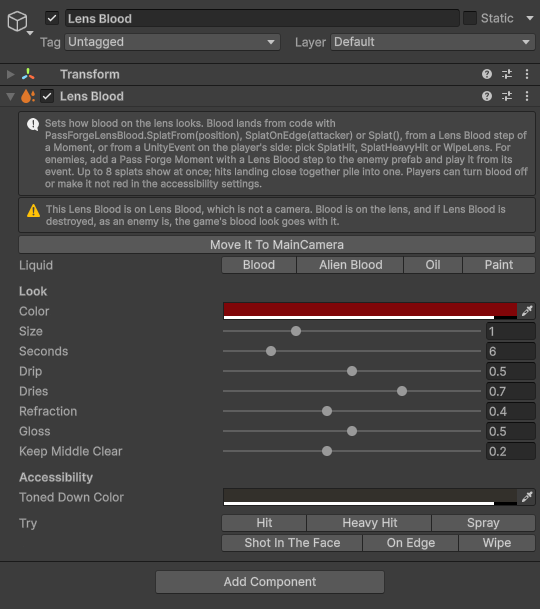
Settings
Above the settings, a Liquid row of four buttons fills Color, Dries, Gloss, Drip and Refraction with a ready liquid. Size, Seconds and the rest stay. Nothing is stored, so you can change any field afterwards.
| Liquid | Color, Dries, Gloss, Drip, Refraction |
|---|---|
| Blood | Dark red, 0.7, 0.5, 0.5, 0.4. The default look. |
| Alien Blood | Bright green, 0.4, 0.7, 0.7, 0.5. |
| Oil | Glossy black, 0, 0.9, 0.3, 0.3. Oil never dries. |
| Paint | Bright pink, 0.15, 0.35, 0.2, 0. |
Look
| Setting | What it does |
|---|---|
| Color | Color of the liquid. Alpha sets how much it hides the picture behind it; thin parts always let some through. Default dark red with alpha 0.92. |
| Size | Size of every splat, times the size of the hit, from 0.25 to 3. Default 1. |
| Seconds | Seconds a splat stays on the lens before it has faded, from 1 to 30. Default 6. |
| Drip | How far splats run down the lens, from 0 to 1. Default 0.5. |
| Dries | How much splats darken and lose their shine as they dry, from 0 to 1. Default 0.7. |
| Refraction | How much the picture bends through the liquid, from 0 to 1. Default 0.4. |
| Gloss | Wet shine on fresh splats, from 0 to 1. Default 0.5. |
| Keep Middle Clear | How far from the middle of the screen splats land, as a share of its shorter side, from 0 to 0.5, so the crosshair stays readable. Strong hits and piled blood do not grow a splat over the middle; drops, drips and large splats can still reach it. A Shot In The Face still lands in the middle. Zero lets blood land anywhere. Default 0.2. |
Accessibility
| Setting | What it does |
|---|---|
| Toned Down Color | Color red splats take when the player sets Blood to Not Red in the accessibility settings. Green alien blood, oil and paint keep their own colors. Default dark gray brown. |
What the inspector also shows:
- Set Up Effects and Turn On Post Processing buttons when screen effects cannot show.
- A warning at the top when this Lens Blood does not show: another one was enabled later ("only one Lens Blood works at a time, the one enabled last"), the player's Blood setting is Off, or a Volume sets Lens Blood Intensity to 0.
- An info box on how blood lands, and that up to 8 splats show at once.
- In Play Mode, a warning when more than 8 splats showed at once and some were wiped early, with how many this session.
- When the component sits on an object that is not a camera: "This Lens Blood is on ..., which is not a camera..." with a Move It To button naming the main camera. It moves the component and its settings there, with Undo.
- A line on the player's current Blood setting when it is Not Red, or in Play Mode.
- Try buttons: Hit, Heavy Hit, Spray, Shot In The Face, On Edge (a hit on the edge of the lens on a random side) and Wipe. They land sample blood in the Game view, and in the Scene view with Run In Scene View on. They work in Edit Mode, only on the Lens Blood that shows (the one enabled last), and not while the Blood setting is Off.
Common jobs
Blood when the player is hit up close
- Add the component with GameObject > Pass Forge > Lens Blood.
- In the enemy's attack code, call
PassForgeLensBlood.SplatFrom(enemy.position)when the hit lands.
The splat lands where the enemy is on screen, kept off the middle. When the camera does not see the enemy, it lands on the edge of the lens on the enemy's side.
Blood on the side the hit came from
Call PassForgeLensBlood.SplatOnEdge(attacker.position) from the player's damage code. It lands on the edge of the lens on the side the hit came from, measured from the player as Damage Direction measures it and snapped to the Damage Direction effect's Sides, so blood and the damage arc always agree.
Blood from enemies with no code
- Add a Pass Forge Moment to the enemy prefab, press Add Step and choose Lens Blood.
- Pick the Splat kind and Strength. Keep Within at 3, so only hits within 3 meters of the player reach the lens.
- Play the moment from the enemy's hit event.
Hits far from the player leave the lens clean. In Edit Mode, the step says how far the moment is from the player and how much of its blood would land.
Green alien blood beside red
Keep Blood as the look and pass a color with the call for aliens: PassForgeLensBlood.SplatFrom(alien.position, LensBloodSplat.Hit, 1f, green). A color passed with a call stays, and a Volume restyling the look leaves it alone. In a Moment's Lens Blood step, tick Own Color and pick the color. For a game where every hit is green, press Alien Blood in the Liquid row instead.
Wipe the lens on a heal or a respawn
Blood stays until it fades, across a scene load too. Call PassForgeLensBlood.Wipe() to wipe it over 0.4 seconds, or Clear() to clear it at once. From a UnityEvent, pick WipeLens on this component.
Wire blood to the player's health events with no code
In the player's On Damaged UnityEvent, add the camera and pick PassForgeLensBlood > SplatHit, or SplatHeavyHit for a strong hit. In On Respawned, pick WipeLens.
A player who would rather see no blood
Set PassForgeAccessibility.blood to BloodSetting.Off from your options menu, or use GameObject > Pass Forge > Accessibility Menu, which gets a Blood dropdown when the game uses Lens Blood. Not Red shows red splats in Toned Down Color. Off shows no blood and wipes what is there.
From a script
using PassForge.Effects;
using UnityEngine;

public static class LensBloodHits
{
    // Where the enemy is on screen, kept off the middle; on the edge of its side when the camera does not see it.
    public static void UpClose(Vector3 enemy) => PassForgeLensBlood.SplatFrom(enemy, LensBloodSplat.HeavyHit);

    // On the edge of the side the hit came from, as Damage Direction shows it.
    public static void FromSide(Vector3 attacker) => PassForgeLensBlood.SplatOnEdge(attacker, LensBloodSplat.Hit, 1f);

    // Anywhere off the middle; Shot In The Face lands in the middle.
    public static void PointBlank() => PassForgeLensBlood.Splat(LensBloodSplat.ShotInTheFace);

    // At a point on screen, from (0, 0) bottom left to (1, 1) top right; (0, 0.5) is the left edge.
    public static void LeftEdge() => PassForgeLensBlood.SplatAt(new Vector2(0f, 0.5f), LensBloodSplat.Spray);

    // A color of its own, as picked; strength from 0 to 2, below 0.05 nothing lands.
    public static void Alien(Vector3 alien) => PassForgeLensBlood.SplatFrom(alien, LensBloodSplat.Hit, 1.5f, Color.green);

    public static void Healed() => PassForgeLensBlood.Wipe(0.5f);   // wipe over 0.5 s; zero clears at once

    public static void Cut() => PassForgeLensBlood.Clear();         // clear at once

    public static int OnLens() => PassForgeLensBlood.activeCount;  // splats on the lens now
}
Change the look while the game runs:
using PassForge.Effects;
using UnityEngine;

public class BloodLook : MonoBehaviour
{
    [SerializeField] PassForgeLensBlood m_Blood;   // on the camera

    public void RobotLevel() => m_Blood.UseLiquid(LensBloodLiquid.Oil);   // color, dries, gloss, drip, refraction

    public void Tune()
    {
        m_Blood.size = 1.3f;              // from 0.25 to 3
        m_Blood.seconds = 4f;             // from 1 to 30
        m_Blood.keepMiddleClear = 0.25f;  // from 0 to 0.5
    }

    // The Lens Blood whose look shows: the one enabled last, or null for the default look.
    PassForgeLensBlood Showing() => PassForgeLensBlood.current;
}
Good to know
- On the camera. Put it on the main camera's object. On an enemy, the game's blood look would go when that enemy is destroyed, and the inspector offers Move It To the main camera.
- One look at a time. The Lens Blood enabled last sets the look. With none in the scene, blood still lands with the default Blood look.
- No Volume needed. The Lens Blood effect is on by default. A Volume's Add Override > Pass Forge > Gameplay > Lens Blood has Intensity, Color, Size, Seconds, Drip, Dries, Refraction and Gloss. A setting overridden there takes over the component's own, and a Volume with a weight below one blends from the component's setting. Intensity at zero shows no blood.
- Eight splats. Up to eight splats show at once, and one Shot In The Face. Hits landing close together within a short time pile into one splat that grows. Past eight, the splat closest to fading is wiped early, and the inspector and the Overview say so. A shorter Seconds frees places sooner.
- Game time. Splats count the game's time in Play Mode, so hit stops and pauses freeze them.
- No Mask. Lens Blood sits on the lens over everything, so it has no Mask setting.
- Where it draws. After post-processing, so bloom does not catch it. It draws over Screen Space - Camera canvases and under Screen Space - Overlay ones, as Damage Numbers do.
- Cameras. Every game camera with Post Processing shows the same blood, placed for the camera tagged MainCamera, so split screen players share it. Headsets show no blood.
- Safe mode. With
PassForgeAccessibility.safeModeon, blood fades in, stays smaller and drips slower. - Cost. One full screen pass, only while a splat shows. Its cost grows with how much of the screen the splats cover, so a Shot In The Face over the whole lens costs the most. Landing, piling and drawing allocates nothing.
- 2D. It works with 2D cameras. For a flat 2D camera, edge hits are measured on the screen's own plane.
- No blood shows? Check Set Up Effects and Post Processing, that the Blood setting is not Off, that no Volume sets Lens Blood Intensity to 0, and for a Moment step, that it plays within Within meters of the player. The inspector names the first two.
- One per object. Unity allows one Lens Blood on an object.