How do I
Blur the game behind a pause menu
Choose GameObject > Pass Forge > PF Panel > Full Screen Backdrop and keep it on a Screen Space - Overlay canvas; turning the panel's object on shows the game frosted behind your menu.
You want
Pressing Escape freezes the game and shows the pause menu over a frosted, blurred copy of the scene, as in modern console games.
Steps
- Choose GameObject > Pass Forge > PF Panel > Full Screen Backdrop. It makes the panel under the selected UI object, or on a new canvas that keeps its size at any resolution.
- Check the canvas: its Render Mode must be Screen Space - Overlay. A camera or world space canvas is already in the picture Pass Forge copies, so the panel would show a blurred copy of itself. The PF Panel inspector warns when the canvas draws with the camera.
- Set Blur, from clear glass at 0 to fully frosted at 1, and Style: Frosted, Black And White, Sepia, Pixelate, Thermal, Night Vision, Hologram, Negative or Liquid Glass. Style Strength blends it in.
- Set Tint, whose alpha sets how much it covers, Brightness and Grain.
- Put your menu's buttons on the same canvas, drawn after the backdrop.
- Switch the backdrop's object off in the scene. Your pause code switches it on and off with the menu.
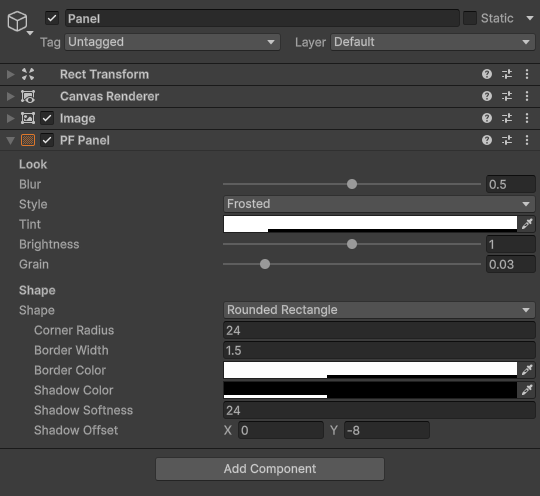
Other ready panels under GameObject > Pass Forge > PF Panel are Dialog, Side Panel, Top Bar, Tooltip, Liquid Glass Card, Black And White Backdrop, Thermal Window, Night Vision Window and Hologram Panel. Or add Add Component > Pass Forge > PF Panel to any UI Image.
What you should see
While the panel's object is on, the scene behind it shows blurred and styled, and the menu stays sharp on top. Panels work inside scroll views and other masks.
If it does not work
- The panel shows a blurred copy of itself and its text. The canvas is Screen Space - Camera with a camera, or World Space. Set it to Screen Space - Overlay. A Screen Space - Camera canvas with no camera assigned draws like an overlay and works too.
- The glass is plain gray. The backdrop is a screen effect: run Tools > Pass Forge > Set Up Effects and turn Post Processing on for the camera.
- The menu needs the Unity UI package. PF Panel needs
com.unity.ugui; without it, scripts that name it do not compile. - Clicks go through the backdrop to the game. See Keep game clicks from going through UI menus.
- Effects stop while paused. Moments count their delays in real time by default, and transitions, damage numbers and the VHS rewind run on real time too, so they keep playing while
Time.timeScaleis 0.
From a script
using PassForge.Effects;
using UnityEngine;

public class PauseMenu : MonoBehaviour
{
    [SerializeField] GameObject m_Menu;   // with a Full Screen Backdrop PF Panel behind the buttons

    bool m_Paused;

    public void TogglePause() => SetPaused(!m_Paused);

    public void SetPaused(bool paused)
    {
        m_Paused = paused;

        if (paused)
            PassForgeSlowMotion.Stop();   // ends a hit stop or slow motion first

        Time.timeScale = paused ? 0f : 1f;
        m_Menu.SetActive(paused);
    }

    void OnDisable()
    {
        if (m_Paused)
            Time.timeScale = 1f;
    }
}
Custom UI can use the Pass Forge/UI/Panel shader and call PassForgePanelBackdrop.AddRequest() and RemoveRequest().