Component
Beacon
A tall pillar of light over an object, seen from far away, to mark a quest target, loot or a rally point.
What it does
A Beacon raises a pillar of light from its object, straight up the world's Y axis. The player sees it from far across the map, so it marks where to go without any HUD: the next quest target in an open world RPG, a supply drop in a survival game, a rally point or a capture zone in a multiplayer match, or rare loot.
Each beacon sets its own color, height, width and pulse, and can paint a ring on the ground around its foot. As the camera comes close, the pillar fades so it never blocks the view where the player has arrived, while the ring stays and still marks the spot. Far away it stays a few pixels wide, so it can still be found.
By default a beacon hides behind walls and hills in front of it. Turn on Show Through Walls on the Beacons effect and every beacon shows through them, so an objective is always found.
Beacons need no Volume. The Beacons effect on a Volume or a Screen Look sets what every beacon shares: the fades, Show Through Walls, the glow and the rising motes.
Add it
- Select the objects to mark, such as the quest target or the loot chest.
- Choose GameObject > Pass Forge > Beacon. Each selected object gets a beacon, or an existing switched off one is switched on. With nothing selected, it makes a new object named Beacon at the middle of the Scene view.
- Run Tools > Pass Forge > Set Up Effects once per project and turn Post Processing on for the camera. The Inspector warns and offers a button for each while one is missing.
- Press Play, or look in the Game view. A golden pillar rises from the object.
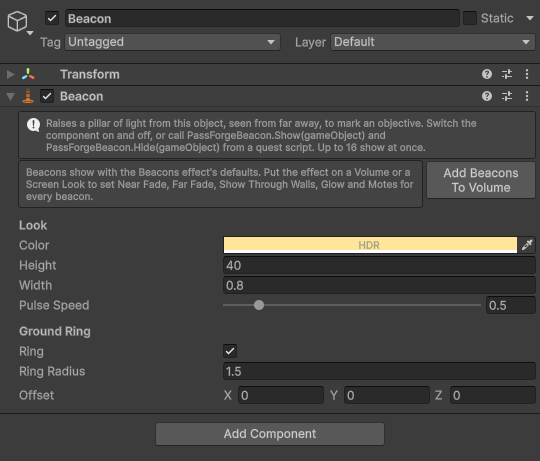
Or add Add Component > Pass Forge > Beacon to any object.
Settings
At the top, an info box explains what the beacon does. Below it, a note says where the shared settings live. While no Volume or Screen Look holds the Beacons effect, an Add Beacons To Volume button puts it on the scene's global Volume, making an Effects Volume first when the scene has none, with Undo.
Look
| Setting | What it does |
|---|---|
| Color | Color of the beacon's light, with HDR. Alpha sets how strongly it shows; HDR values glow brighter. Default warm gold. |
| Height | How tall the pillar stands above its foot, in world units, at least 0.1. Default 40. |
| Width | Width of the pillar's bright core, in world units, at least 0.01. Default 0.8. Far away it stays a few pixels wide. |
| Pulse Speed | Pulses of light per second, from 0 to 4. Default 0.5. Each pulse also sends a ripple across the ground ring. Zero holds it steady. Safe mode holds every beacon steady. |
Ground Ring
| Setting | What it does |
|---|---|
| Ring | Paint a ring on the ground around the beacon's foot. On by default. It stays as the camera comes close and the pillar fades. It follows the ground the camera sees; with Show Through Walls on, it lies flat at the foot's height instead, over everything. |
| Ring Radius | Shows while Ring is on. Radius of the ring, in world units, at least 0.1. Default 1.5. |
| Offset | Where the pillar's foot is, in the object's local space. The pillar always rises straight up the world's Y axis from there. |
Selecting the object draws the pillar and the ring as lines in the Scene view.
Shared settings on the Beacons effect
Add Add Override > Pass Forge > Gameplay > Beacons to a Volume or a Screen Look's profile, or press Add Beacons To Volume. These apply to every beacon:
| Setting | What it does |
|---|---|
| Intensity | How strongly the beacons show, from 0 to 1. On by default, so beacons show without a Volume. Zero turns them off. |
| Mask | Everywhere, only on objects with a Pass Forge Effect Mask or on a mask rendering layer, or everywhere except on them. Except Masked Objects with an Effect Mask on the player keeps the beacons off the character. |
| Near Fade | Closer to the camera than this, in world units, a beacon fades out, gone at a third of it, so it never blocks the view. From 0 to 200, default 12. Its ground ring stays. Zero fades it only once the camera is inside it. |
| Far Fade | Farther from the camera than this, in world units, a beacon has faded out, over the last quarter of the distance. From 0 to 20000, default 1000. Zero never fades beacons with distance. |
| Show Through Walls | Show beacons through walls and hills in front of them. Off by default: a beacon hides behind nearer geometry, read from the scene depth. |
| Top Fade | How much of each beacon's height fades softly toward its top, from 0 to 1. Default 0.5. Zero ends it with a rounded cap. |
| Glow | Soft light around each beacon's core, from 0 to 1. Default 0.6. Over bright scenes the core lays its color on instead, so it reads there too. |
| Motes | Bright motes and soft bands of light rising up the beacons, from 0 to 1. Default 0.5. Zero holds them still. Motes show where a beacon is a few pixels wide or more. Safe mode holds them still. |
Warnings the Inspector shows
- Set Up Effects and Turn On Post Processing, while one is missing.
- "Shows nothing: its Color's alpha is zero."
- "May not show: more than 16 Beacons are enabled, and only the 16 nearest the camera show."
Common jobs
Mark a quest target from far away
- Select the quest target and choose GameObject > Pass Forge > Beacon.
- Raise Height to 80 for a target across a large map.
- Press Add Beacons To Volume, then on the Beacons effect tick Show Through Walls if the target must show behind hills.
The player sees a gold pillar from anywhere, and it fades away as they arrive, leaving the ring on the ground. To also show the target on the Compass Bar and at the screen's edge, add an Off-screen Indicator to it. Beacons do not show on Compass Bars or radars by themselves.
Raise the next beacon when a quest step ends
Switch the component on and off, or call PassForgeBeacon.Show(nextTarget) and PassForgeBeacon.Hide(doneTarget) from your quest script. Show adds a beacon with the default look to an object that has none.
Color beacons by team
Set each capture point's beacon Color from your team logic: blue for yours, red for theirs. Alpha sets how strongly it shows, so a neutral point can glow faintly.
Keep beacons off the player's character
- Add Add Component > Pass Forge > Effect Mask to the player.
- On the Beacons effect, set Mask to Except Masked Objects.
From a script
using PassForge.Effects;
using UnityEngine;

public class QuestBeacons : MonoBehaviour
{
    [SerializeField] GameObject[] m_Steps;
    int m_Step;

    void Start() => Raise(m_Steps[0]);

    public void StepDone()
    {
        PassForgeBeacon.Hide(m_Steps[m_Step]);             // switches off every Beacon on it; they keep their look
        m_Step++;

        if (m_Step < m_Steps.Length)
            Raise(m_Steps[m_Step]);
        else
            PassForgeBeacon.HideAll();                     // quest over: lower every beacon
    }

    static void Raise(GameObject target)
    {
        var beacon = PassForgeBeacon.Show(target);         // switches it on, or adds one with the default look
        beacon.color = new Color(0.4f, 0.8f, 1f, 1f);      // alpha sets how strongly it shows
        beacon.height = 60f;                               // world units above its foot
        beacon.ringRadius = 3f;                            // the ring on the ground
    }
}
Good to know
- Limits. Up to 16 beacons show at once, the nearest to the camera first. Beacons faded out by distance are left out. Hide the ones the player is done with.
- Several per object. An object can hold more than one Beacon.
Hideswitches off every Beacon on the object. - Screen effect needs. Beacons need Set Up Effects and Post Processing on the camera. Nothing is drawn while no beacon is enabled.
- Depth. With Show Through Walls off, a beacon hides behind what the scene depth holds. Beacons past the camera's far plane still show.
- Orthographic cameras show a beacon the same size from any distance, so Near Fade never fades it there.
- 2D side views. The pillar rises up the world's Y axis in 3D and in 2D side views alike.
- Not on the HUD. Beacons draw in the world. They do not show on Compass Bars, minimaps or radars; use an Off-screen Indicator for those.
- Safe mode holds beacons steady: no pulse, ripple, rising motes or bands.