How do I
Show a status look for a few seconds
Put a Pass Forge Screen Look with Activation set to From Script on any object and call PlayFor(seconds), or pick PlayFor in a UnityEvent, so the look fades in, holds and fades out.
You want
The screen turns green and wobbly while the player is poisoned, flashes red on a hit, or freezes over for three seconds after an ice spell.
Steps
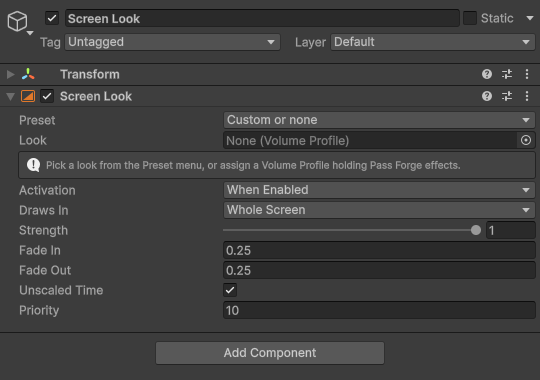
- Add Add Component > Pass Forge > Screen Look to a manager object or to the player.
- In Preset, pick a status look: Poisoned, Electrified, Frozen, Stunned, or Damage Vignette for a hit.
- Set Activation to From Script. The look now waits for a call.
- Set Fade In and Fade Out in seconds.
- Wire it without code: in any UnityEvent, such as your health script's On Poisoned or a button's On Click, add the Screen Look and pick PlayFor with the seconds, Play, Stop or Toggle.
- To try it in Edit Mode, press Preview in the inspector. In Play Mode the inspector has Play and Stop buttons and shows how much of the look is showing.
For a look that belongs to a bigger event, put it in a Pass Forge Moment instead: Add Step > Screen Look, pick the preset, and set Seconds. Zero seconds keeps it on until the moment stops, which suits SetPlaying(true) and SetPlaying(false) for a low health loop. Center On Moment spreads looks that start from a point on screen, such as Time Stop and Impact Frame, from where the moment plays.
What you should see
PlayFor(3) fades the look in, keeps it for three seconds and fades it out by itself. Calling it again while it shows restarts the seconds.
If it does not work
- Nothing shows. With Activation at When Enabled, the look shows the whole time the component is on; with From Script it waits for a call. Check that the call reaches the right component.
- The look shows under the scene's own style. Where looks overlap, the higher Priority wins. The Screen Look starts at 10. A look written into a Volume above priority 10, such as the AgX Tonemapping Volume at 100, wins over it.
- The look keeps fading during a pause. Unscaled Time is on by default so looks fade in real time. Turn it off to freeze the fade with the game.
- No screen effect shows at all. Run Tools > Pass Forge > Set Up Effects and turn Post Processing on for the camera.
From a script
using PassForge.Effects;
using UnityEngine;

public class PoisonStatus : MonoBehaviour
{
    [SerializeField] PassForgeScreenLook m_Poisoned;   // Activation: From Script

    // Fades in, holds for the seconds, fades out.
    public void Poison(float seconds) => m_Poisoned.PlayFor(seconds);

    // An antidote ends it early, with the look's Fade Out.
    public void Cure() => m_Poisoned.Stop();
}