Component
Damage Numbers
Sets where damage numbers start over an object, their size and colors, and shows them from UnityEvents, with no canvas, font or prefab.
What it does
Damage numbers pop from where a hit lands, rise and fade: damage, criticals, heals, blocks, misses and gains such as +10 XP, each in its own color. Pass Forge draws them itself, so there is no canvas, font or prefab to set up. Quick hits on the same object add up into one number that counts up and pops again, and numbers that would cover each other step aside. Criticals are bigger, pop more and end in !, so they stand out by more than color.
You do not need this component to show numbers. PassForgeDamageNumbers.Spawn(enemy.transform, 25) shows one over any object, and a Moment's Damage Number step shows the number a moment is played with. Add the component to an object when you want to set where its numbers start, their size and the color of each kind, or to show them from a UnityEvent such as a health script's On Damaged with no code.
The Game Style list on the component picks how every number in the game is lettered and moves: Classic, Arcade, Clean or Retro. That choice is kept on the Damage Numbers effect in an Effects Volume, with the other game wide settings. Switched off, the component turns numbers off for its object.
Add it
- Select the objects numbers show over, such as your enemy prefabs or the player.
- Choose GameObject > Pass Forge > Damage Numbers. It adds the component to every selected object. Or choose Add Component > Pass Forge > Damage Numbers.
- Set Start At Top, Offset and Size, and the colors if you like.
- Press Try: Damage, Critical, Heal or Miss to see sample numbers over the object in the Game view without playing.
- To show numbers from the object's health script, add the object to its On Damaged UnityEvent and pick PassForgeDamageNumbers > ShowDamage under the dynamic float or int list.
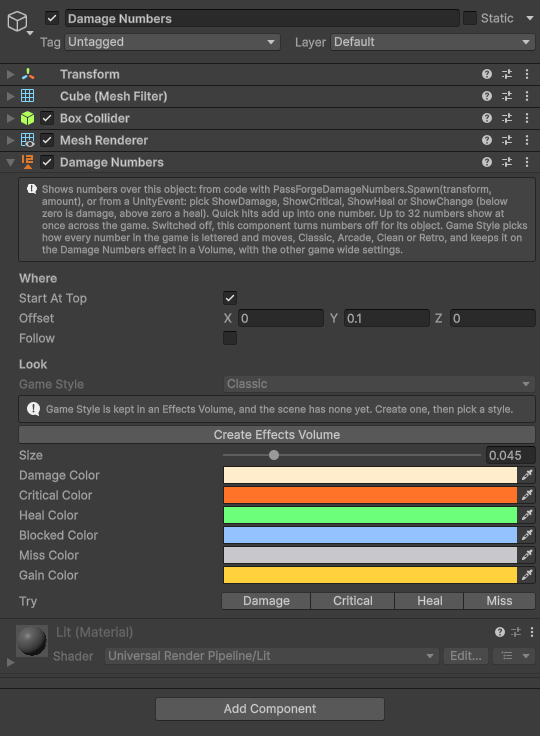
Settings
Where
| Setting | What it does |
|---|---|
| Start At Top | Start numbers at the top of this object's renderers, so they clear its head. Off starts them at the object's position. On by default. With no enabled renderer, numbers start at the position, and the inspector says so. |
| Offset | Moves where numbers start, in world units, turned with the object. Default 0, 0.1, 0. |
| Follow | Numbers move with this object while they show. Off (default) leaves them where they appeared, as most games do. |
Look
| Setting | What it does |
|---|---|
| Game Style | How every damage number in the game is lettered and moves: Classic (the built in look, for action RPGs and shooters), Arcade (bold, leaning and thrown in an arc, for brawlers and looters), Clean (thin and upright with a small pop and a short rise, for strategy and busy interfaces) or Retro (heavy and upright with a thick edge, popping in place, for pixel art and 2D). It writes the lettering and motion settings of the Damage Numbers effect in the Effects Volume, adding the effect there when it is missing. It shows Custom when those settings were changed by hand. Edit > Undo puts it back. |
| Size | Height of a number, as a share of the screen height, from 0.01 to 0.2. Criticals are bigger. Default 0.045. A Volume that overrides Size on the Damage Numbers effect takes over. |
| Damage Color | Color of damage numbers. Default warm white. |
| Critical Color | Color of critical hits, which are also bigger, pop more and end in ! so they read without color too. Default orange. |
| Heal Color | Color of heals, which always show a plus. Default green. |
| Blocked Color | Color of blocked or absorbed hits. Default light blue. |
| Miss Color | Color of misses and dodges. Default gray. |
| Gain Color | Color of gains such as gold or experience, which always show a plus. Default gold. |
What the inspector also shows:
- Set Up Effects and Turn On Post Processing buttons when screen effects cannot show.
- A warning at the top when the object's numbers do not show: the component is switched off ("shows no numbers: the component is off, which turns numbers off for this object"),
PassForgeDamageNumbers.visibleis off, or a Volume sets Damage Numbers Intensity to 0. - An info box on how to show numbers, that quick hits add up, and that up to 32 show at once across the game.
- In Play Mode, a warning when more than 32 numbers showed at once and the oldest were cut short.
- Under Game Style: with no Effects Volume in the scene, "Game Style is kept in an Effects Volume, and the scene has none yet." and a Create Effects Volume button. With a Volume whose profile is read only, a note to give it a profile from your project. After a pick, a note of what it changed in which Volume.
- Try buttons: Damage (37), Critical (128), Heal (25) and Miss. They show sample numbers in the Game view, and in the Scene view with Run In Scene View on. They are greyed out on a prefab asset and while the component is switched off.
Common jobs
Numbers over every enemy with no code
- Select the enemy prefab and choose GameObject > Pass Forge > Damage Numbers.
- In the enemy's health script UnityEvent that sends the damage, add the enemy and pick ShowDamage (dynamic float or int).
- For a health changed event that sends a negative change for damage and a positive one for heals, pick ShowChange instead.
Each hit shows a number over the enemy, and quick hits add up into one.
Pick a style for the whole game
- Create GameObject > Pass Forge > Effects Volume (Empty) if the scene has no Effects Volume, or press Create Effects Volume under Game Style.
- Open Game Style on any Damage Numbers component and pick Arcade, Clean, Retro or Classic.
Every number in the game takes the lettering and motion of the style. Size and colors stay on each component.
Gold and XP over a chest
Call PassForgeDamageNumbers.Spawn(chest.position, 10, DamageNumberKind.Gain, "XP") to show "+10 XP" in the gain color at a point. A suffix holds up to four characters.
Fire and poison numbers in their own colors
Call PassForgeDamageNumbers.Spawn(enemy.transform, 12, DamageNumberKind.Damage, fireColor). A color passed with the call stays, and a Volume restyling the kind colors leaves it alone.
MISS, BLOCKED and other words
Pick ShowMiss or ShowBlocked in a UnityEvent, or call ShowText("DODGE") or PassForgeDamageNumbers.SpawnText(enemy.transform, "IMMUNE"). Words show up to 12 characters, capital letters A to Z, digits and + - . , % ! /. Lower case shows as capitals.
Show the damage with a flash and a shake
Put a Pass Forge Moment on the enemy, pick a ready made moment from the Numbers group in its Preset list, and play it with PlayWithValue from the On Damaged event. The moment's Damage Number step shows the damage, and its other steps flash and shake. This component on the object still sets where the numbers start and their colors.
Numbers for hits behind the camera
Numbers outside the picture hide by default. Add the Damage Numbers effect to a Volume (Add Override > Pass Forge > Gameplay > Damage Numbers) and set Off Screen to Keep At Edge. Numbers then show just inside the edge of the screen, on the side the hit is.
Turn numbers off for one object
Switch its Damage Numbers component off. Every number spawned over it, from scripts and moments too, is skipped.
From a script
using PassForge.Effects;
using UnityEngine;

public static class DamagePopups
{
    // Over an enemy, where quick hits of the same kind add up; criticals never add up.
    public static void Hit(Transform enemy, float damage, bool critical)
    {
        PassForgeDamageNumbers.Spawn(enemy, damage, critical ? DamageNumberKind.Critical : DamageNumberKind.Damage);
    }

    // At a point, such as where a shot hit a wall: numbers at points never add up.
    public static void AtPoint(Vector3 point, float damage) => PassForgeDamageNumbers.Spawn(point, damage);

    // "+10 XP" in the gain color, with a suffix of up to 4 characters.
    public static void Xp(Vector3 chest, float xp) => PassForgeDamageNumbers.Spawn(chest, xp, DamageNumberKind.Gain, "XP");

    // A color of its own, which a Volume restyling the kind colors leaves alone.
    public static void Poison(Transform enemy, float damage) =>
        PassForgeDamageNumbers.Spawn(enemy, damage, DamageNumberKind.Damage, new Color(0.4f, 1f, 0.3f));

    // A word, up to 12 characters.
    public static void Miss(Transform enemy) => PassForgeDamageNumbers.SpawnText(enemy, "MISS");

    public static void ClearAll() => PassForgeDamageNumbers.Clear();   // after a cut or a respawn

    // A game option: false hides every number and ignores new ones. Pass Forge does not save it.
    public static void SetShown(bool shown) => PassForgeDamageNumbers.visible = shown;

    // False freezes numbers with the game's time; true, the default, counts real time.
    public static void FollowGameTime() => PassForgeDamageNumbers.unscaledTime = false;
}
The component's own calls, for UnityEvents or scripts:
using PassForge.Effects;
using UnityEngine;

public class EnemyNumbers : MonoBehaviour
{
    [SerializeField] PassForgeDamageNumbers m_Numbers;   // on the enemy

    public void OnDamaged(float amount) => m_Numbers.ShowDamage(amount);     // also ShowDamage(int)
    public void OnCrit(float amount) => m_Numbers.ShowCritical(amount);
    public void OnHealed(float amount) => m_Numbers.ShowHeal(amount);        // always with a plus
    public void OnLoot(int gold) => m_Numbers.ShowGain(gold);                 // always with a plus
    public void OnHealthChanged(float change) => m_Numbers.ShowChange(change);   // below zero damage, above zero heal
    public void OnBlocked() => m_Numbers.ShowBlocked();                       // BLOCKED
    public void OnDodged() => m_Numbers.ShowText("DODGE");                    // a word in the miss color

    public void Burning()
    {
        m_Numbers.SetColor(DamageNumberKind.Damage, new Color(1f, 0.5f, 0.1f));   // damage shows orange over this object
        m_Numbers.size = 0.06f;                                                    // from 0.01 to 0.2
        m_Numbers.follow = true;                                                   // numbers move with the object
    }
}startAtTop, offset, follow, size, GetColor(kind) and SetColor(kind, color) are public on the component. PassForgeDamageNumbers.maxShown is 32 and maxCharacters is 12.
Good to know
- Do I need a Volume? No. Numbers show without one, as soon as Tools > Pass Forge > Set Up Effects has run and the camera has Post Processing on. A Volume's Damage Numbers effect restyles every number: Intensity, Size, the six colors, Weight, Outline, Slant, Format, Damage Sign, Critical Mark, Motion, Seconds, Rise, Pop, Critical Scale, Scatter, Merge Seconds, Hide Farther Than, Shrink With Distance and Off Screen. Game Style on this component writes into that effect for you.
- Quick hits add up only over an object. Pass the Transform that was hit to
Spawn, use this component's Show calls, or play a moment on the enemy. Numbers spawned at a position never add up, and criticals never do. - Parts of an object. The component counts for its object and every child. A hit spawned over a child, such as an arm, adds up into the one number of the object carrying the component.
- 32 at once. Past 32, the oldest number is cut short. The inspector and the Overview say when that happens.
- Text. Up to 12 characters: capital letters A to Z, digits and + - . , % ! /. Other characters show as spaces, with a Console warning. Long numbers shorten, such as 1.2K. S and 5 share a shape, and O and 0 differ only by width.
- Real time. Numbers count real time by default, so they pop during a hit stop or a pause. Set
PassForgeDamageNumbers.unscaledTime = falseto freeze them with the game. Changing it ends the numbers showing. - Where they draw. Over the scene and over Screen Space - Camera and World Space canvases, and under Screen Space - Overlay canvases. Walls do not hide them. They draw after every screen look, so they stay readable in a black and white flashback.
- No Mask. Damage Numbers draw over everything, like a HUD.
- Accessibility. Safe mode keeps them readable with almost no white flash, a quarter of the critical shake and hardly any pop.
PassForgeAccessibility.textScalemakes them bigger. With color blindness settings, criticals still read by their !. - Pixel art. In a low resolution picture, such as a Pixel Perfect Camera's, numbers are drawn at least 11 pixels tall, so they stay readable but look soft. The Retro style suits pixel art.
- Split screen. Every camera with Post Processing shows every number. Numbers are kept apart for the main camera.
- Cost. Small quads only where characters are, after one copy of the screen, which is skipped when another gameplay effect drew that frame. Placing and writing the numbers allocates nothing.
- Edit Mode. Outside Play Mode, numbers show from the Try buttons and from a Moment's Preview, which shows a Damage Number step's own number. Both play whether Preview In Edit Mode is on or off.
- One per object. Unity allows one Damage Numbers component on an object.