Component
Screen Light
A cheap light that brightens nearby surfaces on screen without a real Light, for torches, lamps, glowing pickups and campfires on phones.
What it does
A Screen Light brightens the surfaces around its object on screen, the way a small point light would, without adding a real Light to the scene. Use it for wall torches, lanterns, glowing pickups, magic orbs and campfires where real lights cost too much, such as on phones.
Flicker makes it waver like a flame, and Flicker Speed sets how fast. The light takes on each surface's color and keeps surfaces facing away from it darker, so it reads as light falling on the scene.
Screen Lights share one budget of eight with the brief flashes that PassForgeFlashLights.Spawn and a Moment's Flash Light step make. They need no Volume.
Add it
- Select the torch, lamp or pickup, or an empty child placed where the light should come from.
- Choose Add Component > Pass Forge > Screen Light.
- Set Color, Radius and Intensity. Select the object to see a wire sphere of the radius in the Scene view, in the light's color.
- For a flame, set Flicker to 0.3 and leave Flicker Speed at 8.
- Make sure Tools > Pass Forge > Set Up Effects has run and the camera has Post Processing on.
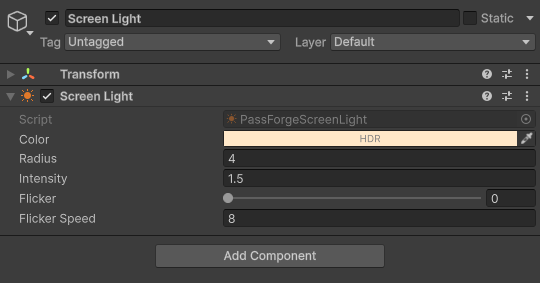
Settings
| Setting | What it does |
|---|---|
| Color | Color of the light. HDR, with no alpha. Default warm white (1, 0.81, 0.58). |
| Radius | How far the light reaches, in meters. Default 4, at least 0.05. |
| Intensity | Brightness of the light. Default 1.5, at least 0. |
| Flicker | How much the light flickers, like a flame, from 0 to 1. Default 0, a steady light. |
| Flicker Speed | How fast the light flickers. Default 8, at least 0. |
The Screen Light uses Unity's default inspector, with no extra buttons or warnings.
Common jobs
A flickering wall torch
- Add a Screen Light to the torch's flame object.
- Set Color to orange, Radius to 5, Intensity to 2.
- Set Flicker to 0.35 and Flicker Speed to 8.
The wall around the torch brightens and wavers. Each Screen Light starts its flicker at its own random point, so a row of torches does not flicker in step.
A glowing pickup that lights the floor
- Add a Screen Light to the pickup, Color to its glow color, Radius to 2, Intensity to 1.5.
- Switch the component off, or destroy the pickup, when it is collected.
The floor under the pickup takes its color while it lies there.
Restyle every light at once
- Create or select an Effects Volume.
- Use Add Override > Pass Forge > World > Flash Lights.
- Override Intensity (0 to 2), Facing (how much surfaces facing away stay dark), Surface Tint (how much the light takes on each surface's color) or Falloff (how sharply light falls off toward its edge).
Every Screen Light and flash takes the new look. Intensity at zero turns them all off.
A muzzle flash or explosion light
A Screen Light is for lights that stay on. For a brief flash, call PassForgeFlashLights.Spawn or add a Flash Light step to a Moment. The flash fades out over its duration and shares the same budget.
From a script
using PassForge.Effects;
using UnityEngine;

public class Lantern : MonoBehaviour
{
    [SerializeField] PassForgeScreenLight m_Light;

    public void SetLit(bool lit) => m_Light.enabled = lit;   // a switched off light draws nothing

    public void LowOil(float oil)                            // oil from 0 to 1
    {
        m_Light.intensity = Mathf.Lerp(0.2f, 1.5f, oil);     // at least 0
        m_Light.radius = Mathf.Lerp(1f, 4f, oil);            // meters, at least 0.05
        m_Light.flicker = 1f - oil;                          // from 0 to 1: more flicker as it runs dry
    }

    public void Tint(Color color) => m_Light.color = color;  // as picked, like a material color

    // A brief flash that shares the eight light budget: position, color, radius, seconds, intensity.
    public void Spark() => PassForgeFlashLights.Spawn(transform.position, Color.white, 3f, 0.15f, 2f);

    int Lights() => PassForgeScreenLight.activeCount;       // enabled Screen Lights
}color, radius, intensity and flicker are public. Flicker Speed is set in the inspector.
Good to know
- Eight lights at once. Screen Lights and flashes from
PassForgeFlashLights.Spawnand Flash Light steps share eight places. Flashes take places first, then Screen Lights in the order they were enabled. While eight flashes are fading, no Screen Light shows, and a ninth Screen Light shows only once one of the first eight is switched off. - 3D only. A Screen Light reads the camera's depth and normals, so it does not show on the URP 2D Renderer, where sprites leave those empty. It needs the Universal Renderer.
- No shadows. It brightens the surfaces the camera sees within its radius. It casts no shadows, so a surface within the radius that faces the light is lit even when a wall stands between them. Keep the radius to the room it lights.
- No Volume needed. The Flash Lights effect is on by default. A Volume's Flash Lights override restyles every light, and its Mask setting can keep the lights to objects with a Pass Forge Effect Mask, or off them.
- Accessibility. The Flash Lights effect is scaled by the player's flash setting and safe mode in
PassForgeAccessibility, so Screen Lights dim with them, and a flash strength of 0 turns them off. - Where it draws. Flash Lights belong to the World effects, which run before post-processing, so bright HDR colors feed bloom.
- Edit Mode. Screen Lights show in Edit Mode, in the Game view and the Scene view. A flickering one moves outside Play Mode only while Preview In Edit Mode is on.
- Several per object. You can add more than one Screen Light to an object. They all draw from its position and each one takes a place in the budget of eight.