Component
Ground Marker
Paints a circle, ring, cone, line or square on the ground that can fill up to warn of an attack, or mark a unit or a zone.
What it does
A Ground Marker paints a shape on whatever ground lies under its object, following terrain and stairs: a filled circle, a ring, a cone, a line or a square. It needs no decal setup and no material.
Its main job is the attack warning. In an action RPG or a boss fight, a red circle appears under the player and fills up from the middle; when it is full, the slam lands. Give the marker Fill Seconds and a When Full moment, and it counts down and plays the strike by itself, with no code. A cone in front of a dragon warns of its breath, a line warns of a charge.
It also marks things that stay: a selection ring under a unit in a strategy game, a capture zone in a multiplayer match, the landing spot of a jump.
The markers are a screen effect that needs no Volume. A Volume's Ground Markers override restyles them all at once.
Add it
- Create an empty object where the marker should be, or select the enemy or unit it belongs to.
- Choose Add Component > Pass Forge > Ground Marker.
- Run Tools > Pass Forge > Set Up Effects once per project and turn Post Processing on for the camera. The Inspector warns and offers a button for each while one is missing.
- Use the Universal Renderer. The Inspector warns when the camera draws with the URP 2D Renderer, where a marker has no ground to paint on.
- Look at the Game view. An orange circle 2 units wide lies on the ground under the object.
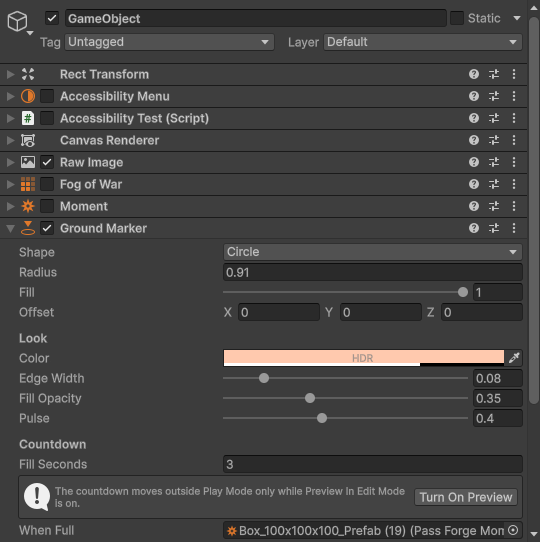
There is no GameObject menu item for it. For an attack warning in one step, add the marker and press Add An Explosion Here.
Settings
| Setting | What it does |
|---|---|
| Shape | Circle (default) filled, Ring such as a selection circle, Cone opening along the object's forward direction, Line running along the object's forward direction, or Square filled. |
| Radius | Radius of the shape in world units, or the length of a line, at least 0.05. Default 2. A square reaches Radius from its center to each side. |
| Angle | Shows for Cone. Opening angle of the cone, from 1 to 360 degrees. Default 60. |
| Width | Shows for Ring and Line. Width of the ring or the line, in world units, at least 0.01. Default 0.4. |
| Fill | Hidden for Ring. How far the shape has filled up, from 0 to 1, from its center or its start. Default 1. Animate it to count down to an attack. |
| Offset | Center of the marker, in the object's local space. |
Look
| Setting | What it does |
|---|---|
| Color | Color of the marker, with HDR. Alpha sets how strongly it covers the ground. Default orange at 0.7 alpha. |
| Edge Width | Width of the bright edge around the shape, in world units, from 0.005 to 0.5. Default 0.08. |
| Fill Opacity | How strongly the filled part of the shape covers the ground, from 0 to 1. Default 0.35. |
| Pulse | How much the edge pulses, from 0 to 1. Default 0.4. Zero holds it steady. |
Countdown
These also apply to a fill a script starts with StartFilling, so they always show.
| Setting | What it does |
|---|---|
| Fill Seconds | Seconds the shape takes to fill up, from when it is enabled in play: a countdown to the attack it warns of. Default 0, which leaves Fill to you or a script. |
| When Full | A moment to play where the marker is once it has filled up, such as the strike it warned of. |
| Switch Off When Full | Hide the marker once it has filled up. On by default. It shows again when it or its object is enabled again, or a fill starts, so a marker reused from a pool counts down again. |
| On Filled | Called once the marker has filled up, for damage or a sound of your own. |
Buttons and notes the Inspector shows
- Add An Explosion Here, while When Full is empty and outside Play Mode. It adds a Moment with the Explosion preset to this object, set to play only from a script or event, and puts it in When Full. Pick another preset on the Moment for a different strike.
- For a Ring: "A ring has no inside to fill, so its countdown only times When Full."
- With Fill Seconds above zero outside Play Mode: a Turn On Preview offer, since the countdown moves outside Play Mode only while Preview In Edit Mode is on. With the preview on: "Preview In Edit Mode counts down again and again. When Full and On Filled wait for Play Mode."
- The URP 2D Renderer warning. For a 2D game, a sprite under the object does the same job.
- "Does not show: 5 Ground Markers enabled before it already show", when a sixth is enabled.
Common jobs
Warn of an attack with no code
- Make an empty object named Slam Warning and add a Ground Marker.
- Set Color to red and Fill Seconds to 1.5.
- Press Add An Explosion Here.
- Keep Switch Off When Full on.
- Switch the Slam Warning object off in the scene. Your enemy switches it on, or moves and enables it, when it starts the attack.
In Play Mode, the circle fills from the middle over 1.5 seconds, the explosion plays where the marker is, On Filled is called, and the marker hides. Enable it again and it counts down again, which suits a pool of markers.
See the countdown while you work
Turn on Preview In Edit Mode (the Pass Forge Preview button in the Scene view's toolbar, or Tools > Pass Forge > Preview In Edit Mode). Markers with Fill Seconds count down again and again in the Game view. When Full and On Filled wait for Play Mode.
Warn of a breath attack in a cone
Set Shape to Cone, Angle to 45 and Radius to 8, and parent the marker to the dragon's head object so the cone opens along its forward direction.
A selection ring under a unit
Set Shape to Ring, Width to 0.1, Pulse to 0, and switch the component on while the unit is selected.
Keep markers off walls and ceilings
Add Add Override > Pass Forge > Gameplay > Ground Markers to your Volume and lower Height Range (from 0.1 to 10, default 1.5). Surfaces farther than that above or below the marker are not painted.
Restyle every marker at once
The Volume's Ground Markers override also has Edge Width, Fill Opacity and Pulse, which take over each marker's own while ticked, plus Intensity (zero turns them off), Resolution Scale and Mask. Set Mask to Except Masked Objects, with an Effect Mask on the player, to keep the paint off the character standing on a marker.
From a script
using PassForge.Effects;
using UnityEngine;
using UnityEngine.Events;

// An enemy's slam, warned of by a ground marker that fills up under the player first.
public class SlamAttack : MonoBehaviour
{
    [SerializeField] PassForgeGroundMarker m_Warning;   // a separate object, so it stays where the player stood
    [SerializeField] Transform m_Player;
    [SerializeField] UnityEvent m_PlayerHit;

    void OnEnable() => m_Warning.onFilled.AddListener(Slam);
    void OnDisable() => m_Warning.onFilled.RemoveListener(Slam);

    public void Telegraph()
    {
        if (m_Warning.isFilling)
            return;                                     // one warning at a time

        m_Warning.transform.position = m_Player.position;
        m_Warning.shape = MarkerShape.Circle;
        m_Warning.radius = 3f;
        m_Warning.StartFilling(1.2f);                   // shows the marker, fills it, then plays When Full
    }

    public void Cancel() => m_Warning.StopFilling();    // such as when the enemy dies

    void Slam()
    {
        var offset = m_Player.position - m_Warning.transform.position;
        offset.y = 0f;

        if (offset.magnitude <= m_Warning.radius)
            m_PlayerHit.Invoke();                       // the player stayed inside
    }
}
Good to know
- Five at once. Up to five Ground Markers show at once, the first five enabled. The inspector of a sixth says so.
- Several per object. An object can hold more than one Ground Marker.
- 3D and 2.5D only. A marker paints the surfaces in the camera's depth texture. The URP 2D Renderer keeps no depth of the scene, so a marker does not show there. Use the Universal Renderer, or a sprite under the object in a 2D game.
- Shapes and direction. Cones and lines open along the object's forward direction, so turn the object to aim them. Circles, rings and squares lie flat; the square lines up with the world's X and Z axes.
- Fill. A circle, cone and square fill from the center out, and a line from its start. A ring has no inside to fill.
- StartFilling works in Play Mode. It shows a switched off or hidden marker, and uses the same When Full, On Filled and Switch Off When Full. A fill started from On Filled keeps the marker shown.
- Time. The countdown runs on the game's scaled time, so it pauses with the game.
- Characters on a marker within Height Range get painted too, as they stand on the ground the depth texture holds. An Effect Mask with Mask set to Except Masked Objects keeps them clean.
- Screen effect needs. Markers need Set Up Effects and Post Processing on the camera. They draw after every screen look, unless HUD Under Looks is ticked in a Volume.