How do I
Switch a look on while the player is in a room
Set a Pass Forge Screen Look's Activation to While Inside Area and its Tracked to the player, so the look fades over the whole screen while the player is inside its box or sphere.
You want
The picture turns green and murky while the player is in the sewer, and goes back to normal when they climb out. The look should cover the whole screen while they are inside.
Steps
- Create an empty object in the room, such as Sewer Look.
- Add Add Component > Pass Forge > Screen Look and pick a look in Preset, such as Toxic Gas or Underwater.
- Set Activation to While Inside Area.
- Drag the player into Tracked. Empty uses the main camera.
- Set Area Shape to Box with an Area Size, or to Sphere with an Area Radius. The area is placed, turned and scaled with the object, and selecting it draws the area in the Scene view.
- Set Blend Distance for how far outside the area the look fades out, and Fade In and Fade Out for how long it takes to come and go.
- In Edit Mode, press Preview in the inspector to see the look while you choose it.
Inspector
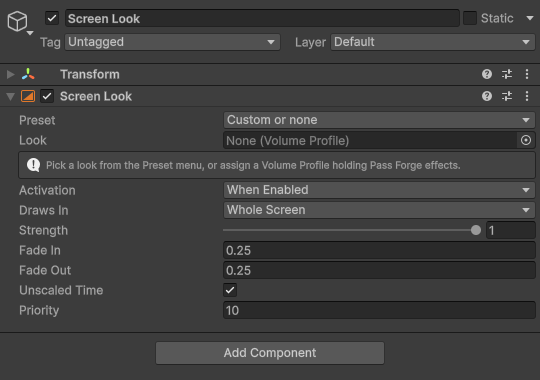
What you should see
When the player walks into the area, the look fades in over the whole picture. When they leave, it fades out over Blend Distance. To draw a look only where the room is on screen, such as rain in one courtyard, set Draws In to Area instead.
If it does not work
- Nothing happens in a 2D game. A 2D camera usually sits at Z = -10, outside a box drawn around sprites at Z = 0. Set Tracked to the player, or make the box deep enough to hold the camera.
- A local URP Volume does nothing in a 2D game. The same reason: Unity checks whether the camera's position is inside the Volume's collider. Make the box deep enough to hold the camera (a Z size of 30 is plenty), or set the camera's Volume Trigger (Camera Inspector, Environment) to the player. A local Volume holding a Pass Forge look says so in its inspector when no camera is inside it, with Make The Box Hold The Camera and Use The Player As Volume Trigger.
- The look shows over the whole screen even outside the room. Check that Activation is While Inside Area and not When Enabled.
- Another look wins. Where looks and Volumes overlap, the higher Priority wins. The Screen Look starts at 10.
From a script
using PassForge.Effects;
using UnityEngine;

public class RoomLookSetup : MonoBehaviour
{
    [SerializeField] PassForgeScreenLook m_Look;
    [SerializeField] Transform m_Player;

    void Start()
    {
        m_Look.activation = ScreenLookActivation.InsideArea;
        m_Look.tracked = m_Player;
        m_Look.areaShape = ScreenLookAreaShape.Box;
        m_Look.areaSize = new Vector3(20f, 6f, 30f);
        m_Look.blendDistance = 3f;
    }
}