Component
Dissolve
Burns an object away, scans it away from the top or crumbles it into grains, and builds it back up, without changing its materials by hand.
What it does
A Dissolve removes an object or builds it up again. Dissolve burns it away in noisy patches with a glowing edge, for a defeated enemy or a burning page. Scan removes it from the top under a glowing line, and played backwards builds it up from the bottom, for a teleport or a hologram. Disintegrate crumbles it from the top into grains that blow up and away, for a disintegration ray.
Call Dissolve(seconds) to make it go and Materialize(seconds) to bring it back, or pick them in any UnityEvent, in the component's context menu, or in a Moment's Dissolve and Materialize steps. Deactivate When Gone switches the object off once it has fully dissolved, which suits pooled enemies, and On Finished tells you when the effect is done.
You do not change any material. While the effect runs, the object's meshes show copies of their materials on the Pass Forge/Lit Effects shader, which is URP Lit with the dissolve on top. Sprites keep their own material and are shown through a hidden Sprite Mask with a glowing edge above them. When the object is whole again, everything is as it was, so the object batches and looks exactly as before.
Add it
- Select the object.
- Choose Add Component > Pass Forge > Dissolve.
- Pick Style and set Edge Color.
- Enter Play Mode and right-click the component's header, then choose Dissolve or Materialize to try it. Both take 1.2 seconds.
- From your game, call
Dissolve(seconds)or play a Moment with a Dissolve step.
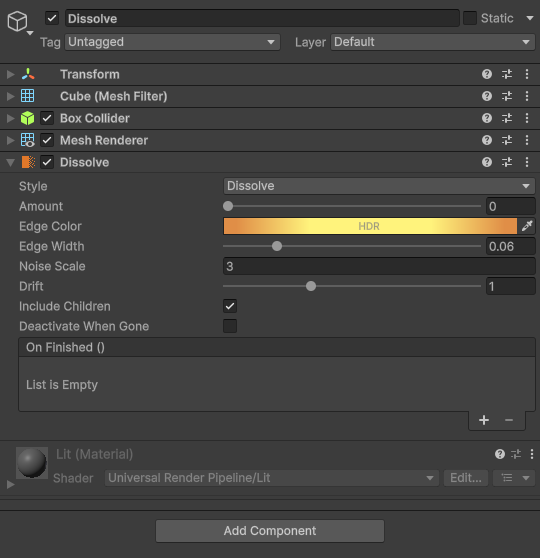
Settings
| Setting | What it does |
|---|---|
| Style | Dissolve (default) burns away in noisy patches with a glowing edge. Scan removes the object from the top under a glowing line; played backwards it builds the object up from the bottom. Disintegrate crumbles it from the top in fine grains that blow up and away. |
| Amount | How much of the object is gone, from 0 (whole) to 1 (gone). Default 0. Changing it in Play Mode shows at once. |
| Edge Color | Color of the glowing edge. HDR values feed bloom. Default bright orange. |
| Edge Width | Width of the glowing edge, from 0.001 to 0.3. Default 0.06. |
| Noise Scale | Size of the dissolving patches: higher makes smaller patches. Default 3, at least 0.01. |
| Drift | How far disintegrating parts of a mesh blow away, in meters, from 0 to 3. Sprites crumble in place. Default 1. |
| Include Children | Also dissolve renderers on child objects. On by default. |
| Deactivate When Gone | Deactivate the object once it has fully dissolved. Off by default. |
| On Finished | Called when Dissolve or Materialize finishes. |
What the inspector also shows:
- "No Mesh Renderer, Skinned Mesh Renderer or Sprite Renderer found, so there is nothing to dissolve." when the object has nothing to dissolve.
- In a scene drawn by the 2D Renderer, a note that 3D meshes burn away unlit, while sprites dissolve as usual.
- A note naming a sprite that cannot keep its own material while it dissolves, because it uses sprite masks of its own or is bent by bones, so it is drawn with Pass Forge's sprite shader. With the 2D Renderer's Depth/Stencil Buffer off, a Turn On Depth/Stencil Buffer button turns it on in the renderer asset.
Common jobs
An enemy that burns away on death
- Add a Dissolve to the enemy, keep Style at Dissolve, set Edge Color to orange.
- Turn on Deactivate When Gone, so the enemy switches off for its pool.
- Call
GetComponent<PassForgeDissolve>().Dissolve(0.8f)in the death code.
The enemy burns away in 0.8 seconds and switches off. Its materials are back to normal before it switches off.
A teleport that scans the player out and in
- Add a Dissolve to the player, set Style to Scan and Edge Color to cyan.
- Call
Dissolve(0.5f), move the player in On Finished, then callMaterialize(0.5f).
The player is scanned away from the top, then built up from the bottom at the new place.
Dissolve with no code, from a Moment
- Add a Pass Forge Moment to the object and pick a ready made moment: Vanish dissolves it with a small ring, Appear materializes it in a soft light, Respawn opens an iris and materializes it. Or press Add Step and choose Dissolve or Materialize.
- Leave the step's Dissolve field empty to use the one on this object, and set Duration.
- Play the moment from any UnityEvent.
If the object has no Dissolve, the Moment's inspector offers a button that adds one.
A spawn that materializes
Set Amount to 1 in the scene so the object starts gone, and call Materialize() when it spawns. Materialize also switches the object on first if it is off.
Drive the dissolve yourself
Set amount from 0 to 1 from your own code, for example from a charge meter. Setting amount stops a running Dissolve or Materialize.
From a script
using PassForge.Effects;
using UnityEngine;

public class EnemyDeath : MonoBehaviour
{
    [SerializeField] PassForgeDissolve m_Dissolve;

    void OnEnable() => m_Dissolve.onFinished.AddListener(OnDone);
    void OnDisable() => m_Dissolve.onFinished.RemoveListener(OnDone);

    public void Die()
    {
        m_Dissolve.style = DissolveStyle.Disintegrate;   // crumbles from the top into grains
        m_Dissolve.Dissolve(0.8f);                       // from the current amount to gone, in 0.8 s
    }

    public void Respawn()
    {
        m_Dissolve.Materialize(1f);                      // switches the object on first if it is off
    }

    public void SetCharge(float charge) => m_Dissolve.amount = charge;   // 0 whole, 1 gone; stops a running play

    void OnDone()
    {
        if (m_Dissolve.amount >= 1f)
            gameObject.SetActive(false);                 // or tick Deactivate When Gone
    }

    // After adding or removing renderers on the object.
    public void AfterRenderersChanged() => m_Dissolve.RefreshRenderers();

    bool Busy() => m_Dissolve.isPlaying;                 // true while Dissolve or Materialize plays
}
Dissolve() and Materialize() without seconds take 1.2 seconds.
Good to know
- Play Mode only. The effect runs in Play Mode. Amount set in Edit Mode shows nothing until you play.
- Materials. A URP Lit material keeps every texture and setting while it dissolves. A material on another shader (Shader Graph, toon, Unlit or a custom shader) is drawn as URP Lit while the effect runs, keeping only its base texture and color, and only when they are named
_BaseMapand_BaseColor, or_MainTexand_Color. When the object is whole again, the original materials come back. - Sprites. A Sprite Renderer dissolves with the same settings and timing. It keeps its own material and look, a Shader Graph sprite's tint or fog color included, on the 2D Renderer and the Universal Renderer alike. A hidden Sprite Mask covers it, in the same patterns as a mesh, and a hidden copy of the Sprite Renderer just above it draws the glowing edge. The mask reaches only the sprite's own sorting layer and order. Nothing needs setting up and nothing is saved.
- Sprites that cannot keep their material. A sprite that uses sprite masks of its own (its Mask Interaction is set), or is bent by bones with a Sprite Skin, is drawn instead with a copy of its material on the Pass Forge/Sprite Effects shader, with the sprite's color, flip, atlas, sorting and normal map, but not a custom shader's look. The inspector names such a sprite.
- 2D Renderer. Sprites keep their own material when the 2D Renderer's Depth/Stencil Buffer is on; with it off they dissolve with Pass Forge's sprite shader, and the inspector offers to turn it on. 3D meshes on the 2D Renderer dissolve unlit.
- Drift moves only meshes; sprites crumble in place. Sprite Shapes and Tilemaps are left as they are.
- Builds. A build keeps the Lit Effects and Sprite Effects shaders when a Dissolve is in one of its scenes. When a script adds the component while the game runs, tick Dissolve, Occluder Fade And Cross Section Added From Scripts under Project Settings > Pass Forge. Without it, the Console says "Pass Forge: this build does not have the ... shader" instead of the effect silently not showing.
- Children. Renderers are gathered the first time the effect runs. After adding or removing renderers, call
RefreshRenderers(). - Highlights. Highlights, Effect Masks and afterimages leave out a renderer once it has fully dissolved. For a death, fade the outline out with the Highlight's
FadeOut(0.25f)as the dissolve starts, so it does not trace the body while it goes. - Game time. Dissolve and Materialize count the game's time, so slow motion slows them.
- Switched off or removed mid-effect, the component puts every original material and the sprite's Mask Interaction back.
- One per object. Unity allows one Dissolve on an object. It covers the children with Include Children on.