How do I
Apply a screen effect only to chosen objects
Add a Pass Forge Effect Mask to the objects, then set the Mask of an effect that has one to Only Masked Objects or Except Masked Objects; the mask alone changes nothing.
You want
The world turns gray while the hero keeps their color, enemies get a red tint, or everything blurs except the character who speaks. You added an Effect Mask and nothing changed.
An Effect Mask only marks objects. A look decides what happens to them, and only effects with a Mask setting read it.
Steps
- Select the objects and add Add Component > Pass Forge > Effect Mask. Include Children also marks child renderers. Include Hidden Parts also marks the parts behind other geometry; off, only what the camera sees counts.
- For a quick start, press a button in the Effect Mask inspector:
- Focus On This adds a Screen Look with the Focus Mode preset: everything but the masked objects blurs and dims.
- Keep This In Color adds a Screen Look with the Color Focus preset: everything but the masked objects turns gray.
- For your own look, open the effect in a Volume or in a look's profile and set its Mask:
- Everywhere covers the whole picture.
- Only Masked Objects shows it on the masked objects only.
- Except Masked Objects shows it everywhere but on them.
- To mark many objects with no component on each, name a rendering layer in Project Settings > Tags and Layers > Rendering Layers, pick it in each renderer's Rendering Layer Mask under Additional Settings, and add Add Component > Pass Forge > Effect Mask Layers to any one object in the scene with that layer chosen.
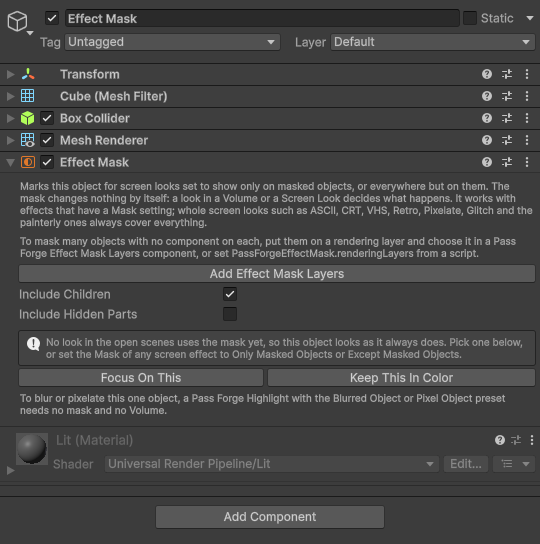
What you should see
The Effect Mask inspector names the looks in the open scenes that use the mask, after Used by. Until one does, it says no look in the open scenes uses the mask yet, and the object looks as it always does.
Other uses of the mask: Selective Glow makes only masked objects glow, for pickups and signs, without changing their materials. Privacy Blur and Privacy Pixelate hide masked objects. A Pass Forge Reveal Lens can light up masked objects as clues.
If it does not work
- The effect has no Mask setting. These effects always cover the whole screen and an Effect Mask does not limit them: ASCII, CRT, VHS, Retro, Pixelate, Glitch, Old Film, Halftone, Sketch, Watercolor, Painterly, Kaleidoscope, Distortion, Radial Blur, Scan Pulse, Vision, Motion Trails, Feedback, Transition, Panel Backdrop, Color Vision, AgX Tonemapping and Deband. While a mask is in the scene, their Volume inspector says so.
- You want one object pixelated, blurred or toon shaded. The highlight presets Pixel Object, Blurred Object, Toon Object and Object Glitch do it for one object, with no mask and no Volume.
- Nothing is marked with Effect Mask Layers. Its inspector says how many renderers in the open scenes are on the chosen layers. With none chosen, nothing is masked.
- A tree or fence on a mask layer counts as a solid card. Renderers on mask layers are masked by their whole mesh, while a Sprite Renderer is cut out by its sprite. A Pass Forge Effect Mask on the object follows cutouts.
- In 2D the mask covers parts behind other sprites. Without scene depth, as in most 2D Renderer setups, a renderer counts also where something covers it.
From a script
using PassForge.Effects;
using UnityEngine;

public static class MaskLayers
{
    // Every renderer on the "Thermal" rendering layer counts as masked. Not saved: set it each time the game starts.
    public static void MarkEnemies() => PassForgeEffectMask.renderingLayers = RenderingLayerMask.GetMask("Thermal");

    public static void Clear() => PassForgeEffectMask.renderingLayers = 0u;
}