How do I
Add an accessibility options menu
Choose GameObject > Pass Forge > Accessibility Menu for a ready options menu with safe mode, flash, shake, color and text size controls, each applied and saved as it changes.
You want
Players sensitive to flashing can calm flashes and shakes, color blind players can tell your colors apart, and players who need larger text can grow the numbers on screen. The choices should stay the next time the game starts.
Steps
- Choose GameObject > Pass Forge > Accessibility Menu. It makes an options menu on a frosted PF Panel with a safe mode toggle, sliders for flashes, screen shake, color adjustment and text size, and a color blindness dropdown.
- When the game uses Lens Blood, in the open scenes, the prefabs they hold or a script under Assets, the menu also has a Blood dropdown with Shown, Not Red and Off.
- Show and hide the menu from your pause menu. Each control applies and saves as it changes.
- For a menu of your own, add Add Component > Pass Forge > Accessibility Menu and drag your Toggle, Sliders and Dropdowns into its fields: Safe Mode, Flashes, Shake, Color Blindness, Color Adjustment, Text Size and Blood. Every control is optional.
- To test in Play Mode without a menu, open Project Settings > Pass Forge > Accessibility and use Try In Play Mode. Nothing is saved there.
- Choices you made while testing a menu are saved on your machine and come back each Play Mode. Forget Saved Choices on the same page clears them.
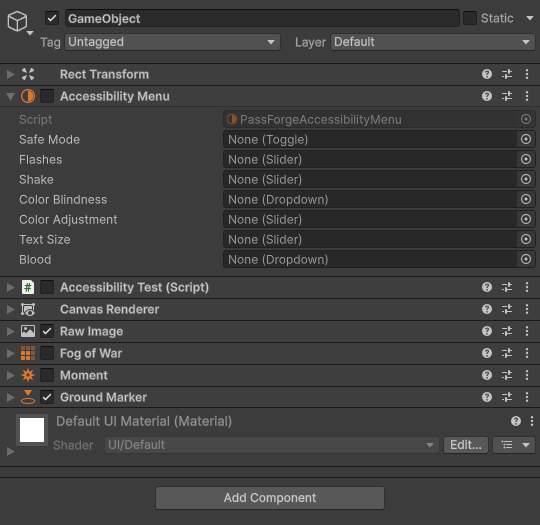
What you should see
Safe mode dims lightning, flashbangs, Impact Frames, Flash Lights and highlight flashes to a quarter, moves Screen Shake a quarter as far, and holds indicator and compass markers steady. A color blindness setting moves colors the player cannot tell apart to ones they can. Text size grows damage numbers, indicator distances, Compass Bar numbers and radar ring labels, from 1 to 2.
If it does not work
- Nothing changes on screen. The settings apply to cameras that show Pass Forge's screen effects: run Tools > Pass Forge > Set Up Effects and turn Post Processing on for the camera. They need no Volume.
- Choices are lost between sessions. They start at their defaults each time the game starts unless saved. The menu saves by itself; a menu of your own calls
PassForgeAccessibility.Save(). - The Blood dropdown is missing. The menu adds it only when the game uses Lens Blood. Your own dropdown with Shown, Not Red and Off goes in the component's Blood field.
- Flashes still blind in game logic.
PassForgeScreenFlash.blindnessis the game's value, and neither safe mode nor the flash slider lowers it, so turning flashes down gives no advantage. Multiply byflashStrengthyourself if you want it lowered. - Compass or radar colors do not follow color blindness. Compass Bars, Fog of War Minimaps and Fog of War Radars adjust their markers on a Screen Space - Overlay canvas.
From a script
using PassForge.Effects;
using UnityEngine;

public class AccessibilityOptions : MonoBehaviour
{
    public void SetSafeMode(bool on) => PassForgeAccessibility.safeMode = on;
    public void SetShake(float strength) => PassForgeAccessibility.shakeStrength = strength;   // 0 to 1
    public void SetFlash(float strength) => PassForgeAccessibility.flashStrength = strength;   // 0 to 1
    public void SetTextScale(float scale) => PassForgeAccessibility.textScale = scale;         // 1 to 2

    // Dropdown order: None, Protanopia, Deuteranopia, Tritanopia. Achromatopsia can only be simulated, so it is no choice here.
    public void SetColorBlindness(int index) => PassForgeAccessibility.colorBlindness = (ColorBlindness)index;

    // Dropdown order: Shown, Not Red, Off.
    public void SetBlood(int index) => PassForgeAccessibility.blood = (BloodSetting)index;

    // Saved with PlayerPrefs when the menu closes; the choices come back by themselves next time.
    void OnDisable() => PassForgeAccessibility.Save();

    public void Cancel() => PassForgeAccessibility.Load();
}
PassForgeDamageNumbers.visible = false lets players turn damage numbers off, as an option of your own.