How do I
Make rain fall only in a courtyard
Put a Pass Forge Screen Look with the Rain preset over the courtyard and set Draws In to Area, so the rain draws only where the camera sees into its box.
You want
Rain falls in an open courtyard, and the covered walkway beside it stays dry, wherever the camera stands. A local Volume cannot do this: it switches the look on or off for the whole screen, depending on where the camera is.
Steps
- Create an empty object over the courtyard, such as Courtyard Rain.
- Add Add Component > Pass Forge > Screen Look.
- In Preset, pick Rain, Rain Storm or Snowfall. Other weather works the same way: the presets Embers, Ashfall, Fireflies, Dust Motes and Cherry Blossoms, or your own look whose Screen Rain effect has its Style set to Embers, Ashfall, Fireflies, Petals or Dust Motes, with Size and Flicker to tune them.
- Leave Activation at When Enabled, so it always shows.
- Set Draws In to Area.
- Set Area Shape to Box and Area Size to the courtyard, in the object's space. Move, turn and scale the object to fit. Selecting it draws the area in the Scene view.
- Set Blend Distance for how far outside the box the rain fades out. Zero cuts it at the edge.
Inspector
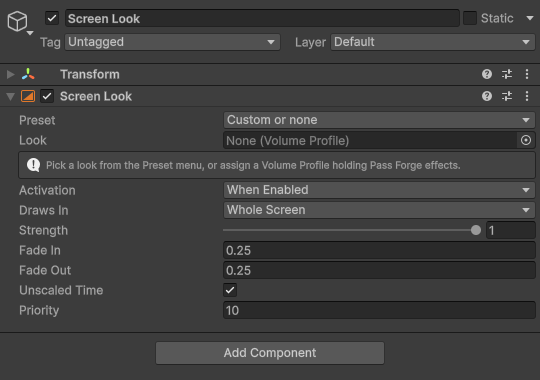
What you should see
Rain falls in the courtyard and not under the roof beside it, whether the camera is inside the courtyard, under the roof or above it. It also shows against the sky above the courtyard. When the look shows is still up to Activation, so you can combine Area with From Script for a storm that starts on cue.
If it does not work
- The inspector warns that some effects are left out of the look. URP's own effects and the Pass Forge effects drawn by nodes of their own, which are Painterly, Pixelate, CRT, VHS, Retro, Motion Trails and Feedback, cover the whole picture or nothing. Show them with a second Screen Look set to Whole Screen, or a Volume.
- The rain shows over the whole screen. Draws In is still Whole Screen. While Inside Area under Activation switches a look over the whole screen when the tracked object enters; it does not limit where the look draws.
- Nothing shows. Run Tools > Pass Forge > Set Up Effects and turn Post Processing on for the camera. The Screen Look inspector names cameras where it is off and turns it on for you.
- In a 2D scene the rain looks hazy. Screen rain reads the whole picture as far away there, so keep Haze low in the look's Screen Rain effect.
From a script
using PassForge.Effects;
using UnityEngine;

public class StormStarter : MonoBehaviour
{
    [SerializeField] PassForgeScreenLook m_Rain;   // Draws In: Area, Activation: From Script

    public void StartStorm() => m_Rain.Play();
    public void EndStorm() => m_Rain.Stop();

    // Switch any look between the area and the whole screen.
    public void RainEverywhere() => m_Rain.drawsIn = ScreenLookCoverage.WholeScreen;
}