Component
PF Panel
Turns a UI Image into a window onto the game behind it, such as frosted glass for a pause menu, or the scene in black and white, thermal or night vision.
What it does
A PF Panel turns any UI Image, or another UI graphic, into a window onto the game behind it. The classic use is frosted glass behind a pause menu, a dialog or an inventory. Each panel sets its own blur, from clear glass to fully frosted, so a tooltip can be barely blurred while a pause backdrop is thick frost.
Its Style shows the scene behind the panel in another way: Black And White, Sepia, Pixelate, Thermal, Night Vision, Hologram, Negative, or Liquid Glass, which bends the scene near its rounded edges like the rim of a drop. A scanner window in a sci-fi HUD can show the world in thermal, and a spy game's binocular inset in night vision, while the rest of the screen stays as it is.
With the Rounded Rectangle shape the panel draws its own rounded corners, a light edge and a shadow, with no sprite. With Sprite, the Image's sprite gives it any shape, such as a frame drawn for your menus. Turn the panel's object on and off to show and hide it.
The scene copies the panel reads come from the Panel Backdrop screen effect, which needs Set Up Effects and Post Processing on the camera. It needs no Volume.
Add it
- Choose GameObject > Pass Forge > PF Panel and pick one: Dialog, Full Screen Backdrop, Side Panel, Top Bar, Tooltip, Liquid Glass Card, Black And White Backdrop, Thermal Window, Night Vision Window or Hologram Panel.
- The panel goes under the selected UI object, or on a new Screen Space - Overlay canvas that keeps its size at any resolution (Scale With Screen Size, 1920 x 1080 reference), with an Event System when the scene has none.
- Run Tools > Pass Forge > Set Up Effects once per project and turn Post Processing on for the camera. The Inspector warns and offers a button for each while one is missing.
- Look at the Game view. The scene shows frosted behind the panel.
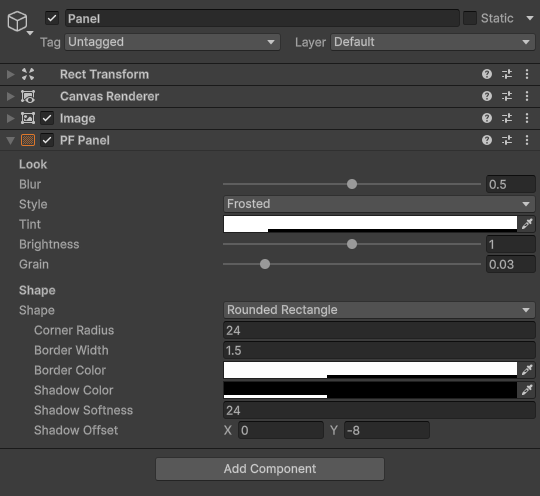
Or select any UI Image and choose Add Component > Pass Forge > PF Panel.
The menu items set the shape to Rounded Rectangle and size the panel:
| Menu item | What you get |
|---|---|
| Dialog | 600 x 400 in the middle, Blur 0.5, corner radius 24. |
| Full Screen Backdrop | Edge to edge, fully frosted (Blur 1), a dark tint, no corners, edge or shadow. For pause menus. |
| Side Panel | 420 wide down the left side, Blur 0.6, corner radius 20. |
| Top Bar | 88 tall across the top, Blur 0.5, corner radius 18. |
| Tooltip | 320 x 96, Blur 0.5, a dark tint, a thin edge, corner radius 12. |
| Liquid Glass Card | 520 x 320, the Liquid Glass style, a thin bright edge, corner radius 40. |
| Black And White Backdrop | Edge to edge, the Black And White style, Blur 0.25. |
| Thermal Window | 480 x 320, the Thermal style, clear, an orange edge. |
| Night Vision Window | 480 x 320, the Night Vision style, clear, a green edge. |
| Hologram Panel | 520 x 340, the Hologram style, a cyan edge and a cyan glow around it. |
Settings
Look
| Setting | What it does |
|---|---|
| Blur | How blurred the scene behind the panel is, from 0 (clear glass) to 1 (fully frosted). Default 0.5. Below a half, Pass Forge also keeps a sharp copy of the picture while the panel shows. |
| Style | What the panel shows the scene behind it as: Frosted (default), Black And White, Sepia, Pixelate, Thermal, Night Vision, Hologram, Negative or Liquid Glass. |
| Pixel Size | Shows for Pixelate. Size of the pixels, in screen pixels, from 2 to 64. Default 12. |
| Refraction | Shows for Liquid Glass. How strongly it bends the scene near its edges, from 0 to 1. Default 0.6. |
| Dispersion | Shows for Liquid Glass. How far it splits the scene's colors where it bends, from 0 to 1. Default 0.35. |
| Bevel | Shows for Liquid Glass. How far in from its edge it bends, in the canvas's units, at least 1. Default 28. |
| Glint | Shows for Liquid Glass. How much light it catches along its top edge, from 0 to 1. Default 0.6. |
| Style Strength | Shows for Black And White, Sepia, Thermal, Night Vision, Hologram and Negative. How much of the style shows, from 0 to 1. Default 1. Zero shows the scene as it is. |
| Tint | Color laid over the scene. Alpha sets how much of it covers the scene. Default white at 0.15 alpha. |
| Brightness | Brightness of the scene behind the panel, from 0 to 2. Default 1. |
| Grain | Fine grain on the glass, from 0 to 0.2. Default 0.03. |
Shape
| Setting | What it does |
|---|---|
| Shape | Sprite (default when added from Add Component) keeps the Image's sprite as the panel's shape. Rounded Rectangle draws the panel's own rounded corners, edge and shadow, with no sprite. |
| Corner Radius | Shows for Rounded Rectangle. Radius of the corners, in the canvas's units. Default 24. |
| Border Width | Shows for Rounded Rectangle. Width of the light edge around the glass. Default 1.5. Zero draws none. |
| Border Color | Shows for Rounded Rectangle. Color of the edge; alpha sets how strong it is. Default white at 0.35 alpha. |
| Shadow Color | Shows for Rounded Rectangle. Color of the shadow under the panel. Default black at 0.35 alpha. Zero alpha draws none. With no offset it glows around the panel. |
| Shadow Softness | Shows for Rounded Rectangle. How far the shadow spreads and softens, in the canvas's units. Default 24. |
| Shadow Offset | Shows for Rounded Rectangle. Where the shadow falls, in the canvas's units. Default 0, -8. |
| Sprite | Shows for the Sprite shape. The Image's sprite, picked here so you need not find it on the Image. With no sprite the panel is a plain rectangle. |
Notes the Inspector shows
- Set Up Effects and Turn On Post Processing warnings while one is missing.
- On a Screen Space - Camera or World Space canvas: "This canvas draws with the camera, before Pass Forge copies the picture, so the panel can show a blurred copy of itself and its text. Put panels on a Screen Space - Overlay canvas."
- With Rounded Rectangle and a sprite on the Image: the sprite is not used.
- With Liquid Glass and the Sprite shape: Liquid Glass bends at the edges of the Rounded Rectangle shape; with a sprite it shows as clear glass.
- With the Sprite shape and no sprite: pick one, such as Unity's Knob for a round panel, or use Rounded Rectangle.
Common jobs
A frosted pause menu
- Choose GameObject > Pass Forge > PF Panel > Full Screen Backdrop.
- Put your pause buttons on the same canvas, after the backdrop in the Hierarchy.
- Switch the backdrop's object on when the game pauses and off when it resumes.
The whole scene shows fully frosted and darkened behind the menu.
A thermal scanner window
Choose GameObject > Pass Forge > PF Panel > Thermal Window and place it where the scanner shows on screen. Only the part of the scene behind the window shows in thermal.
A round panel
Keep Shape at Sprite and pick Unity's Knob sprite, or a round sprite of your own, in Sprite.
A glow instead of a drop shadow
With Rounded Rectangle, set Shadow Offset to 0, 0 and give Shadow Color a bright color. The shadow glows evenly around the panel.
Make all panels blur wider
Add Add Override > Pass Forge > Interface > Panel Backdrop to a Volume and raise Blur Size (from 0 to 1, default 0.6). It sets how wide the blur is for panels with Blur all the way up; wider costs more. Intensity at zero turns the backdrop off.
From a script
using PassForge.Effects;
using UnityEngine;
using UnityEngine.UI;

// Builds a frosted full screen backdrop for a pause menu. Needs the Unity UI package (com.unity.ugui).
public static class PauseBackdrop
{
    public static GameObject Create()
    {
        var canvasObject = new GameObject("Pause Canvas", typeof(Canvas));
        var canvas = canvasObject.GetComponent<Canvas>();
        canvas.renderMode = RenderMode.ScreenSpaceOverlay;   // panels need an overlay canvas
        canvas.sortingOrder = 100;

        var backdrop = new GameObject("Backdrop", typeof(RectTransform), typeof(CanvasRenderer), typeof(Image));
        backdrop.transform.SetParent(canvasObject.transform, false);
        var rect = (RectTransform)backdrop.transform;
        rect.anchorMin = Vector2.zero;                       // edge to edge
        rect.anchorMax = Vector2.one;
        rect.offsetMin = Vector2.zero;
        rect.offsetMax = Vector2.zero;
        backdrop.GetComponent<Image>().raycastTarget = false;

        var panel = backdrop.AddComponent<PassForgePanel>();
        panel.style = PanelStyle.Frosted;
        panel.blur = 0.85f;                                  // 0 clear, 1 fully frosted
        panel.tint = new Color(0.02f, 0.03f, 0.05f, 0.35f);  // alpha sets how much it covers
        panel.shape = PanelShape.RoundedRectangle;
        panel.cornerRadius = 0f;
        panel.borderWidth = 0f;
        panel.shadowColor = Color.clear;                     // no shadow

        canvasObject.SetActive(false);                       // the pause menu shows it
        return canvasObject;
    }
}
using PassForge.Effects;
using UnityEngine;
// A custom UI element with a shader of your own that reads _PassForgeBlurredScene.
public class MyGlassWidget : MonoBehaviour
{
void OnEnable() => PassForgePanelBackdrop.AddRequest(); // keep the blurred scene updated
void OnDisable() => PassForgePanelBackdrop.RemoveRequest(); // pair every AddRequest with one of these
}Good to know
- Overlay canvas only. Keep panels on a Screen Space - Overlay canvas. A camera or world space canvas is already in the picture Pass Forge copies, so the panel would show a blurred copy of itself and its text.
- One per object. A UI graphic holds one PF Panel.
- Masks. Panels work inside scroll views and other masks.
- Cost. The scene copies are made only while a panel is shown. A panel with Blur below a half also asks for a sharp, full size copy of the picture.
- Custom UI can use the Pass Forge/UI/Panel shader, or read the global textures
_PassForgeBlurredScene,_PassForgeSoftBlurredSceneand_PassForgeSharpScene, withPassForgePanelBackdrop.AddRequest()andRemoveRequest()(andAddSharpRequest()andRemoveSharpRequest()for the sharp copy). - Compass glass. GameObject > Pass Forge > Compass Bar > On Frosted Glass makes a Compass Bar on a frosted PF Panel. The glass needs Set Up Effects and Post Processing; the bar itself does not.
- Accessibility Menu. GameObject > Pass Forge > Accessibility Menu builds its options menu on a frosted PF Panel.
- Build size. The PF Panel shader is always kept in builds, so a panel added from a script draws.
- Unity UI only. The PF Panel needs the Unity UI package (com.unity.ugui).