Component
World Map
A full-screen map the player opens with a key, with the fog, the route, pings and marked objects, to pan, zoom and click to set a route or drop a ping.
What it does
The World Map is a big map over the whole screen, hidden until the player presses M, or a button calls Open() or Toggle(). It shows the same picture as the Fog of War Minimap on its object: the Map picture or plain ground, the fog explored and unexplored, the revealer dots, the camera's view and the Pass Forge Route as a line, with the player as an arrow pointing the way they face. With a Fog of War Radar on its object, it also shows pings and the marked objects in a map look.
Players drag to pan, use the mouse wheel or two fingers to zoom about the pointer, and stay inside the mapped area. A click or a tap leads the route there, drops a ping, or calls On Map Clicked with the world point, for your own waypoint markers or a fast travel menu.
Use it for an open world RPG's map screen, a strategy game's overview, or a survival game where the player marks a place to go back to. Pause While Open stops the game while it shows. Closed, it costs nothing: its Raw Image and minimap are switched off.
It is UI on the HUD canvas: it needs no Volume and no Set Up Effects. Dragging, zooming and clicking need an Event System and a Graphic Raycaster on the canvas.
Add it
- Choose GameObject > Pass Forge > World Map.
- It goes on the HUD canvas: the selected UI object's canvas, or the one your Fog of War Minimap or Compass Bar is on, or a Screen Space canvas in the scene, or a new one.
- It is drawn over the rest of the HUD, takes the fog, picture and colors of the scene's own minimap, opens on the object tagged Player, and adds a radar with a map look for pings and marks.
- It adds an Event System when the scene has none, and starts hidden.
- Press Preview In The Game View in its Inspector to look at it while you edit. Press Hide The Preview to close it. Play Mode starts with it closed.
- Press Play and press M. The map opens centered on the player. Drag, scroll, and click a place to lead the route there.
You can also add Add Component > Pass Forge > World Map to a Raw Image of your own. It needs a Fog of War Minimap on the same object, adds one if it has none, and readies it for a full-screen map: nothing followed, square cut, no border, no room kept for Off-screen Indicators, and a thin route and small dots.
Settings
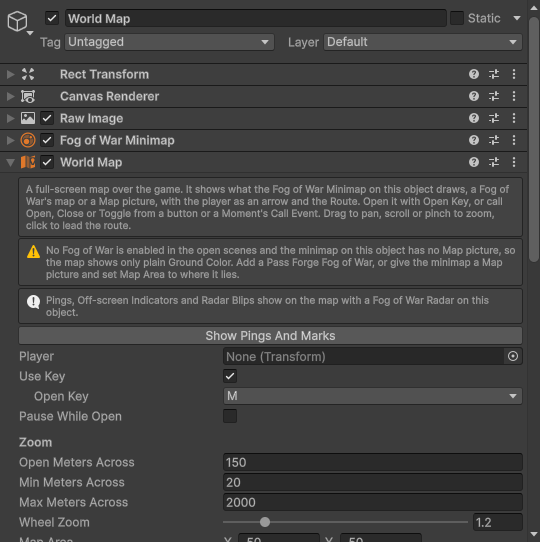
At the top, an info box sums up what the map does, followed by notes on what it needs, each with its fix.
| Setting | What it does |
|---|---|
| Player | The player: the map opens centered on it and draws it as an arrow pointing the way it faces. Empty uses the object tagged Player. |
| Use Key | Open and close the map with Open Key. On by default. Off leaves it to Open, Close and Toggle, such as from a button or a Moment's Call Event step. |
| Open Key | Shows with Use Key. The key that opens and closes the map, read from the Input System or the old Input Manager, whichever the project uses. Default M. It does nothing while a text field is being typed in. |
| Pause While Open | Stop the game while the map is open: Time Scale goes to 0 and is given back as it was when the map closes or is switched off. The map, pings and the UI keep going. Off by default. |
Zoom
| Setting | What it does |
|---|---|
| Open Meters Across | Meters the map shows across the screen's longer side when it opens, centered on the player, at least 1. Default 150. |
| Min Meters Across | The closest the map zooms in: meters across the screen's longer side, at least 1. Default 20. |
| Max Meters Across | The farthest the map zooms out, at least Min Meters Across. Default 2000. With a Fog of War or a Map Area it also stops once the whole area shows. |
| Wheel Zoom | How much one notch of the mouse wheel zooms in or out, from 1.05 to 2. Default 1.2. |
| Map Area | Shows only without a Fog of War. Where the minimap's Map picture lies, in meters on the map's plane: its left and back edges (left and bottom in 2D), then its width and depth, with north up. Default -50, -50, 100, 100. Panning stays inside it. With a Fog of War the picture covers the fog's Size instead. |
Clicks
| Setting | What it does |
|---|---|
| Click Sets Route | A click or tap on the map leads the Route there. On by default. |
| Route | Shows with Click Sets Route. The route a click leads. Empty uses the Pass Forge Route that shows: the one enabled last. |
| Click Drops Ping | A click or tap on the map drops a ping there, which this map's radar, other radars and Compass Bars show. Off by default. |
| Ping Color | Shows with Click Drops Ping. Color of the ping. Default gold. |
| Ping Shape | Shows with Click Drops Ping. The sign in the middle of the ping: Ring, Warning, Enemy, Ally, Help, Objective (default), Sound or Icon. The map gives a ping no icon, so Icon shows the ring alone here. |
| Ping Seconds | Shows with Click Drops Ping. Seconds the ping shows, at least 0.1. Default 4. |
| Ping Radius | Shows with Click Drops Ping. Meters the ring of the ping spreads to, at least 0.1. Default 6. |
| Ground Layers | Hidden in 2D. Layers a click finds the ground on in 3D, so a route or a ping set from the map lands on hills and floors: of the surfaces under the point, the one nearest the player's height. Default Everything. Nothing keeps the player's height. |
Player
| Setting | What it does |
|---|---|
| Player Color | Color of the player's arrow. Default white. Zero alpha draws none. |
| Player Size | Size of the player's arrow, as a share of the map's width, from 0.005 to 0.08. Default 0.02. |
| On Opened | Called when the map opens, such as to hide the rest of the HUD. Play Mode only. |
| On Closed | Called when the map closes. Play Mode only. |
| On Map Clicked | Called with the point in the world a click or tap on the map lands on: on the ground in 3D where Ground Layers find it, otherwise at the player's height. Play Mode only. |
Notes and buttons the Inspector shows
- No Fog of War and no Map picture: the map shows only plain Ground Color. Add a Fog of War, or give the minimap a Map picture and set Map Area. With a picture and no fog, every place shows as seen.
- No player: pick one in Player, or tag the player Player.
- Open Key does nothing: the project reads input through the Input System, which reads only keyboard keys here. Pick a key of the keyboard.
- No Event System, with Add An Event System. No Graphic Raycaster on the canvas, with Add A Graphic Raycaster. The Raw Image's Raycast Target off, with Turn Raycast Target On. Without these, dragging, zooming and clicking do nothing.
- No route enabled, so a click leads nowhere yet.
- No radar on the object: pings, Off-screen Indicators and Radar Blips show on the map with a Fog of War Radar here, with Show Pings And Marks, which adds one with a map look: no screen, rings or sweep, only pings and marked objects.
- Preview In The Game View and Hide The Preview outside Play Mode, as one Undo step; Open and Close in Play Mode.
- Move It To A Canvas, when the object is on no canvas.
The Fog of War Minimap on the same object keeps its own Inspector for the Fog, the Map picture, colors, dots, camera outline and route. Follow, View Size and Orientation are hidden there, since the World Map decides the view.
Common jobs
Click the map to set a waypoint
- Keep Click Sets Route on, and give the player a Pass Forge Route.
- Press Play, open the map with M, and click a place.
The route leads there on the ground, on the minimap and on the Compass Bar. Dragging does not count as a click.
Mark a place with a ping
Turn Click Drops Ping on and pick a Ping Shape, such as Objective. A click drops a ping on this map, on every Fog of War Radar and on every Compass Bar, for its seconds.
Pause the game while the map is open
Turn Pause While Open on. Time Scale goes to 0 while the map is open and comes back as it was. With two maps open at once, as in split screen, it comes back when both have closed.
Open the map from a button
Turn Use Key off, and add the World Map's Toggle to your button's On Click.
Hide the HUD while the map is open
Add your HUD root's GameObject.SetActive (unticked) to On Opened, and SetActive (ticked) to On Closed.
A map without a Fog of War
Give the minimap on the World Map's object a Map picture, and set Map Area to where the picture lies in the world, in meters. Every place shows as seen, and panning stays inside the picture.
Your own markers on the map
Call WorldToMap(position) each frame the map is open to place your own UI marker over a place, and MapToWorld(screenPoint) to turn a click of your own into a world point.
From a script
using PassForge.Effects;
using UnityEngine;

// Needs the Unity UI package (com.unity.ugui).
public class MapScreen : MonoBehaviour
{
    [SerializeField] PassForgeWorldMap m_Map;
    [SerializeField] RectTransform m_CampMarker;    // a UI image on a Screen Space - Overlay canvas
    [SerializeField] Transform m_Camp;

    void OnEnable() => m_Map.onMapClicked.AddListener(OnClicked);
    void OnDisable() => m_Map.onMapClicked.RemoveListener(OnClicked);

    void OnClicked(Vector3 world) => Debug.Log("Clicked " + world);   // on the ground in 3D

    public void ShowCamp()
    {
        m_Map.Open();                               // centered on the player at Open Meters Across
        m_Map.CenterOn(m_Camp.position);            // pan, kept inside the area
        m_Map.metersAcross = 300f;                  // zoom, kept between Min and Max
    }

    void LateUpdate()
    {
        m_CampMarker.gameObject.SetActive(m_Map.isOpen);

        if (m_Map.isOpen)
            m_CampMarker.position = m_Map.WorldToMap(m_Camp.position);   // pixels from the lower left
    }

    public void Toggle() => m_Map.Toggle();
}
Good to know
- One per object. An object holds one World Map, with its Fog of War Minimap and, for pings and marks, a Fog of War Radar.
- Square image. The Raw Image is kept square and as large as the screen's longer side, so round marks stay round. Its anchors stretch over the parent.
- Closed costs nothing. The Raw Image and the minimap are switched off while the map is closed.
Openswitches the object on if it was off. - Input. The key is read from the Input System or the old Input Manager. With the Input System only keyboard keys work; a mouse button as Open Key does nothing there.
- Events wait for Play Mode. On Opened, On Closed, On Map Clicked, Pause While Open, and what a click leads and pings all wait for Play Mode, so the preview never changes the scene or the project's time scale.
- Click Sets Route gives the route a new destination with
SetDestination, so the route keeps leading there until something else sets one. - 2D. The map lies on X and Y in 2D, as the minimap does, and a click lands at the player's depth.
- Unity UI only. The World Map is a uGUI component and needs the Unity UI package (com.unity.ugui).
- Canvas. The menu puts the map on your HUD canvas. On a Screen Space - Overlay canvas, no screen look covers it.