How do I
Show the way to an objective
Select the objective and choose GameObject > Pass Forge > Route To Here; the Pass Forge Route on the player shows the way on the ground, on minimaps and radars, and on Compass Bars.
You want
A line of arrows on the ground leads the player to the next quest target, around walls, and the minimap and compass point the same way. With several crystals to collect, it should lead to the nearest one left.
Steps
- Select the objective in the scene and choose GameObject > Pass Forge > Route To Here. It leads the route already in the scene there, or adds Pass Forge Route to the object tagged Player, and selects it. Undo takes it back.
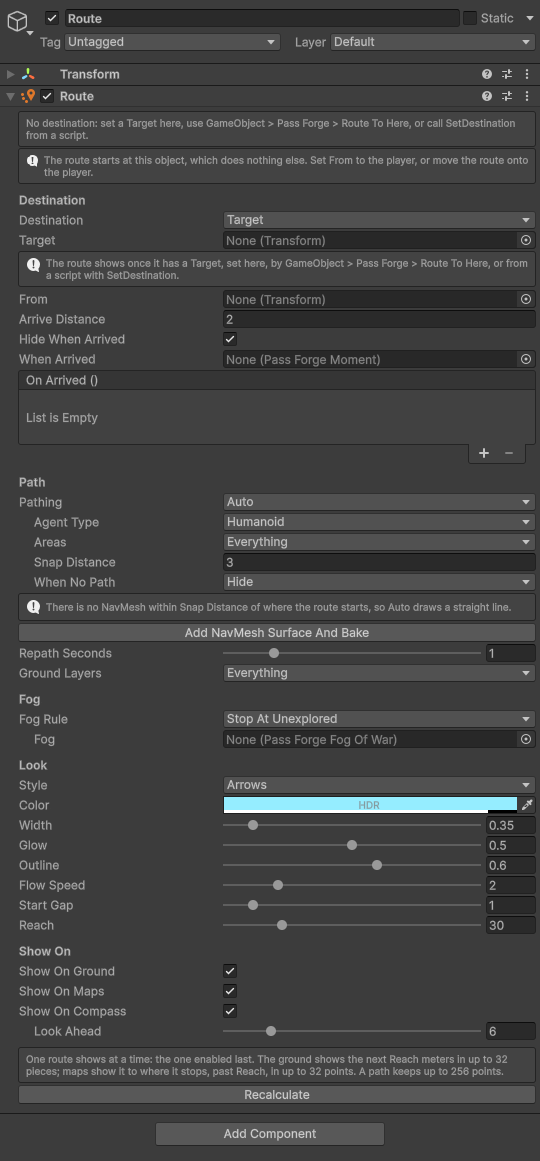
- On the Route, under Destination, pick how it leads:
- Target: an object, which it follows as it moves.
- Point: a place, with a move handle in the Scene view.
- Nearest Of List: the nearest of Targets still standing, such as crystals to collect. One switched off, destroyed or arrived at is left out.
- List In Order: the Targets in order, such as the steps of a quest.
- Nearest With Tag: the nearest object with Target Tag, so objectives spawned in play are found with no list.
- Under Path, keep Pathing at Auto. It follows the NavMesh when there is one near the player and draws a straight line otherwise. Without a NavMesh, the inspector offers Install AI Navigation and then Add NavMesh Surface And Bake.
- Set Arrive Distance, Hide When Arrived, and a When Arrived moment, such as Checkpoint.
- Under Look, pick Arrows, Line or Dashes, its Color, Width and Flow Speed.
- Read the status line at the top of the inspector. It says what the route found and why, such as how many meters are left, or why there is no path.
What you should see
The route shows in three places at once: as a line of arrows on the ground that follows terrain and stairs, as a line on every Fog of War Minimap and Radar, and as a caret on every Compass Bar pointing the way to walk now. The line on the ground needs Tools > Pass Forge > Set Up Effects and a camera with Post Processing on, but no Volume.
If it does not work
- The route goes straight through walls. There is no NavMesh near the player, or the AI Navigation package is not installed. The inspector has a button for each. Without a NavMesh, use Waypoints, or hand your own pathfinder's points to
SetPath. - It stops short. With Fog Rule at Stop At Unexplored, it ends where the Fog of War was never explored. Explore further, or set Show Through Unexplored.
- No line on the ground. Check Set Up Effects and Post Processing. In 2D, sprites leave the depth texture empty, so there is no line on the ground; minimaps and Compass Bars still show it.
- Another route shows. One route shows at a time: the one enabled last. The Overview says when another takes its place.
- It does not show on the map or compass. Check Show On Maps and Show On Compass on the route, and Show Route on the minimap and the Compass Bar.
- The line paints the player. Add a Pass Forge Effect Mask to the player and set the Route effect's Mask to Except Masked Objects in Add Override > Pass Forge > Gameplay > Route.
From a script
using PassForge.Effects;
using UnityEngine;

public class ObjectiveRoute : MonoBehaviour
{
    [SerializeField] Transform[] m_Objectives;
    int m_Next;

    void Start() => Show();

    public void ObjectiveDone() { m_Next++; Show(); }

    // An ally calls for help: the way to them for 20 seconds, then back to the objective.
    public void HelpAlly(Transform ally)
    {
        var route = PassForgeRoute.current;
        if (route != null)
            route.ShowTo(ally, 20f);
    }

    void Show()
    {
        var route = PassForgeRoute.current;   // the route enabled last, or null
        if (route == null)
            return;

        if (m_Next < m_Objectives.Length)
            route.SetDestination(m_Objectives[m_Next]);
        else
            route.ClearDestination();
    }
}
remainingDistance gives the meters left along the route. A Show Route moment step leads the route somewhere for a while.