How do I
Add a minimap with a radar
Choose GameObject > Pass Forge > Fog of War Minimap, press Capture Map From Above for its picture, then Add Radar, or pick a look under GameObject > Pass Forge > Fog of War Radar.
You want
A round minimap in the corner shows what the player explored, with a radar sweep, distance rings, enemies in sight as red diamonds and the objective as a gold dot.
Steps
- Choose GameObject > Pass Forge > Fog of War Minimap. It puts a round minimap in the top right corner of a canvas, following the object tagged Player.
- On the Pass Forge Fog of War Minimap, pick the scene's Fog of War in Fog, or leave it to find the one that shows.
- Press Capture Map From Above. It takes a picture of the Fog of War's area from straight above, saves it in
Assets/Pass Forge Effects/Minimapsand makes it the Map. Put pickups and props that get moved on layers picked in Capture Leaves Out. - Set Follow and View Size for the meters around the player, and Orientation: North Up, Follow Up to turn the map so the way the player faces is up, or Camera Up to turn it with the camera. Turn Camera picks that camera, such as each player's own in split screen.
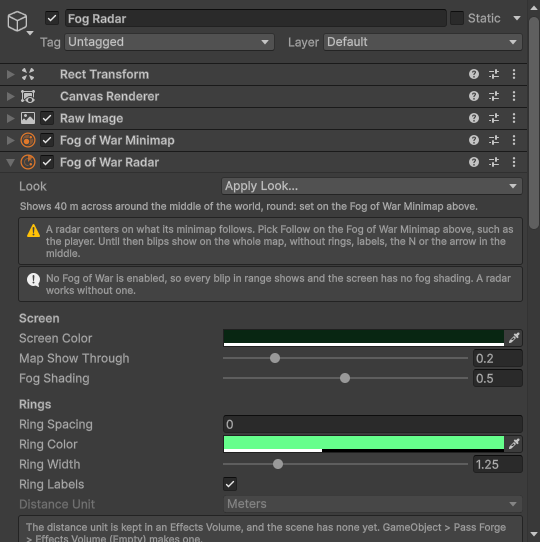
- Press Add Radar in the minimap's inspector, or choose GameObject > Pass Forge > Fog of War Radar and a look: Military, Sonar, Amber, Tactical Map or Hologram. Apply Look... changes it later.
- On the radar, set Ring Spacing, Sweep and Sweep Seconds, and Show: What The Fog Shows never gives away more than the fog does, Everything In Range works as a motion tracker.
What you should see
Places never seen stay dark, explored ones dim, and the ones seen now show bright. Without adding anything to them, objects on the fog's Hide While Unseen layers show as enemies, objects on Hide Until Explored as neutral things, your Fog Revealers as your side, and Off-screen Indicators as objectives. A Pass Forge Radar Blip puts anything else on the radar, or gives an object its own Kind, Shape or color.
If it does not work
- An object is stuck on the map picture. Capture Map From Above keeps only what stays where it is. Objects the HUD marks, units the fog hides, bodies that move, characters and effects are left out by themselves; put anything else that moves on a layer in Capture Leaves Out and capture again.
- Enemies do not show on the radar. Put them on a layer of their own and pick it in the fog's Hide While Unseen, or add a Radar Blip. With Show at What The Fog Shows, an enemy shows only while your side sees it.
- The radar has no rings, labels or N. They need the minimap's Follow, such as the player.
- A turning minimap looks stretched. A radar and a turning minimap need a square Raw Image.
- Dead enemies stay on the radar. Switched off objects never show, but switching only an object's renderers off does not take it off radars. Switch the object off.
- The menu item is missing. The minimap and radar need the Unity UI package,
com.unity.ugui.
From a script
using PassForge.Effects;
using UnityEngine;

public class MinimapOptions : MonoBehaviour
{
    [SerializeField] PassForgeFogMinimap m_Minimap;
    [SerializeField] PassForgeFogRadar m_Radar;

    // A turning map is harder for some players to follow: offer North Up.
    public void NorthUp(bool on) =>
        m_Minimap.orientation = on ? MinimapOrientation.NorthUp : MinimapOrientation.FollowUp;

    public void UseSonarLook() => m_Radar.ApplyLook(RadarLook.Sonar);
}