Component
Off-screen Indicator
A glowing marker at the screen's edge that points at an object when it is out of view, and a floating icon over it when it is in view.
What it does
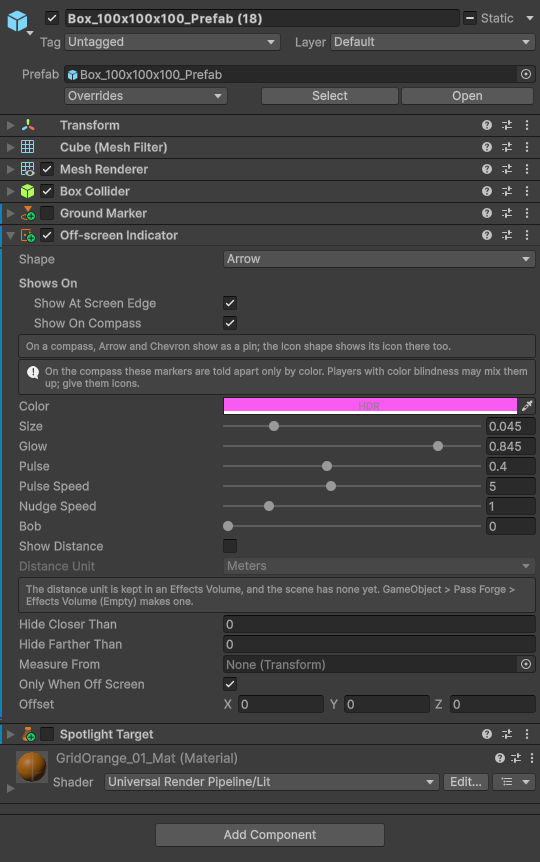
An Off-screen Indicator marks its object at the edge of the screen while the object is out of view. The marker points toward it: an arrow, a chevron, or an icon of your own such as a skull or a coin, tinted by its color. It gently brightens and dims, and slowly draws back from the edge and darts toward the object, so the eye catches it.
Turn Only When Off Screen off and the indicator also marks the object while it is on screen, floating over it. That is the classic exclamation mark over a quest giver in an RPG, or a marker over a pickup. In a co-op shooter, put one on each ally so players always know where the others are.
Show Distance writes how far away the object is beside the marker, such as 125m. The same indicator shows on every Compass Bar with Show On Compass, and on every Fog of War Radar as an objective. With Show At Screen Edge off it shows only on the compass and radars.
The edge markers are a screen effect that needs no Volume. A Volume's Off-screen Indicators override restyles them all at once.
Add it
- Select the object to mark, such as a quest giver, an objective or an ally.
- Choose Add Component > Pass Forge > Off-screen Indicator.
- Run Tools > Pass Forge > Set Up Effects once per project, and make sure the camera has Post Processing on. The Inspector warns and offers a button for each while one is missing.
- Press Play and turn away from the object. A yellow arrow points at it from the edge of the screen.
For a bobbing exclamation mark over each selected object in one step, choose GameObject > Pass Forge > Floating Icon. It sets Shape to Icon with the Exclamation icon, Size 0.04, Bob 0.6, turns Only When Off Screen off, and places the Offset half a meter above the top of the object's renderers. With nothing selected it makes a new object named Floating Icon.
Settings
| Setting | What it does |
|---|---|
| Shape | What the indicator draws: Arrow (default), Chevron, or Icon. On screen, with Only When Off Screen off, an arrow or chevron becomes a pin over the object; an icon stays an icon. |
| Shipped Icon | Shows for the Icon shape. Picks one of the ten icons Pass Forge ships: Arrow Down, Coin, Crosshair, Exclamation, Gear, Heart, Question, Skull, Star and Sword. |
| Icon | Shows for the Icon shape. The texture the Icon shape draws, tinted by Color. Its alpha cuts its shape. While it is empty, a note asks you to pick one. |
| Show At Screen Edge | Under Shows On. Show the indicator at the edge of the screen, and over its object when Only When Off Screen is off. Off keeps it to Compass Bars and Fog of War Radars. On by default. |
| Show On Compass | Under Shows On. Show this object on Compass Bars too, with its icon, color and distance. On by default. |
| Color | Color of the indicator, with HDR. Default warm yellow. |
| Size | Size of the indicator, as a share of the screen height, from 0.01 to 0.2. Default 0.045. |
| Glow | How much light glows around the indicator, from 0 to 1. Default 0.6. Zero draws only its shape. |
| Pulse | How much the indicator gently brightens and dims, from 0 to 1. Default 0.4. Zero holds it steady. |
| Pulse Speed | How fast it brightens and dims, from 0 to 12. Default 5. Zero holds it still. |
| Nudge Speed | How many times a second the indicator slowly draws back from the edge and darts toward the object while it is off screen, from 0 to 6. Default 1. Zero keeps it still. |
| Bob | How much the indicator bobs gently up and down while its object is on screen, as an icon floating above a quest giver, from 0 to 1. Default 0. |
| Show Distance | Show how far away the object is beside the indicator, in meters, or in feet with the Distance Unit below. Off by default. |
| Distance Unit | Meters or Feet for every distance the HUD writes: these indicators, Compass Bars and Fog of War Radar rings. It is one setting for the whole game, kept on the Off-screen Indicators effect in the scene's Effects Volume, and grayed out until the scene has one; Create Effects Volume under it makes one. |
| Hide Closer Than | Hide the indicator while the object is closer than this many meters, such as once the player has reached it. Default 0, which never hides it. |
| Hide Farther Than | Hide the indicator while the object is farther than this many meters, so only what is near shows. It fades on the way. Default 0, which shows it at any distance. |
| Measure From | The object distances are measured from, such as a vehicle or a squad leader, for Show Distance and both Hide settings. Empty measures from the object tagged Player, or from the camera when there is none. |
| Only When Off Screen | Show the indicator only while the object is off screen. Off also marks it while it is visible. On by default. |
| Offset | The point the indicator tracks, in the object's local space, such as above a character's head. |
Notes the Inspector shows
- Set Up Effects and Turn On Post Processing warnings, only while the indicator shows at the screen's edge. One kept to the compass needs neither.
- "This indicator shows nowhere" when both Shows On switches are off and no Fog of War Radar shows indicators. With a radar whose From Indicators is on, a note says it shows on radars only.
- "No Compass Bar is in the open scenes", with an Add Compass Bar button that puts a Simple bar at the top of a new canvas, while Show On Compass is on.
- With a Compass Bar in the scene: Arrow and Chevron show on the compass as a pin. When two or more pins differ only by color, a note suggests icons for color blind players.
- At the top, a warning when this indicator may not show: more than 16 show at the screen's edge, more than 16 objects are set to show on the compass, or eight other icons already show.
Common jobs
Put an exclamation mark over a quest giver
- Select the quest giver and choose GameObject > Pass Forge > Floating Icon.
- Press Play.
On screen, the exclamation mark bobs over the quest giver. Turn away and it points at the quest giver from the edge of the screen. Pick Question in Shipped Icon for a quest ready to hand in.
Hide the marker once the player arrives
- Turn Show Distance on.
- Set Hide Closer Than to 3.
The marker counts down the meters and fades out once the player is within 3 meters. It comes back when the player walks away.
Keep far objectives out of the way
Set Hide Farther Than to the range that matters, such as 80. Objects past it fade out, and they do not take any of the 16 places at the edge.
Mark allies in co-op
- Add an Off-screen Indicator to the ally prefab, with Shape Icon and a color per player.
- Keep Only When Off Screen on.
Indicators that point the same way spread along the edge, so two allies behind you each keep a marker of their own.
Keep the markers clear of your health bar
- For a fixed band, add Add Override > Pass Forge > Gameplay > Off-screen Indicators to your Volume and set HUD Insets: room along the left (X), right (Y), top (Z) and bottom (W) edges, as a share of the screen height.
- For one piece of a screen space HUD, call
PassForgeOffscreenIndicator.AddHudArea(healthBarRect). Indicators go around it.
A Fog of War Minimap and a Compass Bar keep indicators clear of themselves with their own Keep Indicators Clear.
Restyle every indicator at once
Add Add Override > Pass Forge > Gameplay > Off-screen Indicators to a Volume. Its Size, Glow and Pulse take over each indicator's own while ticked. It also sets Margin from the edge, Safe Area for phone notches (on by default), Spread Out, HUD Insets, Intensity (zero turns the edge markers off), Resolution Scale, Mask and Distance Unit. A Volume with a blend distance or a weight below one blends from each indicator's own setting.
From a script
using PassForge.Effects;
using UnityEngine;

public class ObjectiveMarker : MonoBehaviour
{
    [SerializeField] Texture2D m_SkullIcon;        // white on a clear background works best
    [SerializeField] RectTransform m_HealthBar;    // a piece of a screen space HUD
    [SerializeField] Transform m_Vehicle;

    void Start()
    {
        var indicator = gameObject.AddComponent<PassForgeOffscreenIndicator>();
        indicator.shape = IndicatorShape.Icon;     // draw the icon below
        indicator.icon = m_SkullIcon;
        indicator.color = Color.red;               // tints the icon
        indicator.showDistance = true;             // such as 125m
        indicator.hideCloserThan = 2f;             // gone once the player is here
        indicator.offset = new Vector3(0f, 2f, 0f); // above the head, in local space

        PassForgeOffscreenIndicator.AddHudArea(m_HealthBar);   // indicators go around it
    }

    // While driving, measure every indicator's distance from the vehicle.
    public void EnterVehicle() => PassForgeOffscreenIndicator.distanceFrom = m_Vehicle;
    public void ExitVehicle() => PassForgeOffscreenIndicator.distanceFrom = null;   // back to the Player tag

    void OnDestroy() => PassForgeOffscreenIndicator.RemoveHudArea(m_HealthBar);
}
Good to know
- Limits. Up to 16 indicators show at the edge at once, the nearest when more would. Up to eight different icons show at once, counted in the order the indicators were enabled; pings with icons share the same eight.
- One per object. An object holds one Off-screen Indicator. Put a second marker on a child object.
- Shows On. Show At Screen Edge off runs no full screen pass for that indicator, so a game whose indicators all live on the compass costs nothing at the edge.
- The fog does not hide indicators. Edge markers and compass markers do not read the Fog of War. An indicator on an enemy points at it even while the fog hides it. Fog of War Radars do respect the fog: an indicator on an object on a Hide While Unseen layer shows on radars only while that object is seen.
- Radars show every indicator as an objective in its own color and icon while their From Indicators is on, whatever Shows On says. An objective out of range waits on the radar's rim.
- Screen effect needs. The edge markers need Set Up Effects and Post Processing on the camera. They draw after every screen look, so they stay readable over night vision or a flashback, unless HUD Under Looks is ticked in a Volume.
- 2D. Distances are measured on the screen's plane.
- Safe mode holds the markers steady: no pulse, nudge or bob.
- Text size. The player's text size (Accessibility) enlarges the distances beside the markers.
- Headsets. Indicators are placed for one eye.
- Distance Unit in a build. The edge markers, every Compass Bar and every Fog of War Radar read the Volume's Distance Unit, so the unit holds in a game with only a compass or a radar too. Without a Volume that ticks it, the unit a script sets with
PassForgeHud.distanceUnitstays.