How do I
Leave afterimages behind a moving character
Add a Pass Forge Afterimage and keep Space at World for ghosts that stay where the character stood, or set Screen for a continuous smear that moves with the camera.
You want
A ninja dashes and leaves fading copies of itself behind, or a speeding car leaves a glowing smear. With a third person camera following the character, the ghosts should stay behind in the world.
Steps
- Select the character and add Add Component > Pass Forge > Afterimage.
- Pick a look in Preset, such as Speed Ghosts, Shadow Clones or Rainbow Dash. Picking one copies its settings into the component.
- Set Space:
- World, the default, records each ghost where the object stood and draws it there, so the camera can move and turn around the ghosts. This is the one for a third person game.
- Screen keeps the ghosts on the picture, which a continuous smear needs, and a moving camera carries them along. Energy Smear, Fire Trail and Speed Smear come set to Screen.
- Set Fade Time, the seconds until a ghost has faded to half, and Stamp Interval, the seconds between ghosts. Zero leaves a continuous smear.
- Set Min Stamp Distance so a character standing still does not keep stamping, and keep Hide Under Object on so the ghosts trail behind it.
- For ghosts only during a dash, switch the component off in the scene and add an Afterimage Burst step to the dash's Pass Forge Moment. It turns the Afterimage on for a while, then lets its last ghosts fade.
Inspector
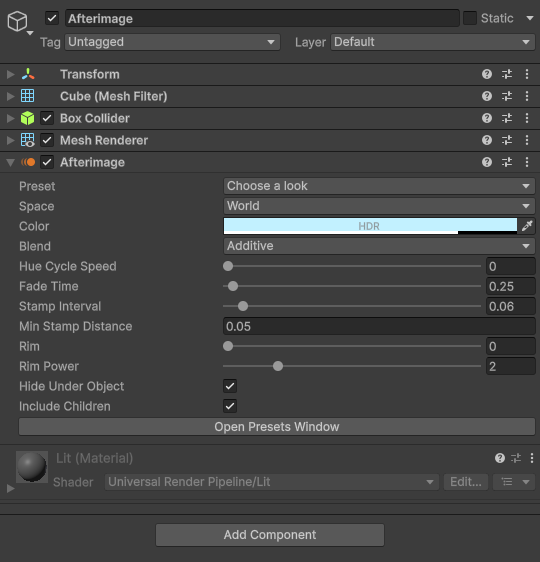
What you should see
In World, ghosts stand where the character was, up to 16 per object, and fade evenly whichever way the character runs. Sprite Renderers follow the setting too, 2D Animation skinning included, so in World a 2D camera following a character leaves the trail behind in the level.
If it does not work
- The ghosts slide with the camera. Space is Screen. Set it to World. Spine skeletons and sliced or tiled sprites always leave their ghosts on the picture.
- A skinned character's ghosts follow the camera in a build only. A skinned mesh leaves World ghosts in a build only with Read/Write on in its model's import settings. The Console says so once, and the inspector offers Turn On Read/Write.
- Rainbow ghosts stay one color. Hue Cycle Speed needs a colored Color, not white or gray.
- Ghosts appear across a teleport or a camera cut. Call
PassForgeAfterimage.ClearAll()after the jump. - A crowd of skinned characters costs too much. Recording a skinned pose costs a little CPU and a mesh's worth of memory per ghost. Use longer Stamp Intervals, and measure.
From a script
using System.Collections;
using PassForge.Effects;
using UnityEngine;

public class DashTrail : MonoBehaviour
{
    [SerializeField] PassForgeAfterimage m_Afterimage;   // switched off in the scene
    Color m_Color;

    void Awake() => m_Color = m_Afterimage.color;

    public void StartDash(bool rainbow)
    {
        StopAllCoroutines();
        m_Afterimage.color = m_Color;
        m_Afterimage.hueCycleSpeed = rainbow ? 1.5f : 0f;
        m_Afterimage.enabled = true;
    }

    // Switched off, an Afterimage drops its ghosts at once, so the trail first stops leaving new ones and switches
    // off once the last ones have faded.
    public void EndDash() => StartCoroutine(FadeTrail());

    IEnumerator FadeTrail()
    {
        m_Afterimage.color = new Color(m_Color.r, m_Color.g, m_Color.b, 0f);   // no new ghosts
        yield return new WaitForSeconds(m_Afterimage.fadeTime * 4f);
        m_Afterimage.enabled = false;
        m_Afterimage.color = m_Color;
    }

    public void Teleport(Vector3 to)
    {
        transform.position = to;
        PassForgeAfterimage.ClearAll();
    }
}
m_Afterimage.space = AfterimageSpace.Screen; switches the space from a script.