How do I
Spread a freeze from the point the player clicked
Give the object the Freeze From Hit Point highlight and a Highlight Trigger set to Pointer Click; a click spreads the ice from where it landed, and On Clicked At or SpreadFrom(point) start it anywhere else.
You want
The player clicks an enemy with an ice spell and frost spreads across it from the exact spot the cursor touched. Later the same should happen from where a bullet or a sword hit.
The spread is the Fill part of a highlight look with Direction set to From Point. Pass Forge ships it ready as the Freeze From Hit Point preset.
Steps
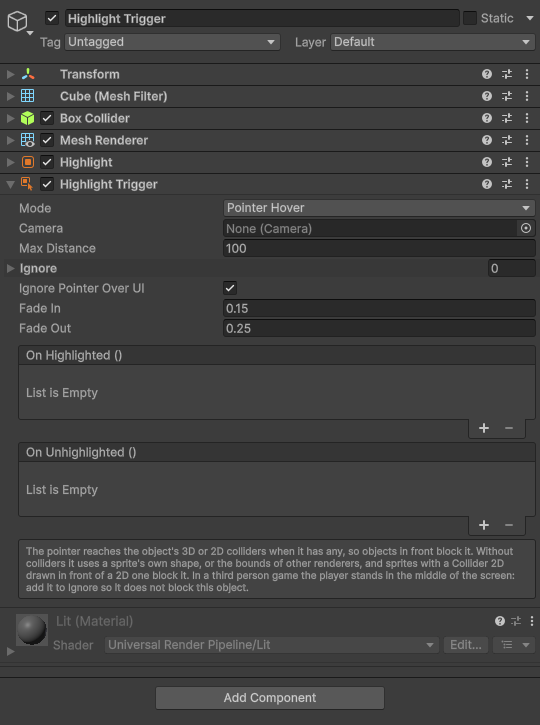
- On the enemy, add Add Component > Pass Forge > Highlight Trigger, which adds a Pass Forge Highlight.
- In the Highlight's Preset, pick Freeze From Hit Point.
- On the Highlight Trigger, set Mode to Pointer Click.
- Play and click the enemy. Selecting it spreads the fill from the point the click landed on, with nothing to wire.
- To start something else at the same point, use On Clicked At on the trigger. It sends the point on the object that was clicked: under Dynamic Vector3, pick a Moment's PlayAt for a ring and sparks there, or another Highlight's SpreadFrom.
- To change how long the ice takes to spread, make your own copy with Make Editable Copy, open Fill and set Spread Seconds. The shipped preset takes 1.5 seconds. Zero shows it grown at once.
Without a click, a Pass Forge Moment does the same: add a Highlight For Seconds step for an enemy whose Highlight is switched off in the scene. A From Point fill spreads from where the moment plays, so PlayAt(hitPoint) starts the ice at the hit, and a moment on Collision Enter with At Contact Point on starts it where the collision struck.
What you should see
The frost grows outward from the clicked point over Spread Seconds, slowing as it reaches the edges, with a glowing band along its front. Each new spread starts again from its own point. With Pointer Click, a second click on a selected enemy deselects it and its highlight goes. Only this enemy changes: spreading gives the object its own copy of the profile, so others sharing it are not affected.
If it does not work
- The fill grows from the bottom. The profile's Fill > Direction is not From Point.
- The click does not reach the enemy. The pointer reaches the object's colliders when it has any. A sprite with no collider drawn over this one where the click lands, such as a tree in the foreground, takes the click.
- Nothing shows from a script. A Highlight shows while it is enabled. Enable it, or use a Highlight Trigger or a Highlight For Seconds step, which switch it on.
- The step says the Highlight is switched on. A Highlight For Seconds step leaves a Highlight that is already on as it is. Switch it off in the scene; the step switches it on for its seconds.
From a script
using PassForge.Effects;
using UnityEngine;

public class IceBolt : MonoBehaviour
{
    void OnCollisionEnter(Collision collision)
    {
        var highlight = collision.collider.GetComponentInParent<PassForgeHighlight>();   // Freeze From Hit Point
        if (highlight == null)
            return;

        highlight.enabled = true;
        highlight.SpreadFrom(collision.GetContact(0).point);         // over the profile's Spread Seconds
        // highlight.SpreadFrom(collision.GetContact(0).point, 0.4f); // or over seconds of its own
    }
}
PassForgeHighlightTrigger.lastClickPoint holds the point the last click landed on, and onClickedAt is the UnityEvent<Vector3> behind On Clicked At. SetSpreadPoint(position) moves where a From Point fill starts without growing it, and fillAmount sets how far it has grown.