How do I
Point to an objective that is off screen
Add a Pass Forge Off-screen Indicator to the objective, or use GameObject > Pass Forge > Floating Icon; a glowing marker on the screen's edge points toward it, with its distance if you like.
You want
A quest giver, a lost teammate or a bomb site stays findable: when it is out of view, an arrow or a skull icon on the edge of the screen points toward it, with "125m" beside it.
Steps
- Select the objective and choose GameObject > Pass Forge > Floating Icon. It puts a bobbing exclamation mark above the selected objects that stays over them on screen and points toward them from the edge once they are out of view. Or add Add Component > Pass Forge > Off-screen Indicator yourself.
- Pick a Shape: an arrow, a chevron, or Icon with a texture of your own in Icon, tinted by Color. Ten icons ship with Pass Forge, from Exclamation and Question to Skull, Coin and Sword.
- Set Size, Glow, Pulse and Pulse Speed.
- Tick Show Distance to write how far away the object is. It is measured from the object tagged Player, or from the camera, unless Measure From names another object.
- Turn off Only When Off Screen to mark the object while it is on screen too; Bob then floats the marker over it.
- Set Hide Closer Than to hide the marker once the player has reached the object, and Hide Farther Than to keep far ones out of the way.
- Tick Show On Compass to show it on Compass Bars too. Turn off Show At Screen Edge to keep it on compasses and radars only.
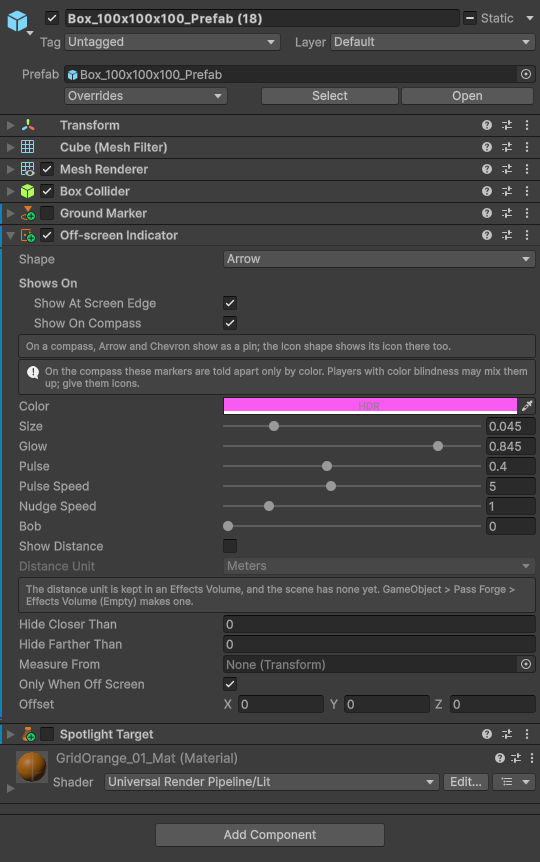
What you should see
While the object is off screen, a marker on the nearest edge points toward it and slowly draws back and darts toward it at Nudge Speed. Indicators pointing the same way spread along the edge instead of covering each other. Up to sixteen show at once, the nearest when more would. Fog of War Radars show every indicator as an objective, with its icon and color.
If it does not work
- Nothing shows at the edge. The markers are a screen effect: run Tools > Pass Forge > Set Up Effects and turn Post Processing on for the camera. They need no Volume.
- It shows on the compass but not at the edge. Show At Screen Edge is off.
- Markers slide under the game's own HUD. Set HUD Insets on the Off-screen Indicators effect in a Volume to keep room free along each edge, or call
PassForgeOffscreenIndicator.AddHudArea(rectTransform)for a piece of a screen space HUD. Fog of War Minimaps and Compass Bars are kept clear by themselves. Safe Area keeps markers clear of phone notches. - Distances should be in feet. See Show distances in feet instead of meters.
- An enemy's marker shows on radars only while it is seen. An indicator on an object on a Hide While Unseen layer of the Fog of War shows on radars only while that object is seen.
From a script
using PassForge.Effects;
using UnityEngine;

public class QuestMarker : MonoBehaviour
{
    [SerializeField] PassForgeOffscreenIndicator m_Indicator;

    public void Activate()
    {
        m_Indicator.showDistance = true;
        m_Indicator.showOnCompass = true;
        m_Indicator.enabled = true;
    }

    public void Complete() => m_Indicator.enabled = false;
}
PassForgeOffscreenIndicator.distanceFrom picks the object every indicator's distance is measured from, such as a vehicle.