Component
Screen Warp
Bends the picture around an object, as a gravity lens for black holes and portals or as heat shimmer over engines, fires and hot metal.
What it does
A Screen Warp bends the picture around its object. Lens pulls the picture in toward the object's center, as gravity bends light: a black hole, a portal, a magic orb, a cloaked ship. Heat makes hot air shimmer in a column rising above the object: a jet engine, a campfire, a forge, a car's exhaust.
A lens bends only what is behind it. The bend fades out toward the camera, so a character standing in front of the black hole stays as it is while the stars behind it curve. Turn Darkening up for a dark core in the middle. Color Split pulls the red and blue channels apart where the picture bends, for a rainbow fringe.
Each warp sets its own look and needs no Volume. Up to eight show at once. A Screen Warps effect in a Volume can restyle every warp at once.
Add it
- Select the object to bend the picture around, such as a black hole sphere or an engine nozzle.
- Choose Add Component > Pass Forge > Screen Warp.
- Pick Mode: Lens or Heat.
- Set Radius in world units to the size you want. Select the object to see a wire sphere of that radius in the Scene view, purple for a lens and orange for heat.
- If the inspector warns about setup or Post Processing, press its button.
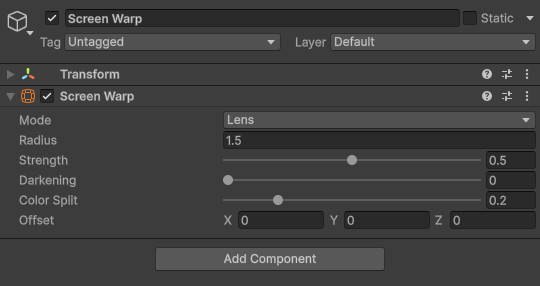
Settings
| Setting | What it does |
|---|---|
| Mode | Lens (default) pulls the picture in around the object. Heat shimmers up from it. |
| Radius | Radius of the warp in world units. Default 1.5, at least 0.01. |
| Strength | How strongly the picture bends, from 0 to 1. Default 0.5. |
| Darkening | Shown for Lens. Dark core at the middle of a lens, for black holes, from 0 to 1. Default 0. |
| Heat Speed | Shown for Heat. How fast heat shimmer rises, from 0 to 5. Default 1.5. |
| Heat Detail | Shown for Heat. How fine the heat shimmer ripples are, from 1 to 60. Default 14. It is used as a whole number. |
| Color Split | How far the color channels split where the picture bends, from 0 to 1. Default 0.2. |
| Offset | Center of the warp, in the object's local space. Default 0, 0, 0. |
What the inspector also shows:
- Set Up Effects button, with "Pass Forge effects are not set up on the active pipeline, so no screen look shows yet."
- Turn On Post Processing button when a game camera has Post Processing off.
- A warning when this warp does not show because eight Screen Warps enabled before it already show: "This one does not show: 8 Screen Warps enabled before it already show, the most that show at once. Switch one of them off to show this one."
Common jobs
A black hole
- Add a Screen Warp to the black hole object.
- Set Mode to Lens, Radius to the reach of its pull, Strength to 1.
- Set Darkening to 0.8 and Color Split to 0.3.
The stars and level behind it curve in toward the middle, the center goes dark, and the edges show a color fringe. Anything closer to the camera than the black hole stays unbent.
Heat over a campfire or an exhaust
- Add a Screen Warp to the fire, or to an empty child at the base of the flames.
- Set Mode to Heat and Radius to the width of the fire.
- Set Heat Speed to 1.5, Heat Detail to 14, and lower Color Split to 0 for a clean shimmer.
- Use Offset to move the warp's center to where the hot air starts.
The air shimmers in a column rising above the center and fading with height and toward its sides.
A portal that pulses
Drive Strength from a script, for example a slow sine wave between 0.3 and 0.8, so the portal breathes. See the script below.
Switch warps on only while something happens
Enable the Screen Warp when an engine starts or a spell is cast, and disable it when it ends. A Moment's Toggle Component step can switch it on and off with no code.
From a script
using PassForge.Effects;
using UnityEngine;

public class PortalPulse : MonoBehaviour
{
    [SerializeField] PassForgeScreenWarp m_Warp;

    void Update()
    {
        // Breathe between 0.3 and 0.8 strength, once every two seconds.
        m_Warp.strength = Mathf.Lerp(0.3f, 0.8f, 0.5f + 0.5f * Mathf.Sin(Time.time * Mathf.PI));
    }

    public void Collapse()
    {
        m_Warp.mode = WarpMode.Lens;   // pull the picture in
        m_Warp.darkening = 1f;         // dark core, from 0 to 1
        m_Warp.colorSplit = 0.5f;      // color fringe, from 0 to 1
        m_Warp.radius = 4f;            // world units
    }

    public void Engine(bool on)
    {
        m_Warp.mode = WarpMode.Heat;   // shimmer rising above the center
        m_Warp.heatSpeed = 2f;         // from 0 to 5
        m_Warp.heatDetail = 20f;       // from 1 to 60
        m_Warp.enabled = on;           // a switched off warp draws nothing
    }

    int Showing() => PassForgeScreenWarp.activeCount;   // enabled warps; eight show at once
}
Good to know
- Eight at once. Up to eight Screen Warps show. When more are enabled, the ones enabled first show, and the inspector of each one left out says so. Window > Pass Forge > Overview reports it too.
- No Volume needed. The Screen Warps effect is on by default, so warps show as soon as Tools > Pass Forge > Set Up Effects has run and the camera has Post Processing on.
- A Volume restyles them. Add Override > Pass Forge > Gameplay > Screen Warps has Intensity, Resolution Scale, Mask, and Lens Darkening, Heat Speed, Heat Detail and Color Split. A setting you override there takes over every warp's own, and a Volume with a blend distance or a weight below one blends from each warp's own setting. Heat Detail is a whole number, so it changes a step at a time. Intensity at zero turns all warps off.
- Masks. The Screen Warps effect has a Mask setting, so a Volume can keep warps to objects with a Pass Forge Effect Mask, or off them.
- The lens reads depth. A Lens uses the scene depth to bend only what lies behind it. Heat does not need depth.
- Where it draws. Screen Warps are the first effect the Gameplay node draws, after post-processing. The Route, Ground Markers, Tethers, Lens Blood, Off-screen Indicators and Damage Numbers draw after them, so those stay unbent.
- Several per object. You can add more than one Screen Warp to an object, such as two heat columns on a two engine ship. Each counts toward the eight.
- Offset and scale. Offset is in the object's local space, so it turns and scales with the object.
- Edit Mode. Warps show in the Game view in Edit Mode, and in the Scene view once Run In Scene View is on in the Pass Forge Effects (After Post-Processing) renderer feature. Heat shimmer moves outside Play Mode only while Preview In Edit Mode is on.