How do I
Open a full-screen world map
Choose GameObject > Pass Forge > World Map; it adds a full-screen map to the HUD canvas, hidden until the player presses M or a button calls Open() or Toggle().
You want
Pressing M opens a big map of the level with the fog, the route and your markers. The player drags to pan, zooms with the wheel or two fingers, and clicks a place to set the route there.
Steps
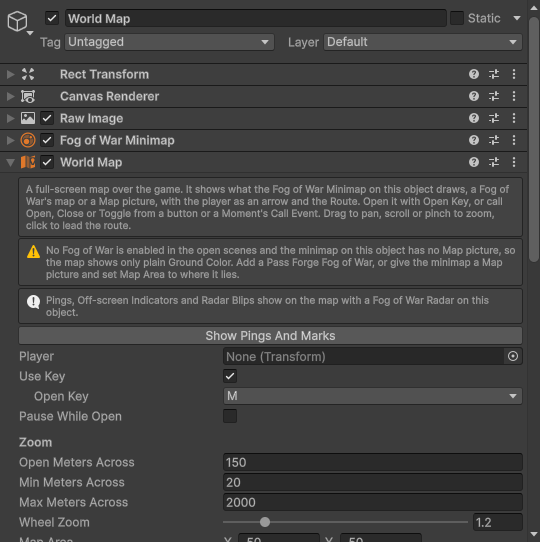
- Choose GameObject > Pass Forge > World Map. It puts a Pass Forge World Map on the HUD canvas: the selected UI object's canvas, the one a Fog of War Minimap or Compass Bar is on, or a new one. It takes the picture of the scene's minimap, opens on the object tagged Player, and adds an Event System when the scene has none.
- Set Player, or leave it empty for the object tagged Player. The map draws the player as an arrow pointing the way it faces.
- Keep Use Key on to open and close the map with Open Key, M by default. Off, open it from a button or a Moment's Call Event with Open, Close or Toggle.
- Tick Click Sets Route to lead the Pass Forge Route where the player clicks, or Click Drops Ping to drop a ping there, with its color, sign, seconds and radius.
- Tick Pause While Open to stop the game while the map shows.
- Set how far it zooms in and out, in meters across the screen's longer side.
- Pings, Off-screen Indicators and Radar Blips show on the map through a Fog of War Radar with a map's look on the same object, which the menu adds. On a World Map without one, press Show Pings And Marks in its inspector.
Inspector
What you should see
The map covers the screen over the rest of the HUD, with the same picture, fog and route as the minimap, around the player's arrow. Players stay inside the mapped area while they pan. Closed, it costs nothing.
If it does not work
- M does nothing. Use Key is off, or a text field has focus: the key does nothing while a text field is being typed in.
- A click does not set the route. Click Sets Route is off, or no Pass Forge Route is enabled. Leave the map's Route empty to use the one that shows.
- A click lands under a hill in 3D. Set Ground Layers, the layers a click finds the ground on, so a route or a ping set from the map lands on hills and floors.
- The game keeps running behind the map. Tick Pause While Open. Time Scale goes to 0 and is given back as it was when the map closes.
From a script
using PassForge.Effects;
using UnityEngine;

public class MapMarkers : MonoBehaviour
{
    [SerializeField] PassForgeWorldMap m_Map;

    void OnEnable() => m_Map.onMapClicked.AddListener(OnClicked);
    void OnDisable() => m_Map.onMapClicked.RemoveListener(OnClicked);

    public void ToggleMap() => m_Map.Toggle();

    void OnClicked(Vector3 world) => Debug.Log("The player clicked the map at " + world);

    // Where a world point shows on the screen as the map looks now, in pixels from the lower left, for a label.
    public Vector2 OnScreen(Vector3 world) => m_Map.WorldToMap(world);
}
MapToWorld(screenPoint) converts the other way, onto the map's plane at the player's height, and onOpened and onClosed suit hiding the rest of the HUD.