Component
Fog of War Minimap
A round or square HUD minimap of the Fog of War, over a picture of the level, with revealer dots, the camera's view and the route.
What it does
The Fog of War Minimap shows the Fog of War's map on a UI Raw Image. Places never seen stay dark, explored ones are dimmed, and the ones seen now show bright, over a Map picture of the area seen from above or a plain Ground Color.
It can follow the player and show the area around it, as most action and RPG minimaps do, or show the whole area, as a strategy game's corner map does. It is cut round or square, with a border. It marks the first eight Fog Revealers of your side with dots, outlines what the main camera sees, and draws the way the player's Pass Forge Route leads as a line.
North is up unless you turn it: Follow Up turns the map with the player, as in shooters, and Camera Up turns it with the camera, for third person games.
Capture Map From Above in its Inspector takes the Map picture for you: a top down shot of the fog's area, with characters, pickups and other things that move left out. Add Radar turns the minimap into a Fog of War Radar. The minimap is UI: it needs no Volume and no Set Up Effects.
Add it
- Choose GameObject > Pass Forge > Fog of War Minimap.
- A round 240 x 240 minimap goes to the top right corner of the selected UI object's canvas, or of a new Screen Space - Overlay canvas that scales with the screen. It follows the object tagged Player when there is one.
- Make sure the scene has a Fog of War with a Fog Revealer on the player.
- Press Capture Map From Above in the minimap's Inspector for a picture of the level.
- Press Play. The minimap shows the area around the player, dark where nothing was seen.
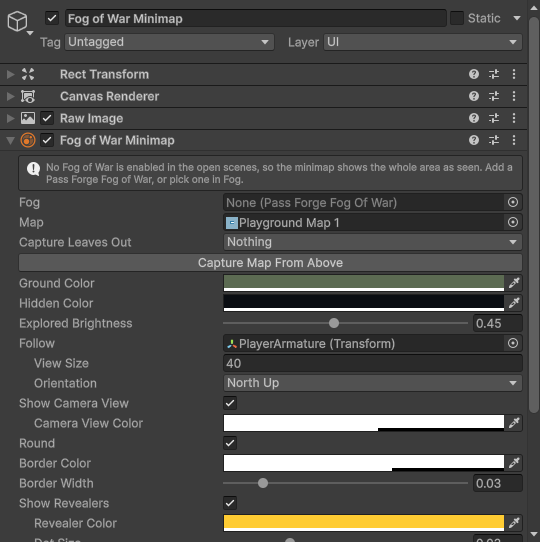
To use a Raw Image of your own, add Add Component > Pass Forge > Fog of War Minimap to it. The component needs a Raw Image and adds one if the object has none.
Settings
| Setting | What it does |
|---|---|
| Fog | The Fog of War to show. Empty shows the one the screen shows: the one enabled last. While no fog is enabled, a note says the minimap shows the whole area as seen. |
| Map | A picture of the area seen from above, such as a painted map or a top down screenshot, covering the Fog of War's Size with north up. Empty paints plain Ground Color. |
| Capture Leaves Out | Layers left out of the picture Capture Map From Above takes, such as pickups and props that get moved. Objects the HUD marks, bodies that move, characters and effects are left out anyway. |
| Ground Color | Color of places without a Map picture. Default olive green. |
| Hidden Color | Color of places never seen. Default near black. |
| Explored Brightness | How bright places explored but not seen now are, next to the ones seen now, from 0 to 1. Default 0.45. |
| Follow | Keep this object in the middle and show View Size meters around it, such as the player. Empty shows the whole area. |
| View Size | Shows with Follow. Meters shown across the minimap, at least 1. Default 40. |
| Orientation | Shows with Follow. Which way is up: North Up (default) keeps north at the top. Follow Up turns the map so the way the followed object faces is up. Camera Up turns it with the camera. A turning map needs a square Raw Image. |
| Turn Camera | Shows for Camera Up. The camera Camera Up turns with. Empty uses the camera tagged MainCamera; pick each player's camera in split screen. |
| Show Camera View | Outline what the main camera sees on the minimap. On by default. It draws over a Fog of War. |
| Camera View Color | Shows with Show Camera View. Color of the outline; alpha sets how strong it is. Default white at 0.55 alpha. |
| Round | Cut the minimap round. On by default. Off keeps it square. |
| Border Color | Color of the border. Zero alpha draws none. Default white at 0.6 alpha. |
| Border Width | Width of the border, as a share of the minimap's size, from 0 to 0.2. Default 0.03. |
| Show Revealers | Mark the enabled Fog Revealers of the teams the fog shows with dots, the first eight enabled. On by default. Grayed out while a radar on this object shows the revealers as friends. |
| Revealer Color | Shows with Show Revealers. Color of the dots. Default yellow. |
| Dot Size | Shows with Show Revealers. Size of the dots, as a share of the minimap's size, from 0.005 to 0.1. Default 0.03. |
| Show Route | Draw the way a Pass Forge Route shows the player, as a line in the route's color. On a radar it sits under the blips. On by default. A note says when no route is enabled in the open scenes. |
| Route Width | Shows with Show Route. Width of the route's line, as a share of the minimap's width, from 0.003 to 0.05. Default 0.012. |
| Keep Indicators Clear | Keep Off-screen Indicators from sliding under the minimap: they go around it. On by default. |
Buttons and notes the Inspector shows
- Capture Map From Above, under Capture Leaves Out. See the job below.
- Add Radar, at the bottom, while the object has no radar. It adds a Fog of War Radar with the Military look: rings, a sweep and blips for enemies, your side and objectives.
- "Turning the map and a radar need a square Raw Image", when the map turns, or has a radar, on a Raw Image whose width and height differ.
- Move It To A Canvas, when the object is on no canvas.
- Put The Compass And Radar Back Over The Looks, when it sits on the Pass Forge HUD Canvas that HUD Under Looks made.
- On a World Map's object, a note that the World Map pans and zooms the map, so Follow, View Size and Orientation are hidden there.
- At the top, a warning when it does not show: a Compass Bar on the same Raw Image draws it, or with an Open World fog, a View Size wider than the fog's Detail Area, with the most it can be.
Common jobs
Take the map picture from the level
- Make sure the minimap's fog covers the level with its Size.
- Tick layers that hold props that get moved, such as Pickups, in Capture Leaves Out.
- Press Capture Map From Above.
Pass Forge renders the fog's area from straight above with north up, with no post-processing, no scene fog and no Pass Forge highlights. It saves the picture as a PNG named after the scene in Assets/Pass Forge Effects/Minimaps and puts it in Map. One Area is taken at about ten centimeters a pixel, from 1024 to 2048 pixels wide. An Open World is taken 2048 pixels wide, after a dialog that says how many meters a pixel covers.
Why is an object stuck on my map?
The picture is a still photo. To keep things that come and go off it, the capture leaves out:
- objects with an Off-screen Indicator, a Radar Blip or a Fog Revealer, with their children and lights;
- objects on the Fog of War's Hiding layers;
- particles, trails, lines and skinned meshes;
- anything under a non-kinematic Rigidbody, a dynamic Rigidbody 2D, a Character Controller or a NavMesh Agent;
- the layers in Capture Leaves Out.
A crate placed in the level with none of these stays in the picture. Put it on a layer and tick that layer in Capture Leaves Out, then capture again.
A shooter minimap that turns with the player
- Set Follow to the player.
- Set Orientation to Follow Up.
- Keep the Raw Image square.
The way the player faces is always up. Give players a North Up option of your own, since a turning map is harder for some to follow: minimap.orientation = MinimapOrientation.NorthUp;.
A strategy game's corner map
Leave Follow empty. The minimap shows the whole Fog of War area, with the camera's view outlined. In Open World, a minimap without Follow shows the whole world from the coarser world map, sharp around the player.
Turn it into a radar
Press Add Radar, or choose GameObject > Pass Forge > Fog of War Radar for a new one. The radar uses this minimap's Fog, Follow, View Size, Orientation, round cut and border.
Show the route on the map
Keep Show Route on and give the player a Pass Forge Route with Show On Maps on. The line shows in the route's color and style, from the player to where the route stops for the fog.
From a script
using PassForge.Effects;
using UnityEngine;

// Needs the Unity UI package (com.unity.ugui).
public class MinimapOptions : MonoBehaviour
{
    [SerializeField] PassForgeFogMinimap m_Minimap;
    [SerializeField] Transform m_Player;
    [SerializeField] Camera m_PlayerTwoCamera;

    void Start()
    {
        m_Minimap.follow = m_Player;            // keep the player in the middle
        m_Minimap.viewSize = 60f;               // meters across
    }

    // An options toggle: some players find a turning map hard to follow.
    public void SetNorthUp(bool northUp) =>
        m_Minimap.orientation = northUp ? MinimapOrientation.NorthUp : MinimapOrientation.FollowUp;

    // Split screen: this minimap turns with player two's camera.
    public void ForPlayerTwo()
    {
        m_Minimap.orientation = MinimapOrientation.CameraUp;
        m_Minimap.turnCamera = m_PlayerTwoCamera;
    }

    public void ShowWholeArea() => m_Minimap.follow = null;   // the whole Fog of War area
}
Good to know
- Unity UI only. The minimap is a uGUI component and needs the Unity UI package (com.unity.ugui). UI Toolkit HUDs are not supported yet.
- One per object. A Raw Image holds one minimap. A Compass Bar needs a Raw Image of its own.
- Square for turning. A turning map and a radar need a square Raw Image.
- Without a Fog of War the minimap shows the whole area as seen, over its Map picture or Ground Color.
- Off-screen Indicators go around the minimap while Keep Indicators Clear is on, and the minimap works inside UI masks.
- Color blindness. On a Screen Space - Overlay canvas, minimaps adjust the route for the player's color blindness setting, as Compass Bars and radars do.
- Overlay or Camera canvas. On a Screen Space - Overlay canvas, Unity draws the minimap after every screen effect, so no look covers it. To let looks such as Old Television cover it, use Put The Compass And Radar Under The Looks Too on the HUD Under Looks override, which moves it to a Screen Space - Camera canvas.
- Open World. A minimap following the player should stay inside the fog's Detail Area: past it, places show from a coarser map, and nothing there shows as seen now. The Inspector says how small View Size must be. Capture Map From Above takes one picture of the whole World Size, of the scenes loaded at the time, within 500 m above and below the Fog of War object.
- 2D. With the fog's Plane at XY (2D), the map lies on the screen's plane, and Capture Map From Above shoots from in front of it.
- Build size. The Fog Minimap shader is always kept in builds, with its radar variants, so a minimap added from a script draws.