How do I
Show thermal vision only on enemies
Put the enemies on a rendering layer chosen in Pass Forge Effect Mask Layers, then use a Reveal Lens with Style set to Thermal and Look For set to Effect Masks, so only they glow hot.
You want
The player puts on thermal goggles and every enemy glows hot while walls and props stay cold. You do not want to add a component to each enemy prefab.
The Vision effect, which the Thermal Camera preset uses, maps the brightness of the whole picture to a heat palette. It has no Mask setting, so it cannot single out enemies. The Reveal Lens with its Thermal style shows heat colors with marked objects hot, and it reads the same marks as Effect Masks.
Steps
- Open Project Settings > Tags and Layers > Rendering Layers and name a layer, such as Thermal.
- On each enemy prefab, open the renderer's Additional Settings and tick Thermal in Rendering Layer Mask.
- Add Add Component > Pass Forge > Effect Mask Layers to one object in the scene, such as the player, and choose Thermal in Rendering Layers. Its inspector says how many renderers in the open scenes are on the layer.
- Tick Include Hidden Parts on the Effect Mask Layers to see enemies through walls. Off, only the parts the camera sees count.
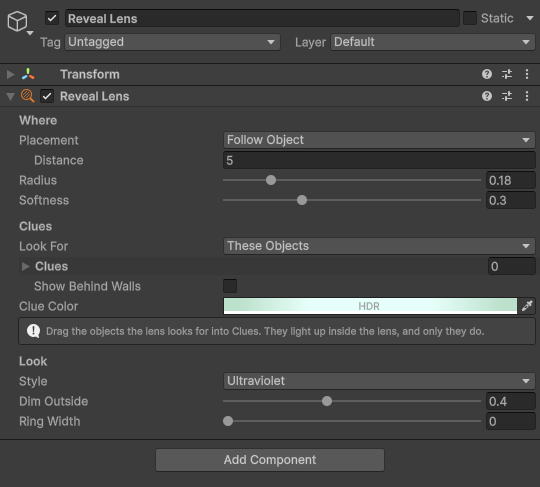
- Add Add Component > Pass Forge > Reveal Lens to the camera.
- Under Where, set Placement to Screen Center and raise Radius, a share of the screen height, for a wide view.
- Under Clues, set Look For to Effect Masks.
- Under Look, set Style to Thermal, and Dim Outside for how dark the picture is outside the lens.
- Switch the Reveal Lens and the Effect Mask Layers off in the scene. Your goggles button switches both on and off.
What you should see
While the goggles are on, the middle of the screen shows heat colors with the enemies hot, and the rest darkens by Dim Outside. With Include Hidden Parts on, enemies behind walls glow too.
For a tint or glow on enemies over the normal picture, any effect with a Mask setting works with the same layer: set its Mask to Only Masked Objects. Selective Glow, for example, makes only masked objects glow.
If it does not work
- No enemy glows. The Effect Mask Layers inspector says when no renderer is on the chosen layers, or when nothing is chosen. Check the renderer's Rendering Layer Mask, not its GameObject layer.
- Another lens shows instead. Only one Reveal Lens draws: the one turned on last. Its inspector names the one that draws.
- The style is not Thermal. A Volume whose Reveal Lens overrides Style takes it over, which is how the lens presets restyle it. The lens inspector says so; untick Style in that Volume's Reveal Lens.
- Nothing shows. Run Tools > Pass Forge > Set Up Effects and turn Post Processing on for the camera.
From a script
using PassForge.Effects;
using UnityEngine;

public class ThermalGoggles : MonoBehaviour
{
    [SerializeField] PassForgeRevealLens m_Lens;          // Style: Thermal, Look For: Effect Masks
    [SerializeField] PassForgeEffectMaskLayers m_Enemies; // the Thermal rendering layer

    public void SetOn(bool on)
    {
        m_Lens.enabled = on;
        m_Enemies.enabled = on;
    }
}
Without the component, PassForgeEffectMask.renderingLayers = RenderingLayerMask.GetMask("Thermal"); chooses the layer from a script. It is not saved, so set it each time the game starts.