Component
Moment
Plays a bundle of effects as one event with no code, such as an explosion, a hit, a lightning strike, a level up or a scene change, from one of 174 ready made moments or steps you build.
What it does
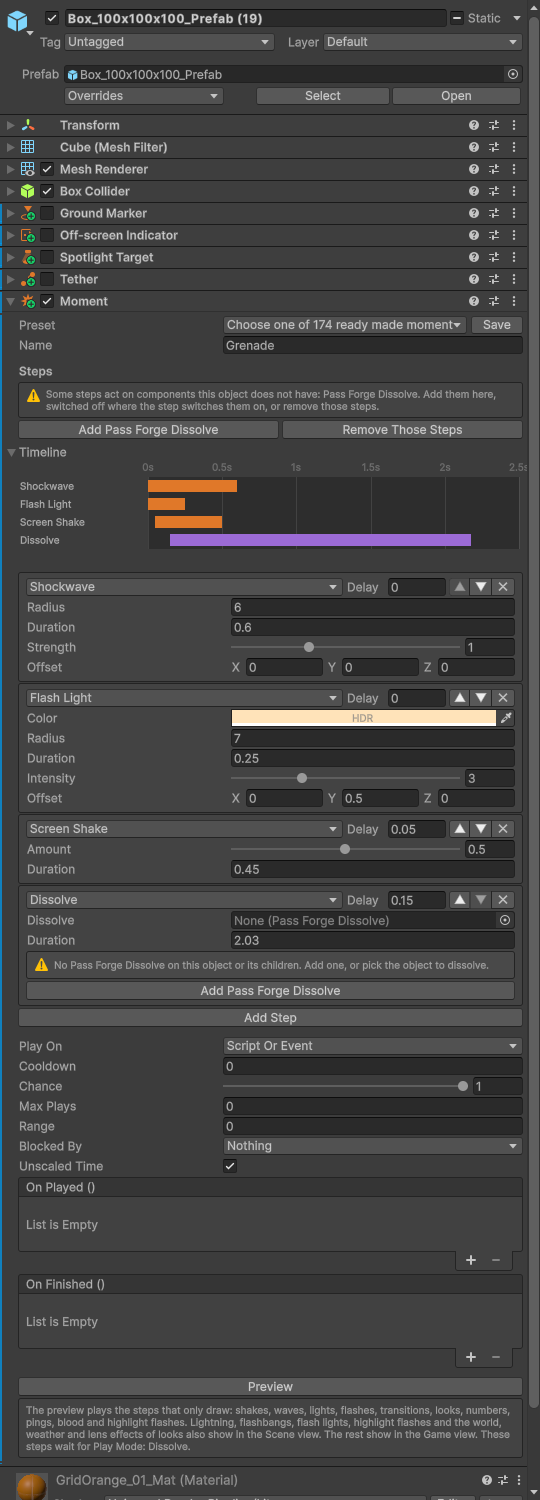
A Moment bundles effects into one event. An explosion is a screen shake, a shockwave ring, a flash of light on the walls, a rumble and a sound. A hit is a flash on the enemy, a damage number, a small ring and a short shake. A scene change is a cover, a scene load and a reveal. You build it from steps, each playing one effect with its own settings and an optional Delay, and all steps start together when the moment plays.
Pick one of 174 ready made moments from the Preset list, which you can search, in ten groups: Combat, Blood, Numbers, Magic, Explosions and World, Sci-Fi, Horror, Game Flow, Retro and Style, and Object Reactions. Picking one fills the steps and sets how it plays, and everything stays editable. Save keeps your own moment under My Moments at the top of the list, for other objects and scenes.
A moment plays from any UnityEvent (a button's On Click, a Highlight Trigger's events, an animation event), from a script, or by itself: each time it is enabled, when something with a tag touches it, or again and again at random intervals for a storm. PlayAt plays it somewhere else, so one moment serves every explosion, and PlayWithValue(damage) passes the damage its Damage Number steps show. A moment that has started plays to the end even when its object is destroyed, so a projectile can carry its own explosion.
Add it
- Select the object the moment belongs to: a grenade, an enemy, a door, a pickup, or an empty "Effects" object.
- Choose Add Component > Pass Forge > Moment. It starts with one Screen Shake step.
- Open Preset ("Choose one of 174 ready made moments"), type a word such as "explosion", and pick one. Tick Add to the steps already here at the top of the list to add its steps to the moment's own instead of replacing them.
- Press Preview to see its screen steps in Edit Mode, without pressing Play.
- Pick Play On. For a moment played from your game, keep Script Or Event and call Play from a UnityEvent or a script.
- If the inspector warns that the object lacks a component some steps act on, press Add (or Add Them), or Remove Those Steps.
Settings
Moment
| Setting | What it does |
|---|---|
| Preset | A searchable list of the 174 ready made moments and your saved ones under My Moments. Picking one replaces the steps and sets Play On and the repeat interval. With Add to the steps already here ticked in the list, its steps join the moment's own and play with them, and how the moment plays and its Name stay. Picking a ready made moment with an aimed Flashbang sets Range to 25 when Range is 0. When Name is empty or holds another ready made moment's name, it takes the picked moment's name; a Name you typed stays. A saved moment leaves Name as it is. |
| Save | Saves this moment's steps and how it plays as a preset under My Moments, at the top of the Preset list. It is a Unity preset of the component, saved in Assets/Pass Forge Effects/Presets/Moments, so Unity's own preset menu on the component offers it too. Steps that point at an object in the scene keep no object in the preset and act on the moment's own object where it is used. |
| Name | Optional. PassForgeMoment.PlayNamed("Explosion") plays every enabled moment with this name without a reference, and PlayNamedAt plays it somewhere else, so one moment in the scene serves every enemy spawned from a prefab. |
| Steps | The effects the moment plays. Each step has its effect type, a Delay in seconds, and buttons to move it up, down or remove it. Its settings follow under it. |
| Timeline | A foldout above the steps that shows when each step plays and for how long, colored by what it acts on: the screen, time, the object, or sounds, particles and events. Drag a step sideways to change its Delay, in twentieths of a second. In Play Mode a red line runs along it while the moment plays. |
| Add Step | Adds a step, from a menu grouped as Screen, Time, Object, and Sound, Particles and Events. |
| Play On | Script Or Event (default) plays only when Play is called. Enable plays each time the component is enabled, including when the scene starts. Trigger Enter and Collision Enter play when an object with the chosen Tag touches this one. Repeat plays again and again at random intervals while the component is enabled. |
| Tag | Shown for Trigger Enter and Collision Enter. Only objects with this tag start the moment. Untagged lets any object. |
| At Contact Point | Shown for Trigger Enter and Collision Enter. Play where the other object touches this one rather than at this object's position, so a hit's ring, sparks and spreading ice start where it struck: the first contact of a collision, or for a trigger the nearest point of this object's collider to the other. On by default. |
| Every (Min, Max) | Shown for Repeat. Shortest and longest seconds between two plays. Default 4 and 10. |
| Cooldown | Seconds after a play during which the moment does not play again. Zero (default) lets every call play. |
| Chance | Chance the moment plays each time it is asked to, from 0 to 1: 0.3 plays about one time in three. Default 1. |
| Max Plays | How many times the moment plays at most, such as once for a first discovery. Zero (default) has no limit. ResetPlayCount() starts over. |
| Range | Meters from the camera at which the Screen Shake, Flashbang, Screen Look, Rumble, Phone Vibration, Camera FOV Kick, Lens Blood, Explosion Force and Cinemachine Impulse steps fade to nothing, so a far explosion barely shakes the screen. Zero (default) plays them at full strength at any distance. An aimed flashbang is judged when it goes off, after its delay. |
| Blocked By | Those same steps do not play when something on these layers stands between the camera and where the moment plays, such as a wall in front of a flashbang. Put walls on a layer of their own for it. Uses 3D colliders. |
| Unscaled Time | Count delays and cooldowns in real time, so the moment keeps playing while the game is paused. On by default. |
| On Played | Called each time the moment plays, for sounds and game logic. |
| On Finished | Called when a play has run to its end, after its last step. Scripts can wait for it with yield return moment.WaitUntilFinished(). |
Buttons and notes the inspector shows:
- Set Up Effects and Turn On Post Processing buttons, when the moment has steps that draw on screen and effects cannot show.
- When steps act on a component the object and its children lack (a Highlight to flash, an Afterimage, a Dissolve): a warning with Add (the component, a Highlight or Afterimage added switched off) and Remove Those Steps. On an object with nothing to draw, pick the target object in each step instead.
- "No steps yet. Add one, or pick a ready made moment from the Preset menu." with no steps.
- For Trigger Enter and Collision Enter: a warning when the object has no collider, or no trigger collider, and a note that Unity reports a touch only when one of the two objects has a Rigidbody or a Character Controller.
- In Edit Mode, Preview (and Stop Preview) plays the steps that only draw, at their delays, and names the steps that wait for Play Mode.
- In Play Mode, Play and Stop.
Steps
Each step shows only the settings its effect uses. The steps and their settings, grouped as the Add Step menu groups them:
Screen
| Step | What it plays | Its settings |
|---|---|---|
| Screen Shake | Shakes the picture; the camera itself stays where it is. Shakes add up, to at most 1. | Amount (0 to 1), Duration |
| Shockwave | A refraction ring spreading from the moment's position. | Radius, Duration, Strength (0 to 3), Offset |
| Flash Light | A brief light on the surfaces around the moment's position, sharing the eight light budget with Screen Lights. | Color, Radius, Duration, Intensity (0 to 10), Offset |
| Lightning | Lightning flickers over the scene. | Strength (0 to 2) |
| Flashbang | Whites the screen out. Aimed (on when added) goes off where the moment plays and blinds by where the main camera looks when it goes off: fully when looked at, far less from the side, a tenth as much from behind unless close by. Off whites out the whole screen. An orthographic camera, or one looking steeply down, judges by where the flash is on screen. | Strength (0 to 2), Duration, Aimed, Look Away Helps (0 to 1), Offset |
| Transition: Cover | Covers the screen in one of 11 styles (Fade, Iris, Diamonds, Dissolve, Wipe, Ink Splash, Glass Shatter, Paper Burn, Page Turn, Comic Panels, Mask). It stays covered until a Reveal. | Style, Mask (for Mask) or On Moment (for Iris), Duration, Cover Color |
| Transition: Reveal | Uncovers the screen. | Style, Mask or On Moment, Duration |
| Transition: Cover And Reveal | Covers the screen, holds it and uncovers it. | Style, Mask or On Moment, Duration, Hold, Cover Color |
| Transition: From Current Picture | Takes the picture on screen and shatters, burns, turns or slides it away onto what the camera shows next. To load a scene behind it, play the moment, wait one frame, then load. The Preview leaves it out. | Style, Mask or On Moment, Duration |
| VHS Rewind | Plays the picture of the last one and a half seconds backwards; the moment keeps it while it is enabled, as sixteen small pictures (about 15 MB at 1080p). Nothing in the game moves back. | Duration, Pause Game (on) |
| Datamosh Keyframe | Clears the smear of a Datamosh look shown by a Volume or a Screen Look. | None |
| Screen Look | Shows any screen preset or look of your own for its seconds, with fades. Zero seconds keeps it on until the moment stops. | Preset, Look, Strength (0 to 1), Seconds, Fade In, Fade Out, Center On Moment, Offset |
| Rumble | Rumbles every gamepad (with the Input System package) and buzzes phones once when Strength is above 0.35. The player's shake setting scales it. | Strength (0 to 1), Duration |
| Phone Vibration | Vibrates the phone in Android and iOS builds for its milliseconds at its strength, on phones that can set one. | Milliseconds, Strength (0 to 1) |
| Camera FOV Kick | Widens the main camera's view by some degrees and lets it settle back, or narrows it below zero. Changes only the picture, so rigs such as Cinemachine keep their own field of view. | Degrees, Kick In, Hold, Settle |
| Camera Zoom | Zooms a camera by a factor and back, perspective or orthographic, under Cinemachine too. Hold zero keeps it zoomed until the moment stops. | Camera, Zoom, Zoom In, Hold, Zoom Back, Curve |
| Damage Direction | Shows which side a hit came from, seen from the object tagged Player or from the camera. | Strength (0 to 1), Duration, Offset |
| Lightning Bolt | Flashes a bolt from high above down to where the moment plays. | Color, Height, Duration, Width (0.25 to 3), Offset |
| Damage Number | Shows a number or a short word over the object the moment plays at, or over the object PlayAt names, where quick hits add up. | Kind, Word, Use Played Value, Otherwise (or Number), Size (0.25 to 3), Seconds, Offset |
| Ping | Marks where the moment plays on every Compass Bar and Fog of War Radar, even where the fog hides it. A ping on an object a Compass Bar already marks rings that marker instead. | Color, Shape (Ring, Warning, Enemy, Ally, Help, Objective, Sound, Icon), Icon, Seconds, Ring Size, Reveal Enemies, Offset |
| Lens Blood | Lands blood on the lens from where the moment plays. Within (3 when added) keeps far hits off the lens. | Splat, Strength (0 to 2), Within, Where It Is On Screen, Seconds, Own Color, Color, Offset |
| Show Route | Leads the player's Pass Forge Route to where the moment plays, or to Route To, for its seconds, then back to the route's own destination; zero lasts until the player arrives. With no route enabled it does nothing. The Preview leaves it out. | Route To, Seconds, Offset |
| Cinemachine Impulse | Fires the Cinemachine Impulse Source on the step's object, or on this one. | Impulse Source, Force |
| Fog Change | Thickens or thins the scene's own fog (Lighting > Environment), and changes its color if wanted, for a while or for good. | Thickness, Change Color, Color, Fade In, Seconds, Fade Out |
Time
| Step | What it plays | Its settings |
|---|---|---|
| Hit Stop | Freezes the game for a split second, the pause that makes a hit land. | Seconds (real), Time Scale (0 to 1) |
| Slow Motion | Slows the game for a while and eases it back. | Time Scale (0.05 to 1), Seconds (real), Ease Back |
Both set Time.timeScale, and the fixed time step with it so physics stays smooth, and give back what the game had. Time the game spends paused does not count. PassForgeSlowMotion plays the same from scripts, and the two share one time scale: the slowest wins.
Object
| Step | What it plays | Its settings |
|---|---|---|
| Highlight Flash | Flashes a Pass Forge Highlight, by default the one on this object or its children. It can stay switched off. | Highlight, Color, Duration |
| Highlight For Seconds | Shows a switched off Pass Forge Highlight for a while; showing it again adds time. A look whose Fill spreads From Point spreads from where the moment plays. | Highlight, Duration |
| Afterimage Burst | Turns on a switched off Pass Forge Afterimage for a while, then lets its last ghosts fade. Another burst meanwhile makes the trail longer. | Afterimage, Duration |
| Dissolve | Plays a Pass Forge Dissolve away. | Dissolve, Duration |
| Materialize | Brings a dissolved object back. | Dissolve, Duration |
| Transform Punch | Punches an object's position, rotation or scale and lets it spring back. Only the picture moves; physics and scripts keep seeing the object where it is. | Target, Punch, Offset / Degrees / Grow, Duration |
| Transform Tween | Moves, turns or grows an object over its seconds, eased, and leaves it there. | Target, Tween, Move By / Turn By / Grow By, Seconds |
| Transform Shake | Shakes an object's position, rotation or scale at random, dying down, where only the picture sees it. | Target, Shake, Distance / Degrees / Grow, Shakes Per Second, Seconds |
| Light Change | Takes a light to another intensity, and color if wanted, and back. Zero seconds keeps the change. Warns about Baked lights. | Light, Intensity, Change Color, Color, Fade In, Seconds, Fade Out |
| Light Flicker | Flickers a light at random and puts it back. Zero seconds flickers until the moment stops. | Light, Depth (0 to 1), Flickers Per Second, Seconds |
| Material Property | Takes a number or a color of one object's material, picked from a list, to another value and back. Other objects and the material asset are untouched. | Renderer, Property, Color or Value, Fade In, Seconds, Fade Out |
| Animator | Fires a trigger, or sets a bool, a number or a whole number on an Animator, picked from its parameters. | Animator, Parameter, Value |
| Set Active | Switches an object on or off, and back after its seconds when they are not zero. | Object, Switch On, Seconds |
| Toggle Component | Switches a script, renderer, collider or light on or off, and back after its seconds when they are not zero. | Component, Switch, Switch On, Seconds |
| Spawn Prefab | Copies a prefab where the moment plays, such as debris or a coin, and removes it after its seconds when they are not zero. | Prefab, Remove After |
| Explosion Force | Pushes the rigidbodies with colliders within its radius away from where the moment plays, and a little up. | Force, Radius |
| Rigidbody Impulse | Kicks or spins one Rigidbody or Rigidbody 2D, along a force or away from where the moment plays. | Body, Push (Impulse, Velocity Change, Torque), Away From Moment, Strength / Force / Torque |
| Blink | Makes an object blink on and off for its seconds, such as while it cannot be hurt. | Target, Blinks Per Second, Seconds |
| Color Flash | Flashes the color of a Sprite Renderer or a UI Image or Text and lets it come back. A 3D object flashes with a Material Property step. | Target, Color, Flash In, Hold, Fade Back |
| Canvas Group Fade | Fades a UI Canvas Group's alpha to a value and back after its seconds, or keeps it with zero seconds. | Canvas Group, Alpha (0 to 1), Fade In, Seconds, Fade Out, Curve |
Sound, Particles and Events
| Step | What it plays | Its settings |
|---|---|---|
| Play Sound | Plays a sound with a little pitch variation so repeats do not sound the same. | Sound, Volume (0 to 1), Pitch Variation (0 to 0.5) |
| Play Particles | Plays a particle system in the scene, or spawns a particle prefab where the moment plays and removes it when done. | Particles, Offset |
| Audio Source Fade | Fades an Audio Source's volume, pitch or both to a value and back after its seconds, or keeps it with zero seconds. | Audio Source, Change Volume, Volume, Change Pitch, Pitch (0.1 to 3), Fade In, Seconds, Fade Out, Curve |
| Audio Mixer Snapshot | Moves an Audio Mixer to a snapshot over its seconds, such as muffled sound under water. | Snapshot, Seconds |
| Play Another Moment | Plays another moment where this one plays, to chain moments or share one. A prefab, which cannot point at a scene object, types the moment's Name in Or Name. | Moment, Or Name |
| Load Scene | Covers the screen, loads a scene behind the cover and uncovers it once the scene is in. The scene must be in the build's scene list; the inspector offers Add It To The Scene List. | Scene, Style, Mask or On Moment, Duration, Cover Color |
| Call Event | Calls the functions picked in it at its delay, for game logic in step with the moment. | On Step |
Step notes and buttons worth knowing:
- Flashbang: with Range at 0, "Range is 0, so it blinds as much at any distance." and Set Range To 25. On the player's own object, a note that an aimed flash goes off at the eyes. With no camera tagged MainCamera, it blinds at full strength.
- Lens Blood: with Within at 0 on a moment that is not on the player, Set Within To 3. In Edit Mode, a line such as "Now 12 m from the player: no blood reaches the lens."
- Damage Number: when Cooldown, Chance or Max Plays skip hits, a warning with Set Cooldown To 0. A word that cannot be drawn whole is named. A switched off Damage Numbers component on the object is reported.
- Afterimage Burst and Highlight For Seconds: when the component is switched on, "... is switched on, so it shows all the time and this step leaves it as it is." with Switch It Off.
- Canvas Group Fade: with no Canvas Group on a UI object, Add Canvas Group.
- Ping: with no Compass Bar or Fog of War Radar in the open scenes, a note that the step shows nothing until one is.
- Show Route: with no Pass Forge Route enabled, a note that the step shows nothing until one is.
Common jobs
One explosion for every grenade
- Add a Moment to an empty object in the scene and pick Explosion. Name fills in as "Explosion". Keep Play On at Script Or Event.
- In the grenade's script, call
PassForgeMoment.PlayNamedAt("Explosion", transform.position)when the fuse runs out, then destroy the grenade.
The shake, ring and flash play where the grenade was. A grenade that plays a Collision Enter moment with a Delay keeps the place of its first bounce, so use Script Or Event for a fuse.
A hit on an enemy that shows the damage
- Add a Moment to the enemy prefab and pick a moment from the Numbers group, such as Damage Number, or add a Damage Number step to a hit moment.
- In the enemy's health script On Damaged UnityEvent, add the enemy and pick PassForgeMoment > PlayWithValue under the dynamic float or int list.
The number of each hit shows over the enemy with the moment's flash and shake, and quick hits add up into one number. If you see "10", the moment was played without a value and shows its Otherwise number.
A flash, ring and shake where a click landed
On a Highlight Trigger in Pointer Click mode, add the moment to On Clicked At (Vector3) and pick PlayAt under Dynamic Vector3. The moment's shockwaves and lights start at the click.
Explosions that hit only within reach
Set Range to 25. The shake, flashbang, look, rumble and lens blood fade with distance from the camera and stop at 25 meters. Put walls on a layer and pick it in Blocked By, so a flashbang behind a wall does not blind.
A storm with lightning at random
Pick Storm, which sets Play On to Repeat. Every (Min, Max) sets the seconds between strikes. Stop() stops repeating until the next Play().
A low health heartbeat while health is low
Pick Low Health, whose Screen Look step has Seconds at 0. Call SetPlaying(true) when health drops low and SetPlaying(false) when it recovers, or connect a Toggle's On Value Changed to SetPlaying.
A scene change with a transition
Add a Load Scene step, pick the scene and the style. It covers the screen, loads the scene behind the cover and uncovers it. If the scene is not in the build's scene list, press Add It To The Scene List. The Scene Change moments under Game Flow, such as Scene Change: Iris, only cover the screen and uncover it again; they load no scene. A preset replaces the steps and sets Play On back to Script Or Event, so pick any preset first, then add the Load Scene step and set Play On, such as Trigger Enter for a door.
Several moments on one object
An object can carry several Moments, such as Hit and Death on an enemy. Give each a Name and play them by name, or drag the component itself (by its title) into a UnityEvent: dragging the object picks the first Moment on it. To combine two ready made moments into one, pick the second with Add to the steps already here ticked.
Mark an objective on the compass and radar
Add a Ping step, or pick Objective Marked. Every Compass Bar and Fog of War Radar shows the ping with no wiring, in its color, for its seconds. Eight pings show at once.
Wait for a death moment before respawning
yield return m_Death.WaitUntilFinished(); // in a coroutine, or listen to onFinishedFrom a script
using PassForge.Effects;
using UnityEngine;

public class EnemyHealth : MonoBehaviour
{
    [SerializeField] float m_Health = 100f;
    [SerializeField] PassForgeMoment m_Death;      // on the enemy

    public void TakeHit(float damage)
    {
        m_Health -= damage;

        // One "Enemy Hit" moment in the scene, with a Damage Number step, serves every enemy:
        // the number shows over this enemy, where quick hits add up.
        PassForgeMoment.PlayNamedAt("Enemy Hit", transform, damage);

        if (m_Health <= 0f)
            m_Death.Play();                        // plays to the end even if this object is destroyed
    }

    // A shot that hit a wall: numbers at a point never add up.
    public static void ShotHit(Vector3 point, float damage) => PassForgeMoment.PlayNamedAt("Bullet Hit", point, damage);
}
Every way to play and stop:
using System.Collections;
using PassForge.Effects;
using UnityEngine;

public class MomentCalls : MonoBehaviour
{
    [SerializeField] PassForgeMoment m_Moment;
    [SerializeField] Transform m_Target;

    void Examples()
    {
        m_Moment.Play();                              // at this moment's object
        m_Moment.PlayAt(m_Target);                    // shockwaves and lights at the target, numbers over it
        m_Moment.PlayAt(new Vector3(0f, 1f, 5f));     // at a point
        m_Moment.PlayWithValue(25f);                  // Damage Number steps show 25
        m_Moment.PlayAt(m_Target, 25f);               // over another object with a value
        m_Moment.SetPlaying(true);                    // true plays, false stops
        m_Moment.Stop();                              // drops waiting steps, stops repeating, fades looks

        int played = PassForgeMoment.PlayNamed("Alarm");   // every enabled moment with that Name
        PassForgeMoment.StopNamed("Alarm");

        m_Moment.cooldown = 0f;                       // seconds between plays
        m_Moment.chance = 0.3f;                       // about one time in three
        m_Moment.maxPlays = 1;                        // once; ResetPlayCount() starts over
        m_Moment.range = 25f;                         // screen steps fade out by 25 m
        m_Moment.blockedBy = LayerMask.GetMask("Walls");
        bool busy = m_Moment.isPlaying;               // steps waiting, a cover held, or a look showing
    }

    IEnumerator DieThenRespawn()
    {
        m_Moment.Play();
        yield return m_Moment.WaitUntilFinished();
        PassForgeLensBlood.Wipe();                    // blood stays across respawns until wiped
    }
}
Build a moment in code:
using PassForge.Effects;
using UnityEngine;

public static class HitMoment
{
    public static PassForgeMoment Add(GameObject owner)
    {
        var moment = owner.AddComponent<PassForgeMoment>();
        moment.momentName = "Hit";                         // for PassForgeMoment.PlayNamed("Hit")
        moment.steps.Clear();                              // a new Moment starts with one Screen Shake step

        var shake = MomentStep.For(MomentEffect.ScreenShake);   // the settings a new step gets in the inspector
        shake.strength = 0.3f;
        moment.steps.Add(shake);

        var light = MomentStep.For(MomentEffect.FlashLight);
        light.color = new Color(1f, 0.6f, 0.3f);
        light.delay = 0.05f;                               // seconds after the moment starts
        moment.steps.Add(light);

        var number = MomentStep.For(MomentEffect.DamageNumber);
        number.usePlayedValue = true;                      // shows the value from PlayWithValue
        moment.steps.Add(number);

        return moment;
    }
}
MomentPresetUtility.Apply(moment, "Explosion") fills a moment with a ready made one, and MomentPresetUtility.presetNames lists them, from your own editor scripts only; it is not in player builds. At runtime, build steps with MomentStep.For, or keep a configured moment in the scene and play it by name.
Good to know
- Play Mode only. A moment plays in Play Mode;
Play()in Edit Mode does nothing. Use Preview to see its screen steps in Edit Mode. - Preview plays the steps that only draw, at their delays: shakes, shockwaves, flash lights, lightning, lightning bolts, flashbangs, damage directions, pings, damage numbers (showing the step's own number), lens blood, Cover, Reveal and Cover And Reveal transitions, highlight flashes, Datamosh Keyframes and Screen Looks with their fades. A Screen Look with zero seconds shows for two seconds. Steps that change the game's time, play sounds or particles, or change objects, lights, cameras, materials or the scene wait for Play Mode, and so do From Current Picture, Load Scene and Show Route. The inspector names them. Nothing in the scene is changed. The preview plays whether Preview In Edit Mode is on or off.
- A disabled moment does not play. The Console says "Pass Forge Moment on ... is disabled, so it does not play."
PlayNamedplays enabled moments only. - Cooldown, Chance and Max Plays hold back the whole play, so a Damage Number step shows no number for a hit they skip. To show every hit but flash only sometimes, put the number in a moment of its own.
- Destroyed and unloaded. A moment that has started plays to the end even when its object is destroyed or switched off. Only a Screen Look held until Stop fades out with its object. When the moment's scene unloads, its steps that have not started are dropped; steps already playing finish, and a Reveal step still lifts a cover that is on.
- Looks priority. A Moment's Screen Look steps show at priority 20, above Screen Looks (10) and hand made Volumes (0).
- Center On Moment. For Screen Look steps, effects that spread from a point on screen, such as Time Stop, Impact Frame, Speed Lines and Radial Blur, spread from where the moment plays and stay there as the camera moves.
- Blocked By uses 3D colliders. Walls with only 2D colliders stop no step.
- Flashbangs. An aimed flashbang judges where the player looks, Range and Blocked By once, when it goes off after its Delay, from the camera tagged MainCamera. A flash that blinds less than what is left of the one showing is left out.
- Pings reach every compass and radar. Ping steps go to a shared store that every Compass Bar and Fog of War Radar reads, so there is nothing to connect. Range and Blocked By do not apply to pings.
- Allocation. Playing a moment allocates nothing for its delays and On Finished, nor for Damage Number, Screen Shake, Shockwave, Flash Light, Ping, Show Route and Lens Blood steps, so a moment made of them can play on every hit.
- Pause. With Unscaled Time on, delays and cooldowns count real time, so a moment plays while
Time.timeScaleis 0. - Overview. Window > Pass Forge > Overview lists a Moment step with nothing to act on, a Damage Number step whose hits are skipped, and in Play Mode an aimed Flashbang with no camera tagged MainCamera.
- Several per object. Unity allows several Moments on one object.
- Timeline. With the Timeline package, a Pass Forge/Moment Track has Play Moment clips that play a moment, picked or by name, when the playhead reaches them, in Play Mode.