How do I
Choose between a Screen Look and a Volume
Use a Volume for the look a scene always has, and a Pass Forge Screen Look for a look that comes and goes, fades, follows an area or is played from an event.
You want
Your game has a steady art style, a poison look while the player is poisoned and night vision on a key. You are not sure whether each one belongs in a Volume or on a Screen Look.
Both show the same looks. Every Pass Forge screen effect is a URP Volume effect, and a Screen Look shows a Volume Profile holding them without you setting up a Volume.
Steps
- For the look a scene always has, use a Volume. Add GameObject > Pass Forge > Effects Volume (Empty), select it, and apply a preset from Window > Pass Forge > Effect Presets. Apply adds only the effects that preset uses. Tune the effects in the Volume's inspector, as with any URP override. Effects Volume (All Effects) holds every effect, each closed until you open it, which suits trying effects side by side.
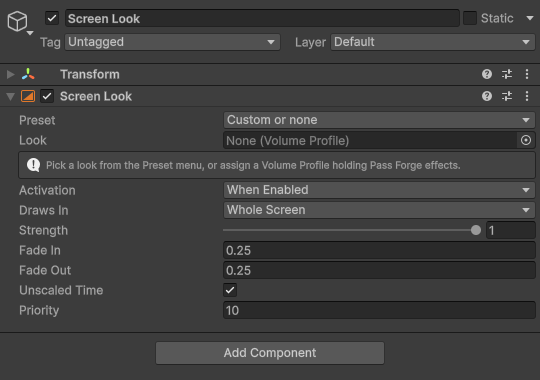
- For a look that comes and goes, add Add Component > Pass Forge > Screen Look to any object and pick a look in its Preset menu. Set Activation:
- When Enabled shows the look while the component is on.
- While Inside Area shows it while the Tracked object is inside the box or sphere around this object.
- From Script waits for
Play,PlayForor a UnityEvent, such as a button's On Click.
- Set Fade In and Fade Out in seconds, and Strength for how strongly it shows.
- For a look that belongs to one event, such as a red edge on a hit, use a Screen Look step in a Pass Forge Moment, or a Screen Look with
PlayFor(seconds). - For a cutscene, use a Pass Forge/Screen Look Track in Timeline, when the Timeline package is in the project.
What you should see
Where looks and Volumes overlap, the higher priority wins. A Screen Look shows at Priority 10 by default, above Volumes made by hand, which usually sit at 0, so a poison look shows over the scene's style. A Moment's look shows at priority 20, above plain Screen Looks. The AgX Tonemapping Volume the menu builds sits at 100, and a look written into a Volume above priority 10 wins over Screen Looks, Moments and Timeline clips below that priority.
If it does not work
- The Screen Look shows nothing. Check Activation. A From Script look waits for
Play. In Edit Mode press Preview in its inspector to see it. - The look never fades. Fades run in real time when Unscaled Time is on, which it is by default. With it off, a paused game with a time scale of 0 holds the fade.
- Pass Forge effects sit in the render pipeline's default Volume Profile. Unity puts every Volume component in the project there by itself and Pass Forge never writes to it. They sit at zero and cost nothing. Touch that profile only for one look over the whole game.
- An effect keeps showing after you turned it off. Two global Volumes turning on the same effect is the usual cause. See Find what uses Pass Forge in a scene.
From a script
using PassForge.Effects;
using UnityEngine;
using UnityEngine.Rendering;

public class NightVisionKey : MonoBehaviour
{
    [SerializeField] PassForgeScreenLook m_NightVision;   // Activation: From Script
    [SerializeField] VolumeProfile m_Thermal;

    public void Toggle() => m_NightVision.Toggle();
    public void Hit() => m_NightVision.PlayFor(0.5f);
    public void ToThermal() => m_NightVision.CrossFadeTo(m_Thermal, 1.5f);
}
To drive a Volume instead, change volume.profile, a private copy, and set values with Override. A Volume ignores a setting that is not overridden, so assigning .value alone often changes nothing.