Component
Occluder Fade
Goes on the player and cuts a soft see-through hole in walls, roofs and trees between the camera and the player, or fades sprites drawn over a 2D player.
What it does
Put an Occluder Fade on the player, and the player never disappears behind scenery. Walls, roofs and trees between the camera and the player get a soft dithered hole around the player, in a third person, top down or isometric game. Only what is nearer the camera than the player is cut: a wall the player stands in front of stays whole, and so does the far side of a building the camera looks through.
It needs no colliders. It finds the objects in the way by their bounds along the line from the camera to a point on the player, every Check Interval seconds. Set Layers to leave the ground out, so the player's footing stays solid.
In 2D, sprites in the way fade instead of getting a hole. When the player has a Sprite Renderer, a sprite counts as in the way when it is drawn after the player in the 2D sort and reaches into the circle of Radius around the point kept in view, such as a tree in front of the character. It fades to Sprite Opacity over Sprite Fade Time and comes back once it no longer covers the player.
Add it
- Select the player character.
- Choose Add Component > Pass Forge > Occluder Fade.
- Set Target Offset to the middle of the character, such as 0, 1, 0.
- In Layers, untick the layers of the ground and the floors the player walks on.
- Enter Play Mode and walk behind a wall.
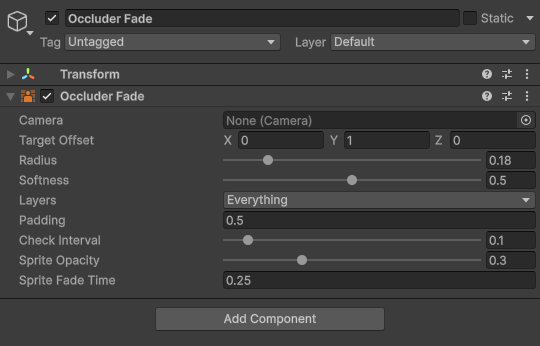
Settings
| Setting | What it does |
|---|---|
| Camera | Camera to keep the object visible to. Empty uses the main camera. |
| Target Offset | Point on the object to keep in view, relative to its position, such as the middle of a character. Default 0, 1, 0. |
| Radius | Radius of the hole, as a share of the screen height, from 0.02 to 1. Sprites drawn over the object fade when they reach into this circle. Default 0.18. |
| Softness | Share of the radius over which the hole fades out, from 0 to 1. Default 0.5. |
| Layers | Layers that can get a hole or fade. Leave out the ground, so the player's footing stays solid. Default Everything. |
| Padding | Extra room around the line of sight, in meters, so objects just beside it fade too. Default 0.5. |
| Check Interval | Seconds between checks for objects in the way, from 0.02 to 1. Default 0.1. |
| Sprite Opacity | How much of a sprite in the way still shows, from 0 to 1: 0 hides it, 1 leaves it as it is. Default 0.3. |
| Sprite Fade Time | Seconds a sprite in the way takes to fade out, and to come back once it no longer covers the object. Default 0.25. |
What the inspector also shows: in a scene drawn by the 2D Renderer, "On the 2D Renderer, sprites drawn over this object fade to Sprite Opacity, and 3D mesh walls get their see-through hole, unlit as the 2D Renderer draws URP Lit."
Common jobs
Keep a third person character visible behind walls
- Add Occluder Fade to the character with Target Offset at the chest, such as 0, 1.2, 0.
- Put the ground, floors and terrain on a layer of their own and untick it in Layers.
- Raise Radius to 0.25 for a bigger hole, or lower Softness for a sharper edge.
Walls and pillars between the camera and the character open a soft hole around it.
See the player under roofs in a top down game
Keep Layers to the roofs, walls and trees. Leave out the floor, or the floor between the camera and a player standing on it would be counted too.
Fade trees and buildings over a 2D character
- Add Occluder Fade to the character, which has a Sprite Renderer.
- Set Sprite Opacity to 0.3 and Sprite Fade Time to 0.25.
- Untick the ground's layer in Layers.
A tree drawn in front of the character fades while it covers it, and comes back when the character walks out. Trees drawn behind the character stay as they are.
Objects just beside the line of sight
Raise Padding to 1 so objects a meter beside the line from the camera to the player fade too, which helps with a camera that swings quickly.
From a script
using PassForge.Effects;
using UnityEngine;

public class AimZoom : MonoBehaviour
{
    [SerializeField] PassForgeOccluderFade m_Fade;   // on the player

    public void Aiming(bool aiming) => m_Fade.radius = aiming ? 0.1f : 0.18f;   // share of the screen height, 0.02 to 1

    public void SetActive(bool on) => m_Fade.enabled = on;   // switched off, every hole and faded sprite goes back

    int Faded() => m_Fade.fadedCount;   // renderers with a hole now, and sprites faded or fading back
}
radius and fadedCount are the public members. The other settings are set in the inspector.
Good to know
- Play Mode only. It works in Play Mode. In Edit Mode nothing is cut.
- What gets a hole. Objects drawn with a Mesh Renderer. Skinned Mesh Renderers, Terrain and trees painted on a Terrain stay whole. The player's own renderers never change.
- Materials. While a wall has a hole, its Mesh Renderer shows copies of its materials on the Pass Forge/Lit Effects shader. A URP Lit material keeps every texture and setting. A material on another shader is drawn as URP Lit while the hole is open, keeping only its base texture and color when they are named
_BaseMapand_BaseColor, or_MainTexand_Color. Once the wall is out of the way, its own materials come back, so it batches as before. - Bounds. Objects count as in the way by their bounds, grown by Padding. A large mesh, such as a whole building in one piece, can count as in the way more often than its walls would. Split large meshes, or leave their layer out.
- New objects. The scene's renderers on the chosen layers are looked up again every two seconds, so an object spawned or switched on can take up to two seconds to start fading.
- Sprites fade by alpha. A sprite in the way fades by its color's alpha, so it keeps its material. An alpha the game sets while the sprite is faded becomes its own from then on.
- 2D sort. A sprite counts as drawn after the player by Sorting Group, sorting layer, order in layer, then the camera's transparency sort, as the 2D Renderer draws them. Without a sprite of its own, the player is covered by the sprites on its line of sight, as by 3D walls.
- 2D Renderer. Sprites fade on either renderer. 3D mesh walls get their hole on the 2D Renderer too, unlit, as the 2D Renderer draws URP Lit.
- Builds. A build keeps the Lit Effects shader when an Occluder Fade is in one of its scenes. When a script adds the component while the game runs, tick Dissolve, Occluder Fade And Cross Section Added From Scripts under Project Settings > Pass Forge.
- No Volume needed. It is not a screen effect, so it needs no Volume and no Post Processing.
- One per object. Unity allows one Occluder Fade on an object.