How do I
Change a shipped preset
Shipped presets are read only, so make your own copy first: Make Editable Copy for a highlight, an Effects Volume plus Save Current Look As Preset for a screen look, Save for a moment.
You want
You like the Enemy X-Ray highlight but want it orange, or the Old Film look with less grain, and the fields are grayed out.
Shipped presets live in the Pass Forge folder, and an update of Pass Forge replaces that folder. So Pass Forge shows them read only and asks you to copy one before you change it. Your copy lives in Assets/Pass Forge Effects and survives updates.
Steps
A highlight look
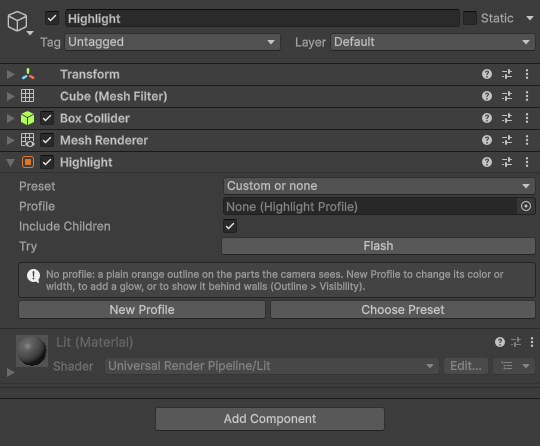
- Select the object with the Pass Forge Highlight and pick the look in its Preset menu.
- The inspector says the profile is a preset shipped with Pass Forge. Press Make Editable Copy.
- Give your copy a name. Pass Forge saves it in
Assets/Pass Forge Effects/Highlight Profilesand gives it to the object. - Change the settings under Profile Settings. Your copy is listed with the presets under its name, in the Preset menu and in the Effect Presets window, ready for other objects.
A screen look
- Add GameObject > Pass Forge > Effects Volume (Empty). Its profile is saved in
Assets/Pass Forge Effects/Volume Profiles, so it is yours. - Keep the Volume selected, open Window > Pass Forge > Effect Presets, and press Apply on the look on the Screen tab. Apply copies the preset's effects into your Volume's profile.
- Change the effects in the Volume's inspector.
- Press Save Current Look As Preset in the presets window, or Save Look As Preset... at the top of the Volume's inspector, and give it a name. It is stored in
Assets/Pass Forge Effects/Presetsand shows in the presets list and in the Screen Look Preset menu. Saving again under the same name updates it everywhere it is used.
A moment
- Pick a ready made moment in the Preset list of a Pass Forge Moment. Picking one copies its steps into the component, and every step stays editable.
- Change the steps, then press Save next to the Preset list. It is kept under My Moments at the top of the list, as a Unity preset in
Assets/Pass Forge Effects/Presets/Moments.
An afterimage
Picking a look in the Preset menu of a Pass Forge Afterimage copies its settings into the component. Change them there; there is nothing to copy first.
What you should see
The settings are no longer grayed out, and the object, Volume or Screen Look uses your copy. The shipped preset stays as it was.
If it does not work
- The presets window says a Volume uses a read only profile. The Volume points at a shipped profile. Give it a profile from your project, such as the one an Effects Volume menu makes.
- A Screen Look shows a shipped look and you want to change it. A Screen Look never changes the asset it shows. Save your own look as above and pick it in the Screen Look's Preset menu.
- Several objects should share your change. Give them the same profile asset. Objects that share a profile are drawn together, which costs less than one copy each.