Component
Effect Mask
Marks an object so screen effects set to Only Masked Objects or Except Masked Objects show only on it, or everywhere but on it.
What it does
An Effect Mask marks an object for the screen effects that have a Mask setting. Set that effect's Mask to Only Masked Objects and it shows only on the marked objects: a red tint only on enemies, a glow only on pickups. Set it to Except Masked Objects and it shows everywhere else: a gray world with the hero still in color, or everything blurred except the character who speaks.
The mask changes nothing by itself. A look in a Volume, a Screen Look or a Moment's Screen Look step decides what happens to the masked objects. The inspector lists which looks in the open scenes read the mask, and two buttons add a ready look in one click: Focus On This blurs and dims everything else, Keep This In Color turns everything else gray.
A Reveal Lens can use Effect Masks too: with Look For set to Effect Masks, every masked object glows as a clue inside the lens.
The component draws the object's Mesh Renderers, Skinned Mesh Renderers and Sprite Renderers, those on its children included unless you turn Include Children off. To mark many objects with no component on each, put them on a rendering layer and use Effect Mask Layers.
Add it
- Select the object to mark, such as the hero, an enemy or a pickup.
- Choose Add Component > Pass Forge > Effect Mask.
- Press Keep This In Color or Focus On This to add a look that uses the mask, or set the Mask of any screen effect in a Volume to Only Masked Objects or Except Masked Objects.
- If the inspector warns that no renderer runs an Effect Mask node, press Set Up Effects.
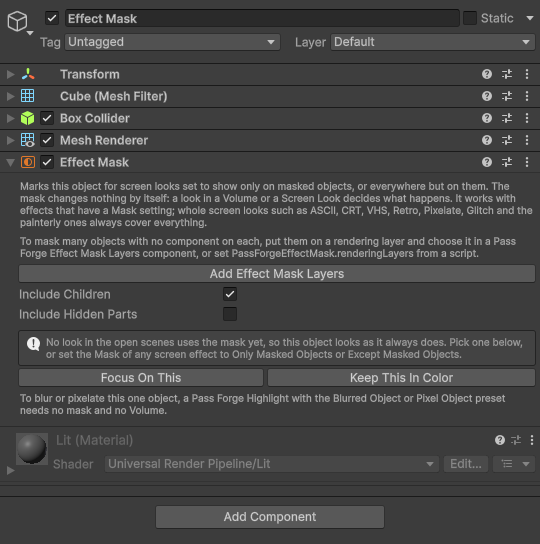
Settings
| Setting | What it does |
|---|---|
| Include Children | Also mask the renderers on child objects. On by default. |
| Include Hidden Parts | Mask the parts hidden behind other geometry too. Off (default) masks only what the camera sees. |
What the inspector also shows:
- Set Up Effects button, with a warning that no renderer on the active pipeline runs an Effect Mask node, so the component has no visible effect yet.
- Two short notes: the mask changes nothing by itself, and whole screen looks such as ASCII, CRT, VHS, Retro, Pixelate, Glitch and the painterly ones always cover everything. The second note points to rendering layers for marking many objects.
- Add Effect Mask Layers button, shown when one object is selected and the open scenes have no Effect Mask Layers yet. It makes a new object named "Pass Forge Effect Mask Layers" with that component, and selects it.
- A list of the looks that use the mask, such as "Used by Color FX everywhere but masked objects (Pass Forge Color Focus)." It counts scene Volumes, Screen Looks, Moment Screen Look steps and Reveal Lens clues. With none, it says "No look in the open scenes uses the mask yet, so this object looks as it always does."
- Focus On This: adds a Screen Look with the Focus Mode preset to the object's scene, which blurs and dims everything but masked objects.
- Keep This In Color: adds a Screen Look with the Color Focus preset, which turns everything but masked objects gray.
- Pressing either button again while that look already shows points to the existing Screen Look instead of adding a second one.
- Turn On Post Processing button when a game camera has Post Processing off.
- A note that to blur or pixelate one object, a Pass Forge Highlight with the Blurred Object or Pixel Object preset needs no mask and no Volume.
Common jobs
Keep the hero in color while the world turns gray
- Add Add Component > Pass Forge > Effect Mask to the hero.
- Press Keep This In Color.
A new object named "Pass Forge Color Focus" appears with a Screen Look. The world turns gray and the hero keeps its colors. Switch the Screen Look off, or delete its object, to bring the colors back.
Blur everything but the character who speaks
- Add an Effect Mask to the character.
- Press Focus On This. A Screen Look with the Focus Mode preset is added.
- To show it only during the dialogue, select the new "Pass Forge Focus Mode" object, set its Screen Look Activation to From Script, and call Play and Stop from your dialogue events.
Everything but the character blurs and dims while the look plays.
Tint only the enemies red
- Add an Effect Mask to each enemy, or put them on a rendering layer and use Effect Mask Layers.
- Create GameObject > Pass Forge > Effects Volume (Empty).
- In its Volume, use Add Override > Pass Forge and add an effect with a Mask setting, such as Color FX.
- Tick Mask and set it to Only Masked Objects, then turn the effect's Intensity up and set its Tint to red.
Only the enemies take the tint.
Selective glow on pickups and signs
- Add an Effect Mask to each glowing object.
- Select your Effects Volume and apply the Selective Glow preset from Window > Pass Forge > Effect Presets, Screen tab.
Only the masked objects glow, their light spreading around them. Selective Glow is Lens Glow with Glow From Masked Only on, so the materials stay as they are.
Show clues under a UV lamp
- Add an Effect Mask to every clue object.
- Add a Pass Forge Reveal Lens and set Look For to Effect Masks, Style to Ultraviolet.
The clues glow inside the lens circle. Turn Include Hidden Parts on for a clue that should glow through a wall.
Mark an enemy hidden behind walls
- Add an Effect Mask to the enemy and turn Include Hidden Parts on.
- Use a look whose effect is set to Only Masked Objects.
The parts behind walls count as masked too. Off, only what the camera sees counts.
From a script
using PassForge.Effects;
using UnityEngine;

public class MaskSwitch : MonoBehaviour
{
    [SerializeField] PassForgeEffectMask m_Mask;   // on the object to mark

    // Marked or not: an enabled mask counts, a switched off one does not.
    public void SetMarked(bool marked) => m_Mask.enabled = marked;

    public void SeeThroughWalls(bool on) => m_Mask.includeHiddenParts = on;   // also mask the hidden parts

    // After adding a renderer to the object, or after LODGroup.SetLODs.
    public void AfterRenderersChanged() => m_Mask.RefreshRenderers();

    void Report()
    {
        int drawn = m_Mask.rendererCount;                 // mesh, skinned mesh and sprite renderers it draws
        int masks = PassForgeEffectMask.activeCount;      // enabled Effect Mask components
        bool any = PassForgeEffectMask.anyActive;         // any mask, or a rendering layer chosen for masks
    }
}
Mark every renderer on a rendering layer, with no component on each object:
using PassForge.Effects;
using UnityEngine;

public static class ThermalMask
{
    // Every renderer on the "Thermal" rendering layer counts as masked. Set it again each time the game starts.
    public static void On() => PassForgeEffectMask.renderingLayers = RenderingLayerMask.GetMask("Thermal");

    public static void Off() => PassForgeEffectMask.renderingLayers = 0u;   // nothing masked, nothing drawn

    // Also count the parts of those renderers behind other geometry.
    public static void ThroughWalls(bool on) => PassForgeEffectMask.renderingLayersIncludeHiddenParts = on;

    // The layers counted now: these and the layers of every enabled Effect Mask Layers component.
    public static RenderingLayerMask Now() => PassForgeEffectMask.activeRenderingLayers;
}
Good to know
- Only effects with a Mask setting read it. These always cover the whole screen and ignore masks: ASCII, CRT, VHS, Retro, Pixelate, Glitch, Old Film, Halftone, Sketch, Watercolor, Painterly, Kaleidoscope, Distortion, Radial Blur, Scan Pulse, Vision, Motion Trails, Feedback, Transition, Panel Backdrop, Color Vision, AgX Tonemapping and Deband. Their Volume inspector says "This effect always covers the whole screen: a Pass Forge Effect Mask does not limit it." while a mask is in the scene.
- Damage Numbers and Lens Blood have no Mask. They draw over everything, like a HUD.
- Privacy Blur starts at Only Masked Objects, so it blurs or pixelates masked objects as soon as it is turned up.
- Effects set to Only Masked Objects show nowhere while nothing is masked.
- An unused mask is reported. The Window > Pass Forge > Overview lists "Pass Forge Effect Mask is on ... objects, but no look reads masks, so they change nothing." when no look uses it.
- What it draws. Mesh Renderers, Skinned Mesh Renderers and Sprite Renderers. Particle systems, trails, lines and Terrain are not drawn. Alpha clipped parts such as leaves follow their cutout, and on a LOD Group only the level on screen is drawn.
- Children. Children added or removed later are picked up by themselves. After adding a renderer component to an object that is already masked, or after
LODGroup.SetLODs, callRefreshRenderers(). - Spine skeletons are masked by each attachment's whole mesh, its transparent parts included.
- 2D. Sprite Renderers are masked by their sprite's shape. Without scene depth, as in most 2D Renderer setups, a renderer counts also where something covers it.
- Cost. Both effect graphs hold an Effect Mask node. A camera's marked objects are drawn into the mask once a frame, and the After Post-Processing graph reads the mask the Before Post-Processing graph drew, unless an upscaler such as STP changed the picture's size in between. With no mask and no mask layer, masks cost nothing.
- One per object. Unity allows one Effect Mask on an object. It covers the children with Include Children on.