Component
Highlight Trigger
Switches the Highlight on the same object on and off with no code, on hover, on click or tap, when the screen center aims at it, or when the player comes near.
What it does
A Highlight Trigger decides when the Highlight on its object shows. Pointer Hover lights the object while the mouse, a pen or a finger is over it, for items under the cursor. Pointer Click selects and deselects it with a click or a tap, for units in a strategy game. Screen Center lights what the middle of the screen aims at, for a first person "press E to use" prompt. Proximity lights it while the player is near, inside a box, a sphere or your own trigger colliders, and optionally only while the player faces it.
The highlight fades in and out over the trigger's own seconds. UnityEvents report each change, for sounds, tooltips and game logic. On Clicked At (Vector3) passes the point on the object that was clicked, so an effect can start where the click landed: a Moment's PlayAt, or a Highlight's SpreadFrom for ice spreading from the click.
Adding the trigger adds a Pass Forge Highlight too, if the object has none. The trigger switches the Highlight off when play starts, since it decides when the highlight shows.
Add it
- Select the object.
- Choose Add Component > Pass Forge > Highlight Trigger. A Pass Forge Highlight is added with it if it was missing.
- Pick a look on the Highlight's Preset, such as Hover Glow or Selection Outline.
- Pick Mode on the trigger.
- For the pointer modes, give the object a collider, 3D or 2D, so objects in front block the pointer. Without colliders, it uses a sprite's own shape or the bounds of other renderers.
- Enter Play Mode and hover, click or walk near.
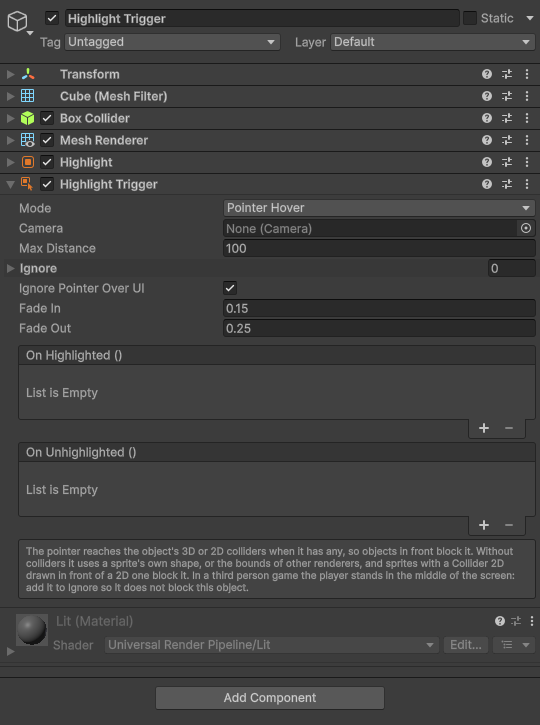
Settings
The inspector shows only the settings the chosen Mode uses.
| Setting | Shown for | What it does |
|---|---|---|
| Mode | All | Pointer Hover (default) highlights while the pointer is over the object. Pointer Click selects it with a click or tap; the highlight shows while selected. Screen Center highlights what the middle of the screen aims at. Proximity highlights while the tracked object is near. |
| Camera | Pointer, Screen Center | Camera the pointer and the screen center are measured in. Empty uses the main camera. |
| Max Distance | Pointer, Screen Center | Farthest distance from the camera at which the pointer or the screen center reaches the object. Default 100. |
| Ignore | Pointer, Screen Center | Objects the pointer and the screen center pass through, such as the player in a third person game, whose body would otherwise stand in the middle of the screen and block everything behind it. Only this trigger ignores them; layers and other scripts are untouched. |
| Ignore Pointer Over UI | Pointer Hover, Pointer Click | A pointer over a UI element does not reach the object behind it. On by default. |
| Only One Selected | Pointer Click | Selecting this object deselects the other triggers that have this on. On by default. |
| Click Elsewhere Deselects | Pointer Click | A click or tap that misses the object deselects it. On by default. |
| Flash On Click | Pointer Click | Flash the object when it is clicked. On by default. |
| Flash Color | Pointer Click, with Flash On Click | Color of the click flash. Alpha sets how strongly it covers the object. Default white at 0.6 alpha. |
| Tracked | Proximity | The object that has to come near, such as the player. Empty uses the main camera. |
| Proximity Area | Proximity | Around Object (default): within Radius of the box around the object's renderers, so a bigger object reaches farther. Sphere: within Radius of a point moved by Area Offset. Box: inside a box of Area Size at Area Offset, turned with the object, such as the space in front of a door. Trigger Colliders: inside the trigger colliders on the object or its children, in any shape. |
| Radius | Around Object, Sphere | How near the tracked object has to come, in world units. Default 3. |
| Area Offset | Sphere, Box | Where the sphere or the box sits, from the object's position, turned with it. Default 0, 0, 0. |
| Area Size | Box | Size of the box in world units, turned with the object. Default 3, 2, 3. |
| Only When Facing | Proximity | The tracked object also has to turn toward this object. Off (default), it lights up from any direction. A camera counts where it looks; a character where it faces, level. |
| Facing Angle | Proximity, with Only When Facing | How far the tracked object may turn away and still count, in degrees to either side, from 1 to 179. Switching Only When Facing on sets it to 45. |
| Fade In | All | Seconds the highlight takes to come in. Zero shows it at once. Default 0.15. |
| Fade Out | All | Seconds the highlight takes to go out. Zero hides it at once. Default 0.25. |
| On Highlighted | All | Called when the highlight switches on. |
| On Unhighlighted | All | Called when the highlight switches off. |
| On Clicked | Pointer Click | Called when the object is clicked or tapped. |
| On Clicked At (Vector3) | Pointer Click | Called with the point on the object that was clicked or tapped. Pick a Moment's PlayAt or a Highlight's SetSpreadPoint or SpreadFrom under Dynamic Vector3. |
What the inspector also shows:
- Set Up Effects button when no renderer runs a Highlight node.
- For Trigger Colliders: "The tracked object counts while its position is inside one of the trigger colliders on this object or its children, in whatever shape they have. It needs no Rigidbody." With no trigger collider: a warning to add a collider and turn on Is Trigger.
- For the pointer and Screen Center modes: a note that the pointer reaches the object's 3D or 2D colliders when it has any, so objects in front block it, and to add the player to Ignore in a third person game.
- In the Scene view, selecting a Proximity trigger draws its area and, with Only When Facing on, the facing angle as a fan in front of the tracked object. Both turn green in Play Mode while the tracked object is in.
Common jobs
Glow on the item under the cursor
- Add a Highlight Trigger to the item, keep Mode at Pointer Hover.
- On the Highlight, pick Hover Glow.
- Give the item a collider.
The item glows while the mouse is over it, and fades out when it leaves.
Select units with a click
- Add a Highlight Trigger to each unit, set Mode to Pointer Click.
- Keep Only One Selected on for single selection, or turn it off on every unit to select several.
- Keep Click Elsewhere Deselects on so a click on the ground clears the selection.
- Use On Clicked to open the unit's panel.
A click selects the unit and flashes it; another click on it deselects it.
Light what the player looks at in first person
- Add a Highlight Trigger to each usable object, set Mode to Screen Center.
- Set Max Distance to the reach of the player's hand, such as 3.
- Use On Highlighted and On Unhighlighted to show and hide a "Press E" prompt.
Light a chest when the player comes near and faces it
- Add a Highlight Trigger to the chest, set Mode to Proximity.
- Drag the player into Tracked.
- Keep Proximity Area at Around Object and set Radius to 2.
- Turn Only When Facing on. Facing Angle starts at 45.
Of two chests side by side, only the one the player turns to lights up.
A door that lights up from the space in front of it
Set Proximity Area to Box, move the box in front of the door with Area Offset, and size it with Area Size. For any shape, use Trigger Colliders with a collider set to Is Trigger.
Spread an effect from where the player clicked
- Set Mode to Pointer Click.
- In On Clicked At (Vector3), add a Moment and pick PassForgeMoment > PlayAt under Dynamic Vector3, so its shockwave and sparks start at the click.
- For ice spreading over the object, pick the Freeze From Hit Point look on the Highlight. A look whose Fill spreads From Point spreads from the click by itself when the object is selected, with nothing to wire.
Ignore the player's own body in third person
Drag the player into Ignore. The pointer and the screen center pass through it to what is behind.
From a script
using PassForge.Effects;
using UnityEngine;

public class UnitSelection : MonoBehaviour
{
    [SerializeField] PassForgeHighlightTrigger m_Hero;   // Mode: Pointer Click

    void OnEnable()
    {
        m_Hero.onClicked.AddListener(OnHeroClicked);
        m_Hero.onClickedAt.AddListener(OnHeroClickedAt);   // the point on the object
    }

    void OnDisable()
    {
        m_Hero.onClicked.RemoveListener(OnHeroClicked);
        m_Hero.onClickedAt.RemoveListener(OnHeroClickedAt);
    }

    void Start() => m_Hero.Select();   // with Only One Selected, deselects the others first

    public void ClearSelection() => PassForgeHighlightTrigger.DeselectAll();

    void OnHeroClicked()
    {
        if (m_Hero.isSelected)
            Debug.Log("Open the hero's panel.");
    }

    void OnHeroClickedAt(Vector3 point)
    {
        // Also kept on the trigger: the point the last click landed on.
        Vector3 last = m_Hero.lastClickPoint;
    }
}
Set up a Proximity trigger from code:
using PassForge.Effects;
using UnityEngine;

public static class ChestSetup
{
    public static void LightNear(GameObject chest, Transform player)
    {
        var trigger = chest.AddComponent<PassForgeHighlightTrigger>();   // adds a Highlight if missing
        trigger.mode = HighlightTriggerMode.Proximity;
        trigger.tracked = player;                                 // empty uses the main camera
        trigger.proximityArea = ProximityArea.AroundObject;
        trigger.radius = 2f;                                      // world units
        trigger.facingAngle = 45f;                                // degrees either side; 0 switches the check off
        trigger.fadeIn = 0.2f;
        trigger.fadeOut = 0.3f;
        trigger.onHighlighted.AddListener(() => Debug.Log("Press E"));
    }
}
Other public members: pointerCamera, maxDistance, ignore, areaOffset, areaSize, isHighlighted, isSelected, Deselect(), RefreshColliders() (after adding or removing colliders on the object or its children) and IsHit(ray).
Good to know
- The Highlight starts off. In Play Mode the trigger switches the Highlight off at the start and on when it should show. To flash the object yourself, call the Highlight's
Flash, which works either way. - Play Mode only. The trigger reads the pointer and positions in Play Mode. In Edit Mode it does nothing.
- What the pointer reaches. The object's colliders when it has any, 3D or 2D, so objects in front block it. Without colliders, a sprite's own shape, or the bounds of other renderers. A sprite with a Collider 2D drawn in front of a 2D one blocks it, and on a click, a sprite drawn over this one where the click lands takes the click.
- Input. Mouse, pen and touch work with both the Input System package and the old Input Manager. A touch counts only while the finger is down.
- UI. With Ignore Pointer Over UI on, a pointer over a UI element does not reach the object behind it.
- Around Object measures from the box around the object's renderers, lined up with the world axes. That box can be bigger than the object itself: a long object turned diagonally, or an L-shaped one, lights up a little before the player reaches its surface. Use Sphere, Box or Trigger Colliders for a closer fit. An object with no visible renderer measures from its position.
- Trigger Colliders need no Rigidbody. The tracked object counts while its position is inside one of them.
- Fading. While an object fades, it is drawn on its own rather than with the others sharing its profile, which costs one more profile for the length of the fade.
- Selecting from script with
Select()lights the object only in Pointer Click mode. - 2D. It works with sprites and 2D colliders.
- One per object. Unity allows one Highlight Trigger on an object, and it needs a Pass Forge Highlight on the same object.