Component
Compass Bar
A compass strip for the HUD that turns with the camera and shows objectives, pings and the way to walk.
What it does
The Compass Bar is a strip at the top of the screen with N, E, S and W, NE, SE, SW and NW between them, and tick marks. It turns with the camera, or with any object you pick, such as a vehicle or a turret. North is the world's Z axis in 3D and Y in 2D, the same north the Fog of War Minimap and Radar use.
Objects show on the bar as markers. Every Off-screen Indicator with Show On Compass on shows there with its own icon, color, size and pulse, and its distance. In an open world RPG, put an Off-screen Indicator on the quest giver and the player sees which way to turn. In a shooter, a ping from a gunshot or an alarm shows on the bar for a few seconds, so the player turns toward it.
The bar also shows a caret where the player's Pass Forge Route leads: the way to walk now along the path, such as down the corridor toward the door. Objects outside the bar's view wait at its nearest end, dimmed and pointing outward, with a count such as +3 for the others.
It is a Unity UI part on a Raw Image. It needs no Volume and no Set Up Effects. Only the frosted glass behind an On Frosted Glass bar is a screen effect.
Add it
- Choose GameObject > Pass Forge > Compass Bar and pick a style: Simple, Degrees, Military, Curved or On Frosted Glass.
- The bar goes to the top middle of the selected UI object's canvas. With no canvas selected, Pass Forge makes a new Screen Space - Overlay canvas that scales with the screen (1920 x 1080 reference), and an Event System when the scene has none.
- Put an Off-screen Indicator on each object you want on the bar (Add Component > Pass Forge > Off-screen Indicator), or use GameObject > Pass Forge > Floating Icon on the selected objects.
- Press Play and turn the camera. The letters slide, and the markers stay over their objects' directions.
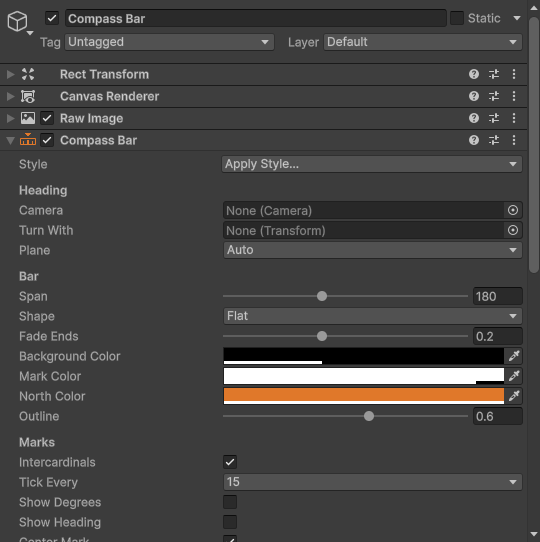
To add the bar to a Raw Image of your own, select it and choose Add Component > Pass Forge > Compass Bar. The component needs a Raw Image and adds one if the object has none.
Settings
At the top of the Inspector, Style has an Apply Style... button. It gives the bar the settings and the size of Simple, Degrees, Military or Curved, as the GameObject menu makes them. On a bar that sits on a PF Panel it also offers On Frosted Glass. What the bar follows, which objects show, and the Fitting In settings stay as they are. Edit > Undo takes it back. A bar stretched by its anchors keeps its width or height on that side.
Heading
| Setting | What it does |
|---|---|
| Camera | The camera whose view the compass follows. Empty follows the camera tagged MainCamera. |
| Turn With | Follow the way this object faces instead of the camera, such as a vehicle, a turret or a top down character. |
| Plane | Ground (3D) reads directions on the ground, north along the world's Z axis. XY (2D) reads them on the screen's plane, north up. Auto (default) picks XY for an orthographic camera that looks along Z. |
Bar
| Setting | What it does |
|---|---|
| Span | Degrees the bar shows from end to end, from 60 to 360. Default 180, everything in front of the player. 360 shows the whole way round. |
| Shape | Flat (default), or Curved: the bar wraps around like a band in front of the player, its marks crowding toward its ends, which bend down. |
| Curve | Shows for Curved only. How strongly the bar curves, from 0.1 to 1. Default 0.6. |
| Fade Ends | How far in from each end the bar fades out, as a share of half its width, from 0 to 0.5. Default 0.2. |
| Background Color | Color of the strip behind the marks. Zero alpha draws none. Default black at 0.35 alpha. |
| Mark Color | Color of the letters, ticks and numbers. Default white at 0.9 alpha. |
| North Color | Color of the N, so north stands out. Default orange. |
| Outline | A dark edge around letters, ticks and markers, so they read over a bright sky. From 0 to 1, default 0.6. |
Marks
| Setting | What it does |
|---|---|
| Intercardinals | Show NE, SE, SW and NW between N, E, S and W. On by default. |
| Tick Every | Degrees between tick marks: Off, 5, 10, 15, 30 or 45. Default 15. |
| Show Degrees | Write the degrees between the letters, such as 15 and 30. |
| Show Heading | Write the heading the player faces, in degrees, in a box at the middle. |
| Center Mark | A small notch over the middle of the bar, where the player faces. On by default. |
| Letter Size | Height of the letters, as a share of the strip's height, from 0.15 to 0.6. Default 0.36. The strip is the whole bar, less how far a Curved bar's ends bend down, and half of that when the markers sit below the strip. |
Markers
| Setting | What it does |
|---|---|
| Show Markers | Show Off-screen Indicator objects that have Show On Compass on, with their icon, color and distance. Markers use each indicator's own Size and Pulse. On by default. The settings from Marker Row to Spread Out show while it is on. |
| Marker Row | On The Strip (default) shows markers over the letters, with their distances under them. Below The Strip splits the bar in two: the strip on top, and a row of their own for the markers under it, with their distances beside them. |
| Marker Size | Size of the markers, as a share of their row's height, from 0.2 to 1. Default 0.55. An indicator smaller than the default Size draws its marker smaller. None draws bigger, so markers stay inside the bar. |
| Distance Labels | Write how far away each object is: Like Their Indicator (default) follows each indicator's Show Distance, Always or Never. |
| Distance Unit | Meters or Feet, for every distance the HUD writes: Off-screen Indicators, Compass Bars and Fog of War Radar rings. It is one setting for the whole game, kept on the Off-screen Indicators effect in the scene's Effects Volume. It is grayed out until the scene has an Effects Volume; Create Effects Volume under it, or GameObject > Pass Forge > Effects Volume (Empty), makes one. |
| Hold At Ends | Keep objects outside the bar's view at its nearest end, dimmed and pointing outward: the nearest one, with a count of the others. On by default. |
| Height Arrows | Show a small up or down arrow on a marker whose object is more than this many meters above or below. Default 4. Zero shows none. Not used in 2D. |
| Hide Farther Than | Leave out objects farther than this many meters. Default 0, which shows them at any distance. Each indicator's own Hide Closer Than and Hide Farther Than apply too. |
| Measure From | Where directions and distances are measured from. Empty measures from the object tagged Player, as the indicators do, or else from the camera. |
| Spread Out | Spread markers that point the same way apart, so each keeps a place of its own. On by default. |
| Show Pings | Show pings from Ping moment steps and PassForgePings.Ping. On by default. |
| Show Route | Show a caret on the strip's bottom edge where a Pass Forge Route leads: the way to walk now. Beyond the bar's view it waits at the nearest end as a double chevron pointing outward. On by default. While no route is enabled in the open scenes, a note says so. |
Fitting In
| Setting | What it does |
|---|---|
| Keep Indicators Clear | Keep Off-screen Indicators from sliding under the bar: they go around it. On by default. |
| Match Color Vision | Adjust marker colors for the player's color blindness setting, as the edge indicators are. Only Screen Space - Overlay canvases need it. On by default. |
Notes the Inspector shows
- On a bar that sits on a PF Panel, such as On Frosted Glass: a warning when Pass Forge effects are not set up, with a Set Up Effects button, and a warning naming cameras with Post Processing off, with Turn On Post Processing. The bar itself needs neither.
- Move It To A Canvas, when the object is on no canvas. It makes the bar again on the scene's canvas with the same settings.
- Put The Compass And Radar Back Over The Looks, when the bar sits on the Pass Forge HUD Canvas that HUD Under Looks made.
- A warning when the smallest text on the bar would be under 12 pixels tall on a 1280 x 720 screen.
- A warning when the letters crowd each other at this width, and a note when degree numbers do not fit between the letters.
- A note when markers draw smaller than Marker Size so their distances fit.
- On a Screen Space - Camera canvas: the bar is part of the picture, so screen looks such as Screen Shake and CRT change it too.
- "The Raw Image's Texture is not used." The bar draws everything itself.
- In a 2D game whose camera never turns: north stays in the middle. Set Turn With to a character that turns.
- In Play Mode, a line such as "Showing 4 objects and 1 ping".
- At the top, a warning when the bar does not show: no canvas, the Raw Image switched off, a Fog of War Minimap on the same Raw Image, no camera to follow, or more than 16 objects in view.
Common jobs
Lead the player to a quest giver
- Select the quest giver and choose GameObject > Pass Forge > Floating Icon. It adds an Off-screen Indicator with an exclamation icon above the object.
- On the indicator, keep Show On Compass on and turn Show Distance on.
- Make sure the scene has a Compass Bar (GameObject > Pass Forge > Compass Bar > Simple). The indicator's Inspector offers Add Compass Bar when there is none.
You see the exclamation mark on the bar over the quest giver's direction, with its distance, such as 125m, under it.
Show an objective on the compass only
- Add Add Component > Pass Forge > Off-screen Indicator to the objective.
- Under Shows On, switch Show At Screen Edge off and keep Show On Compass on.
The objective shows on the bar and on Fog of War Radars, and nothing appears at the screen's edge. No full screen pass runs for it.
A military bar with distances in their own row
- Choose GameObject > Pass Forge > Compass Bar > Military, or press Apply Style... > Military on a bar you have.
- You get a 760 x 100 bar in green, 150 degrees wide, ticks every 5 degrees, degrees and the heading in a box, and markers in a row below the strip with their distances always written.
Turn the bar with a vehicle
- Set Turn With to the vehicle's root object.
- Leave Camera empty.
The heading now follows the vehicle's facing, while the camera can look around freely. Do the same for a top down character in a 2D game whose camera never turns.
Ping a place the player should turn toward
- Add Add Component > Pass Forge > Moment to the alarm object and pick the Objective Marked preset, or add a Ping step.
- Play the moment from your trigger or a UnityEvent.
A golden ping shows on every Compass Bar and Fog of War Radar for its seconds, even where the fog hides the place. Nothing has to be wired between the moment and the bar: pings go to a shared store that every bar reads.
Why a ping shows only as a ring
A ping within 2 meters of an object the bar already marks rings that object's marker instead of standing beside it as a second marker. Move the ping, or remove the object's indicator, to see the ping's own sign.
Write distances in feet
- Make sure the scene has an Effects Volume (GameObject > Pass Forge > Effects Volume (Empty)).
- On the Compass Bar, set Distance Unit to Feet.
Distances read such as 410ft on the bar, beside Off-screen Indicators and on radar rings.
Keep the compass uncolored under a screen look
A bar on a Screen Space - Overlay canvas draws after every screen effect, so a black and white flashback, CRT or night vision never covers it. That is the default from the GameObject menu, and nothing needs changing.
Let the screen looks cover the compass too
- Add Add Override > Pass Forge > Screen > HUD Under Looks to your Volume.
- In its Inspector, press Put The Compass And Radar Under The Looks Too.
The Compass Bars, minimaps and radars move to a new canvas named Pass Forge HUD Canvas, set to Screen Space - Camera on the main camera. Every look now covers them, such as Old Television or Watercolor, whether Under Looks is ticked or not. Menus and PF Panels stay on their overlay canvas, clean and readable. Edit > Undo takes the move back. Later, Put The Compass And Radar Back Over The Looks, on the bar or the HUD Under Looks Inspector, sets that canvas back to Screen Space - Overlay. If the main camera's Culling Mask leaves out the UI layer, the Console says so and the HUD does not show until you tick UI.
From a script
using PassForge.Effects;
using UnityEngine;

// Needs the Unity UI package (com.unity.ugui).
public class CompassControl : MonoBehaviour
{
    [SerializeField] PassForgeCompassBar m_Compass;   // the bar on the HUD canvas
    [SerializeField] Transform m_Vehicle;

    public void EnterVehicle() => m_Compass.turnWith = m_Vehicle;   // the bar follows the vehicle's facing
    public void ExitVehicle() => m_Compass.turnWith = null;         // back to the camera

    public void WholeCircle()
    {
        m_Compass.span = 360f;                                       // 60 to 360 degrees
        m_Compass.markerRow = CompassMarkerRow.BelowTheStrip;        // markers in a row of their own
        m_Compass.distanceLabels = CompassDistance.Always;           // write every distance
    }

    // The heading shown, clockwise from north, from 0 to 360.
    public float heading => m_Compass.heading;
}
using PassForge.Effects;
using UnityEngine;
public static class CompassMarks
{
// An objective on Compass Bars and radars only, with its distance.
public static PassForgeOffscreenIndicator Mark(GameObject objective)
{
var indicator = objective.AddComponent<PassForgeOffscreenIndicator>();
indicator.showAtScreenEdge = false; // nothing at the screen's edge
indicator.showOnCompass = true; // a marker on every Compass Bar
indicator.showDistance = true; // its distance under the marker
return indicator;
}
// An alarm for five seconds, with a warning sign in the ping.
public static void Alarm(Vector3 at) => PassForgePings.Ping(at, Color.red, PingShape.Warning, 5f);
// Feet for every HUD distance, such as from an options menu.
public static void UseFeet() => PassForgeHud.distanceUnit = DistanceUnit.Feet;
}Good to know
- Unity UI only. The Compass Bar is a uGUI component and needs the Unity UI package (com.unity.ugui). UI Toolkit HUDs are not supported yet.
- One per object. A Raw Image holds one Compass Bar. Put a Fog of War Minimap on a Raw Image of its own: both draw the image with their own material, and only one of them shows.
- Overlay or Camera canvas. On a Screen Space - Overlay canvas, Unity draws the bar after every screen effect. It stays steady while the picture shakes, no look covers it, and Match Color Vision adjusts its markers for color blindness. On a Screen Space - Camera canvas, the bar is part of the picture, so screen looks change it too. Use Camera only when you want the looks to cover the HUD.
- Sixteen at once. Up to 16 objects show at once, the nearest in the bar's view, held ones at its ends included. Hide Farther Than keeps far ones from taking places. Up to eight pings show at once, shared with radars.
- No filter per player. Every Compass Bar shows every Off-screen Indicator and ping, so split-screen players see each other's objectives.
- The fog does not hide markers. Compass markers come from Off-screen Indicators, which do not read the Fog of War. An indicator on an enemy shows its direction even while the fog hides it.
- A Volume restyles the edge only. A Volume's Off-screen Indicators override changes only the markers at the screen's edge. Compass Bar markers keep their indicator's own Size and Pulse.
- Sizes follow the bar's height. Everything is sized by the bar's height, so it keeps its look at any resolution and under any Canvas Scaler. The player's text size (Accessibility) grows the numbers and distances, which always stay inside the bar.
- Arrows and chevrons show as a pin. On the bar, Off-screen Indicators with the Arrow or Chevron shape show as a pin. The Icon shape shows its icon. Pins of different colors are told apart by color alone, and the indicator's Inspector suggests icons for color blind players.
- 2D. In a 2D game whose camera never turns, north stays in the middle and markers show which way each object lies from the player. Distances are measured on the screen's plane.
- Safe mode holds markers steady: no pulse, and pings show one steady ring.
- Phones. Put the bar in a safe-area panel of your own, clear of the notch.
- Edit Mode. Turn on Preview In Edit Mode to see markers pulse and pings play without pressing Play.
- Distance Unit in a build. Each Compass Bar reads the Volume's Distance Unit before it writes, so a game with only a compass, and no indicator at the screen's edge, writes feet too. Without a Volume that ticks it, the unit a script sets with
PassForgeHud.distanceUnitstays.