Component
Effect Mask Layers
Counts every renderer on chosen rendering layers as a masked object, so you can mark many objects for masked effects without a component on each one.
What it does
Effect Mask Layers does what a Pass Forge Effect Mask does, for whole groups of objects at once. You choose one or more rendering layers, and every renderer on those layers counts as a masked object. Screen effects whose Mask is Only Masked Objects or Except Masked Objects then treat them exactly as objects with an Effect Mask.
Use it when there are many objects to mark, or when they are spawned all the time: put every enemy prefab's renderers on a "Thermal" rendering layer and add one Effect Mask Layers to the scene. A thermal lens can then show only the enemies hot, or a Color Focus look can keep every enemy in color, with nothing added to each enemy.
Switching the component on and off switches the whole group, which suits goggles and scanner modes. With no layer chosen, it masks nothing and costs nothing. One of these anywhere in the scene is enough.
Add it
- Name a rendering layer in Project Settings > Tags and Layers, under Rendering Layers. The inspector's Edit Rendering Layers button opens that page.
- On each renderer to mark, open Additional Settings and tick that layer in Rendering Layer Mask. A prefab's renderers can carry it, so spawned copies are marked too.
- Create an empty object, then choose Add Component > Pass Forge > Effect Mask Layers. Or press Add Effect Mask Layers in any Effect Mask inspector, which makes a "Pass Forge Effect Mask Layers" object for you.
- Pick the layer in Rendering Layers.
- Read the inspector: it says how many renderers in the open scenes are on the chosen layers, and which looks use the mask.
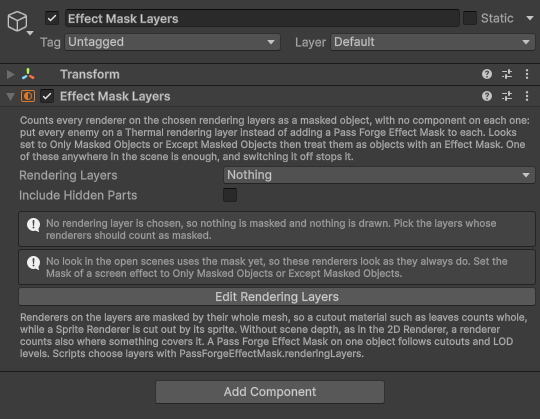
Settings
| Setting | What it does |
|---|---|
| Rendering Layers | Every renderer on these rendering layers counts as a masked object, as if it carried a Pass Forge Effect Mask. Name the layers in Project Settings > Tags and Layers > Rendering Layers, and pick them in each renderer's Rendering Layer Mask under Additional Settings. Nothing (default) masks nothing and costs nothing. |
| Include Hidden Parts | Mask the parts hidden behind other geometry too. Off (default) masks only what the camera sees. Without scene depth, as in the 2D Renderer, the whole renderer counts either way. |
What the inspector also shows:
- Set Up Effects button when no renderer runs an Effect Mask node.
- A short note on what the component does.
- A count of the renderers in the open scenes on the chosen layers, such as "12 renderers in the open scenes are on these layers."
- With no layer chosen: "No rendering layer is chosen, so nothing is masked and nothing is drawn."
- With layers chosen but no renderer on them: a warning to pick the layer in a renderer's Rendering Layer Mask, or set
Renderer.renderingLayerMaskfrom a script. - A list of the looks in the open scenes that read the mask, or "No look in the open scenes uses the mask yet, so these renderers look as they always do."
- Edit Rendering Layers button, which opens Project Settings > Tags and Layers.
- Turn On Post Processing button when a game camera has it off.
- A note that renderers on the layers are masked by their whole mesh, so a cutout material such as leaves counts whole, while a Sprite Renderer is cut out by its sprite. A Pass Forge Effect Mask on one object follows cutouts and LOD levels.
Common jobs
A thermal lens that shows only the enemies hot
- Name a rendering layer "Thermal" and tick it in the Rendering Layer Mask of each enemy prefab's renderers.
- Add an empty object with Add Component > Pass Forge > Effect Mask Layers and pick Thermal.
- Add a Pass Forge Reveal Lens to the player's camera or goggles object, set Look For to Effect Masks and Style to Thermal.
Inside the lens, the enemies show hot and the rest of the scene stays cold. Switch the Effect Mask Layers object off to stop marking them.
Keep every enemy in color in a gray world
- Put the enemies on a rendering layer and pick it in Effect Mask Layers.
- Add a Pass Forge Screen Look and pick the Color Focus preset.
The world turns gray while every renderer on the layer keeps its color, spawned enemies included.
Goggles that mark a group only while worn
- Set up Effect Mask Layers with the group's layer, and a look that reads the mask.
- Switch the Effect Mask Layers component off in the scene.
- When the player puts the goggles on, switch the component on; when they come off, switch it off.
The group counts as masked only while the component is on.
See marked objects through walls
Turn Include Hidden Parts on. The parts of the renderers behind other geometry count as masked too, for looks set to Only Masked Objects.
From a script
using PassForge.Effects;
using UnityEngine;

public class Goggles : MonoBehaviour
{
    [SerializeField] PassForgeEffectMaskLayers m_Layers;   // one in the scene, switched off

    // Switch the whole group on or off.
    public void SetWorn(bool worn) => m_Layers.enabled = worn;

    // Choose the layers from code: every renderer on "Thermal" counts as masked.
    public void UseThermalLayer() => m_Layers.renderingLayers = RenderingLayerMask.GetMask("Thermal");

    public void ThroughWalls(bool on) => m_Layers.includeHiddenParts = on;

    // Put a spawned object on the layer, so it counts at once.
    public static void Mark(GameObject spawned)
    {
        var thermal = (uint)RenderingLayerMask.GetMask("Thermal");

        foreach (var renderer in spawned.GetComponentsInChildren<Renderer>())
            renderer.renderingLayerMask |= thermal;   // add the layer, keep the others
    }
}
Without any component, a script can choose layers through PassForgeEffectMask.renderingLayers and PassForgeEffectMask.renderingLayersIncludeHiddenParts. That value is not saved, so set it again each time the game starts. PassForgeEffectMask.activeRenderingLayers returns every layer that counts now.
Good to know
- Layers add up. Several Effect Mask Layers components, and
PassForgeEffectMask.renderingLayersset from a script, add their layers together. A layer chosen once with Include Hidden Parts and once without counts with its hidden parts. - Whole meshes. Renderers on the layers are masked by their whole mesh, so a cutout material such as leaves counts whole. A Sprite Renderer is cut out by its sprite. Use an Effect Mask on one object when it should follow cutouts and LOD levels.
- 2D. Without scene depth, as in most 2D Renderer setups, a renderer on the layers counts also where something covers it, as an object with an Effect Mask does there.
- Rendering layers are not GameObject layers. They are the Rendering Layer Mask of each renderer, under its Additional Settings, and are named under Rendering Layers in Project Settings > Tags and Layers.
- Same rules as Effect Mask. Only effects with a Mask setting read it, and whole screen looks such as CRT, VHS and Painterly ignore it. See Effect Mask.
- Cost. Choosing Nothing, or switching the component off, costs nothing.
- One per object. Unity allows one Effect Mask Layers on an object. Add several objects with it if you want to switch groups separately.