How do I
Show an enemy through walls
Give the enemy a Pass Forge Highlight with the Enemy X-Ray or Ally Through Walls preset, or in your own profile set Outline > Visibility to Always or Hidden Only and turn on See-Through; the default, Visible Only, never shows through walls.
You want
Enemies behind a wall show as a red silhouette, like an X-ray, and allies show in blue only while a wall hides them.
Seeing through walls is a setting of the look, kept in the Highlight Profile. With no profile, or with a profile left at its defaults, the outline uses Visible Only: it draws only the parts the camera sees, so nothing shows behind a wall.
Steps
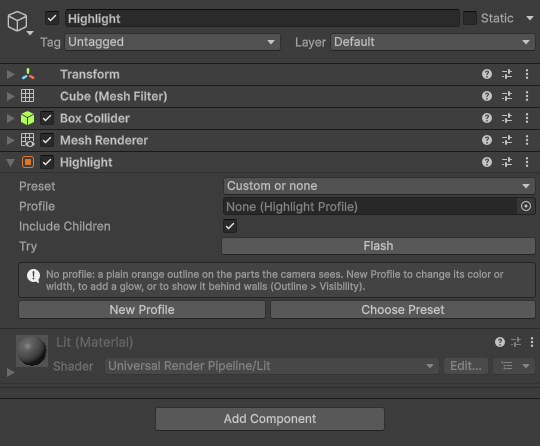
- Select the enemy and add Add Component > Pass Forge > Highlight.
- In Preset, pick Enemy X-Ray for a red outline and a red silhouette wherever the enemy is behind a wall, or Ally Through Walls for a blue silhouette that appears only while the ally is hidden.
- To change the look, press Make Editable Copy and name your copy. To start from nothing, press New Profile on a Highlight with no profile.
- In your profile, open Outline and set Visibility:
- Always outlines the whole silhouette, hidden or not.
- Visible Only outlines the parts the camera sees.
- Hidden Only outlines the parts behind other geometry.
- Tick See-Through to fill the hidden parts with a silhouette. Set its Color and Opacity, and Rim with Rim Power to fade the middle so the edges stand out, like an X-ray.
- Glow and Pattern have a Visibility of their own.
What you should see
Where a wall stands between the camera and the enemy, its silhouette shows through in the profile's color. Give every enemy the same profile asset: objects that share a profile are drawn together, which costs less than a copy each.
If it does not work
- Nothing shows behind the wall. Visibility is Visible Only, or See-Through is off. A shipped profile is read only; use Make Editable Copy first.
- A glass wall or water does not hide the enemy. Visible and hidden parts are told apart with the camera depth texture, and transparent objects do not write it, so a transparent object never hides a highlighted one.
- In 2D the silhouette shows in odd places. Sprites write no depth, so a highlighted sprite counts as hidden where a sprite drawn after it in the sorting order covers it, at least half opaque.
- A far enemy loses its silhouette. Past the last level of a LOD Group, where Unity culls the object, nothing of it is drawn. Lower the LOD Group's Culled transition for an object that must stay marked far away.
- You want the enemy flagged from far away instead. A beacon or an off-screen indicator reads better at a distance.
From a script
using PassForge.Effects;
using UnityEngine;

public class EnemyMarking : MonoBehaviour
{
    [SerializeField] PassForgeHighlight m_Highlight;   // with Enemy X-Ray or your copy
    [SerializeField] HighlightProfile m_XRay;

    // A highlight shows while it is enabled.
    public void Spotted() => m_Highlight.FadeIn(0.2f);
    public void Lost() => m_Highlight.FadeOut(0.4f);

    public void UseXRay() => m_Highlight.profile = m_XRay;
}