How do I
Reveal hidden clues with a UV or X-ray lens
Add a Pass Forge Reveal Lens to a flashlight, the camera or the cursor, pick a Style, and list the clues in it or let it find every object with an Effect Mask; through walls needs Show Behind Walls, or each mask's Include Hidden Parts.
You want
A detective game: shining a UV flashlight over a room makes blood traces glow, or an X-ray scanner shows the key hidden inside a crate and behind a wall.
Steps
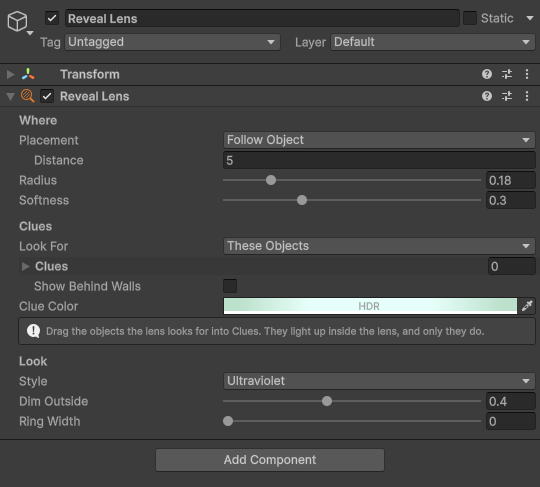
- Add Add Component > Pass Forge > Reveal Lens to the flashlight, a scanner, the character or the camera.
- Under Where, set Placement:
- Follow Object: where this object points, at Distance meters ahead. On a camera that is the middle of the screen.
- Screen Center: like a scope or a held lens.
- Screen Point: a point set from a script, from 0, 0 at the bottom left to 1, 1 at the top right.
- Mouse Pointer: under the mouse, or the first touch.
- Set Radius, a share of the screen height, and Softness for the edge.
- Under Clues, set Look For:
- These Objects: drag the clue objects into Clues. They need nothing else. Tick Show Behind Walls to light them up through walls and other objects, like an X-ray.
- Effect Masks: every object with a Pass Forge Effect Mask, or on a rendering layer chosen in Effect Mask Layers, lights up. Here each mask decides on walls: tick Include Hidden Parts on the Effect Mask, or on the Effect Mask Layers, for the clue to glow through walls.
- Set Clue Color.
- Under Look, pick a Style: Ultraviolet, in which clues glow; X Ray; Thermal, with marked objects hot; or Magnifier, with Magnification. Set Dim Outside for the dark around the lens, and Ring Width with Ring Color for a thin ring.
What you should see
Inside the circle the scene shows in the chosen style and the clues light up in Clue Color. Outside it, the picture darkens by Dim Outside. The lens needs no Volume.
The presets UV Light Reveal, X-Ray Lens, Thermal Lens and Magnifier Lens restyle a Reveal Lens from a Volume. A Volume whose Reveal Lens overrides a setting takes that setting over.
If it does not work
- A clue behind a wall does not glow. With Look For at Effect Masks, Show Behind Walls is not shown; tick Include Hidden Parts on that clue's Effect Mask. With These Objects, tick Show Behind Walls.
- Nothing lights up. With Effect Masks, the inspector says when no object carries one. With These Objects, drag the clues into Clues.
- The lens shows another style. A Volume in the scene overrides Style, and the lens inspector says so. Untick Style in that Volume's Reveal Lens.
- Another lens shows. Only one lens draws: the one turned on last.
- A clue's whole card glows. Effect Masks and Reveal Lens clues cover each Spine attachment's whole mesh, transparent parts included.
- Nothing shows. Run Tools > Pass Forge > Set Up Effects and turn Post Processing on for the camera.
From a script
using PassForge.Effects;
using UnityEngine;

public class LensCursor : MonoBehaviour
{
    [SerializeField] PassForgeRevealLens m_Lens;
    [SerializeField] float m_Speed = 0.6f;   // screens a second

    public void UseMouse() => m_Lens.placement = RevealLensPlacement.MousePointer;

    // Call from your input code with a gamepad stick's value.
    public void Move(Vector2 stick)
    {
        m_Lens.placement = RevealLensPlacement.ScreenPoint;
        var point = m_Lens.screenPoint + stick * (m_Speed * Time.unscaledDeltaTime);
        m_Lens.screenPoint = new Vector2(Mathf.Clamp01(point.x), Mathf.Clamp01(point.y));
    }

    public void Found(GameObject clue) => m_Lens.RemoveClue(clue);
}
AddClue(gameObject) adds an object to the list, and style switches between Ultraviolet, X Ray, Thermal and Magnifier.