Component
Fog of War
Keeps a map of what the player's side has seen and hides the rest of the world under a shroud, mist, clouds or a paper map.
What it does
The Fog of War keeps a map of an area of the world. What a Fog Revealer sees now is clear. Places that were seen stay dimly remembered. The rest is hidden under a flat dark Shroud, drifting Mist, thick Clouds, a Parchment Map, a Blueprint, Signal Static or a Frosted Blur.
In a real-time strategy game, put it at the center of the map and a Fog Revealer on every unit and building: the map opens where your side sees, and enemy units hide while no one sees them, with nothing added to each enemy. In a dungeon crawler, it uncovers the rooms the hero walks through. In a stealth game, guards and cameras get a view cone. In a multiplayer match, each player's machine shows only their own team's sight.
Game logic asks the fog directly: IsVisible(position) before letting the player target an enemy, IsExplored(position) for a map marker. SaveExplored() and LoadExplored(bytes) keep what was explored in a save game, or Keep Between Sessions does it with no code.
The fog draws on screen through the Fog of War screen effect, with no Volume. The same map feeds the Fog of War Minimap, the Fog of War Radar, the World Map and the Route's fog rule.
Add it
- Create an empty object at the center of the play area and name it Fog of War.
- Choose Add Component > Pass Forge > Fog of War.
- Set Size to cover the play area, in meters. The Scene view draws the area as a blue box while the object is selected.
- Add a Fog Revealer to the player (Add Component > Pass Forge > Fog Revealer). The Fog of War Inspector offers Add a Fog Revealer to your player when the scene has none.
- Run Tools > Pass Forge > Set Up Effects once per project and turn Post Processing on for the camera.
- Press Play. Mist covers the area except a circle around the player, which opens as the player walks.
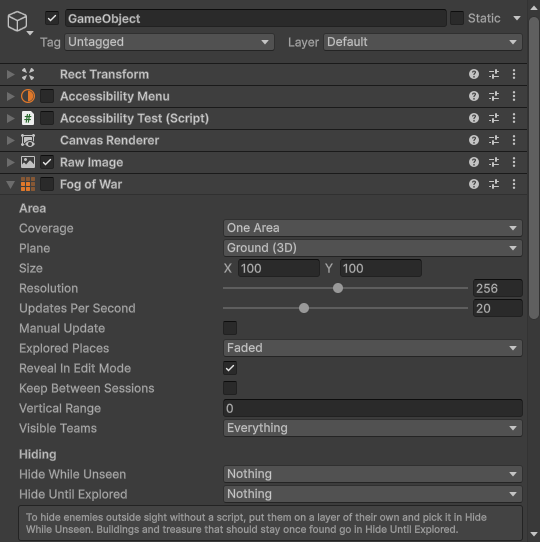
In Edit Mode the whole area stays clear while Reveal In Edit Mode is on, so the scene is easy to work on.
There is no GameObject menu item for it. The Fog of War look in Window > Pass Forge > Effect Presets restyles a fog you already have.
Settings
Area
| Setting | What it does |
|---|---|
| Coverage | One Area (default) keeps the whole Size at one Resolution, for arenas, levels and strategy maps up to about a kilometer. Open World splits a large world into chunks: full detail around Center On, and the places explored kept for the whole World Size. Switching to Open World fills in Cell Size, a 256 cell Detail Area and Center On (the object tagged Player) once. |
| Plane | Ground (3D) (default) lays the map on the ground, X and Z. XY (2D) lays it on the screen's plane for 2D games, where sprites need no depth to be covered. |
| Size | Width and depth of the covered area, in meters, centered on this object. Default 100 x 100. In 2D, its width and height. In Open World the label reads World Size: the whole world. |
| Resolution | One Area only. Cells along each side of the map, from 32 to 512. Default 256. More gives finer edges and costs more memory and update time. |
| Cell Size | Open World only. Meters each cell covers, from 0.1 to 64. Default 1. Smaller gives finer edges and uses more memory for places explored. A chunk is 32 cells across. |
| Detail Area | Open World only. How much of the world around Center On the fog draws in full detail: 128, 256 or 512 cells, with the meters each covers at this Cell Size. Past it, the fog draws what is explored from a coarser map. |
| Center On | Open World only. The object the Detail Area stays around, such as the player. Empty follows where the camera tagged MainCamera looks. |
| Updates Per Second | Map updates per second, from 1 to 60. Default 20. Hidden while Manual Update is on. |
| Manual Update | Update the map only when a script calls Refresh, such as once a turn in a turn based game. In Edit Mode it still updates by itself. |
| Explored Places | What places that have been seen do once no one sees them: Close Again, stay Faded (default), or Stay Open. |
| Reveal In Edit Mode | Shows the whole area in Edit Mode, so the scene stays easy to work on. On by default. Nothing counts as explored from it. |
| Keep Between Sessions | Keep what is explored from one session to the next with nothing to script: saved to a file on the player's device when this fog switches off, when the game quits or pauses, and every half minute, and put back when it switches on in Play Mode. Off by default. |
| Save Name | Shows while Keep Between Sessions is on. The name the remembered map is saved under. Empty uses the scene's and this object's names, so each fog keeps its own. Give two scenes' fogs the same name to share one map. |
| Vertical Range | Hidden in 2D. How far above and below themselves Fog Revealers see, in meters, so a floor above or below stays hidden until someone climbs to it. Default 0, which sees every height, as on a single level. |
| Visible Teams | The teams whose Fog Revealers open this fog, ticked from Team 0 to Team 31. Default Everything. Revealers of other teams open nothing. |
Hiding
| Setting | What it does |
|---|---|
| Hide While Unseen | Objects on these layers show only while a Fog Revealer sees them, such as enemy units. Only their look hides: check IsVisible before letting the player pick one. |
| Hide Until Explored | Objects on these layers stay hidden until their place is explored, then stay, such as enemy buildings or treasure. |
| On Shown | Shows once a hiding layer is picked. Called with each object Hiding shows, such as an enemy coming into sight, for an alert or a sound. |
| On Hidden | Shows once a hiding layer is picked. Called with each object Hiding hides, such as an enemy leaving sight. |
Look
| Setting | What it does |
|---|---|
| Style | What hides the places not seen yet: Shroud, Mist (default), Clouds, Parchment Map, Blueprint, Signal Static or Frosted Blur. Picking a style also sets Fog Color to that style's own color. |
| Fog Color | Color of the shroud, mist or clouds. |
| Density | How fully the places not seen yet are hidden, from 0 to 1. Default 1, which hides them completely, as a strategy game needs. Lower lets their shapes show faintly through. |
| Cloud Size | Shows for Mist and Clouds. Size of the patches, in meters, at least 0.5. Default 12. |
| Wind | Shows for Mist and Clouds. Direction and speed they drift, in meters per second over the ground. Default 1.5, 0.5. |
| Grid Size | Shows for Blueprint. Size of the grid cells, in meters, at least 0.1. Default 2. A bolder line comes every five cells. |
| Blur | Shows for Frosted Blur. How blurred the places not seen yet are behind the frosted glass, from 0 to 1. Default 0.6. |
| Explored Dim | Shows for Faded. Darkening of explored places no one sees right now, from 0 to 1. Default 0.55. |
| Explored Desaturate | Shows for Faded. Color loss of explored places no one sees right now, from 0 to 1. Default 0.7. |
| Edge Noise | Wobble along the edge of what is seen, so it looks like drifting fog, from 0 to 1. Default 0.3. |
Height
Hidden in 2D.
| Setting | What it does |
|---|---|
| Height | How high the fog rises above this object, in meters. Default 0, which has no top and covers everything, as a top down game wants. With a top, what rises above the fog shows through it. |
| Height Softness | Shows with a Height. How softly the top of the fog fades out, in meters, at least 0.01. Default 1.5. |
| Fill The Air | Shows with a Height. Fill the air with the fog as well as the ground, so from eye level in a first or third person game the places not seen yet lie in a body of mist. On by default. Costs a few samples a pixel. |
Notes and buttons the Inspector shows
- Set Up Effects and Turn On Post Processing warnings while one is missing.
- "Default is picked" when a Hiding layer includes Default: the ground and the player would hide too.
- A hint to put enemies on a layer of their own while no Hiding layer is picked, and a note that Fog of War Radars show the Hiding layers' objects as blips.
- "Visible Teams is set to Nothing", when no team is ticked.
- "Nothing opens the fog yet", with Add a Fog Revealer to your player, while the scene has no Fog Revealer.
- "Every Fog Revealer is outside this fog's area", with Center the Fog on the player or the first revealer.
- "No Fog Revealer in the scene is on one of the Visible Teams."
- With a Height: what rises above the fog shows through it, so keep Height at zero where the fog must hide enemies.
- In Open World: the Detail Area's size in meters, a reminder to keep the fog in a scene that stays loaded, how Vertical Range stores heights, and the chunks explored with the memory they take.
- In One Area over a kilometer with cells coarser than 4 m: Switch To Open World, which keeps what is explored in place.
- When a Volume overrides the fog's color: untick Hidden Color on that Volume's Fog of War to keep the one here.
- At the top: "Only one Fog of War works at a time, the one enabled last", and Open World problems such as nothing to center on or more than 16 MB of memory.
Common jobs
Hide enemies outside your side's sight, with no code
- Make a layer named Enemy (Edit > Project Settings > Tags and Layers) and put your enemy prefabs on it.
- On the Fog of War, tick Enemy in Hide While Unseen.
- Keep Default out of both Hiding fields.
In Play Mode an enemy shows only while a Fog Revealer of a visible team sees it, including enemies spawned later. Fog of War Radars show them as enemies the same way. Ask IsVisible(enemy.position) before the player can click or target one.
Show only my team's sight in multiplayer
- Give each unit's Fog Revealer its Team, from 0 to 31, when the unit spawns.
- Once the local player's team is known, set
fog.visibleTeams = 1 << localTeam;and callfog.ResetExplored();.
Revealers of the other teams open nothing, so enemy units never uncover the map, and the minimap shows only your side's dots. Tick two teams in Visible Teams to share an ally's sight. Each player's machine draws its own fog; keeping a fog per team on a server, or not sending unseen enemies to a player at all, belongs to your game's networking.
Treasure that stays once found
Put chests on a layer named Treasure and tick it in Hide Until Explored. A chest stays hidden until its place has been seen, then stays visible.
A turn based game
Turn Manual Update on and call fog.Refresh() once a turn. Units that move or appear in between still hide and show by the map as it stands.
A floor above stays hidden
Set Vertical Range to the height of one floor, such as 3. Revealers then see only that many meters above and below themselves. Add Line Of Sight on the revealers so walls stop their sight too.
Uncover a valley from a lookout tower
Call fog.ExploreAround(tower.position, 60f) when the player climbs the tower. Every place within 60 meters is explored at once, at every height.
Keep exploring between play sessions
Tick Keep Between Sessions. The map is saved to the player's device and comes back the next time the fog switches on in Play Mode. Call fog.ForgetKeptMap() from your New Game button.
A world several kilometers across
- Set Coverage to Open World and World Size to the whole world, such as 4000 x 4000.
- Check Cell Size, Detail Area and Center On, which the switch fills in.
The fog draws full detail in the Detail Area around the player. Past it, explored places show from a coarser world map. Memory follows the places explored, plus a world map of at most about 8 MB.
Restyle the fog from a Volume
Add Add Override > Pass Forge > World > Fog of War to a Volume. Hidden Color, Hidden Opacity, Explored Dim, Explored Desaturate and Edge Noise take over the component's own while ticked. Intensity at zero turns the fog off on screen.
Why is part of my map already open when Play starts?
What the fog explores in Edit Mode, with Reveal In Edit Mode off, is forgotten when Play Mode starts, so Play always starts unexplored. If places are open anyway, look for one of these:
- Keep Between Sessions is on and brought back the map from your last test. Call
ForgetKeptMap(), or switch it off while you test. - A script calls
LoadExplored,ExploreAroundorExploreAll. - Explored Places is Stay Open and a revealer started there.
From a script
using System;
using PassForge.Effects;
using UnityEngine;

public class FogGame : MonoBehaviour
{
    [SerializeField] PassForgeFogOfWar m_Fog;

    // A fog switched off releases its map and reports every place as hidden, so count everything as seen then.
    public bool CanTarget(Vector3 point) => !m_Fog.isActiveAndEnabled || m_Fog.IsVisible(point);
    public bool OnMap(Vector3 point) => !m_Fog.isActiveAndEnabled || m_Fog.IsExplored(point);

    // Multiplayer: only the local team's revealers open the fog.
    public void OnLocalTeamKnown(int localTeam)
    {
        m_Fog.visibleTeams = 1 << localTeam;    // bit 0 for team 0, bit 1 for team 1...
        m_Fog.ResetExplored();                  // the map does not keep which team explored a place
    }

    // A save game: the explored places as text.
    public string Save() => Convert.ToBase64String(m_Fog.SaveExplored());
    public bool Load(string text) => m_Fog.LoadExplored(Convert.FromBase64String(text));   // false for data that is not a map

    public void NewRound() => m_Fog.ResetExplored();          // every place is covered again
    public void RevealMap() => m_Fog.ExploreAll();            // a map item: the whole area explored
    public void Tower(Vector3 at) => m_Fog.ExploreAround(at, 60f);
    public void NextTurn() => m_Fog.Refresh();                // with Manual Update on

    void OnEnable() => m_Fog.onShown.AddListener(Spotted);   // objects on the Hiding layers
    void OnDisable() => m_Fog.onShown.RemoveListener(Spotted);

    void Spotted(GameObject shown) => PassForgePings.Ping(shown.transform.position, Color.red, PingShape.Enemy, 1.5f);
}
Good to know
- One at a time. Only the Fog of War enabled last works and shows;
PassForgeFogOfWar.currentis that one. The others say so in their Inspector. - A fog switched off releases its map, so
IsVisibleandIsExploredreport every place as hidden. CheckisActiveAndEnabledfirst, as the script above does. Radars count a switched off fog as none. - Only the look hides. Hiding stops renderers drawing (their Force Rendering Off), in Play Mode only. Colliders, scripts and clicks still work on a hidden enemy: check
IsVisiblein your targeting code. - Layers are read per renderer. Hiding checks each renderer by the layer of its own object, at the middle of its bounds. Put the child objects that hold an enemy's meshes on the hiding layer too; Unity offers to change the children when you change a prefab's layer. Objects kept with DontDestroyOnLoad, such as a pool, are found too.
- On Shown and On Hidden come per renderer. They are called with the object of each renderer that hides or shows, so an enemy built from several meshes calls them once for each. Use
GetComponentInParenton the object they pass to find the enemy itself. - Indicators ignore the fog. Off-screen Indicators and Compass Bar markers do not read the fog. Fog of War Radars and the Route do.
- Visible Teams keeps what was explored before it changed. Call
ResetExploredafter setting it. - Save format.
SaveExploredgives bytes; keep them as they are, or as text withConvert.ToBase64String. A map saved at another Resolution is scaled, and one saved in the other Coverage or at another Cell Size lands on the same places. With Explored Places at Close Again nothing stays explored, so there is nothing to save or put back, and Keep Between Sessions saves nothing. - Keep Between Sessions writes to Pass Forge/Fog of War under the game's persistent data folder. In the editor that folder is on your machine, so a map from your last Play session comes back.
- Keep the object still. The places explored live on the component and are measured from its object. Moving the object moves the map, and a scene that unloads takes the map along unless it was saved. In Open World, keep the fog in a scene that stays loaded.
- Height. Heights for Vertical Range are kept from 32 m below to 95 m above the Fog of War object. In Open World with a Vertical Range above zero, explored chunks take 2 KB each, so a large world explored everywhere can pass 16 MB, which the Inspector warns about.
- The map is flat. Without Vertical Range a revealer opens every height at a place. Parchment Map, Blueprint and Frosted Blur draw the lay of the land through the fog by design, as a map does. To keep units out of sight there, put them on the Hiding layers.
- Open World split screen. Full detail follows one Center On. A second player far from the first sees what is explored around them from the coarser world map, and nothing there as seen now.
- Cost. The search for objects on the Hiding layers runs once a second, and at once when a scene loads or unloads. With tens of thousands of renderers, keep Hiding layers to the objects that need them.
- 2D. With Plane at XY (2D) the map lies on the screen's plane, covers sprites without depth, and works with orthographic and perspective cameras. Revealers face the way their Y axis points.
- Several on one object. An object can hold more than one Fog of War. Only the one enabled last works.
- Edit Mode preview. With Reveal In Edit Mode on, the fog counts as still for Preview In Edit Mode unless its mist or clouds drift in a wind, its style is Signal Static, or it fills the air.